# 小程序基础
勾选不校验合法域名。
设计稿以iphone 6 750px 为准。(2倍图,这时 css 里的 1px = 2rpx = 设计稿的 2 px,使用 px 需要除以 2,rpx 不需要),
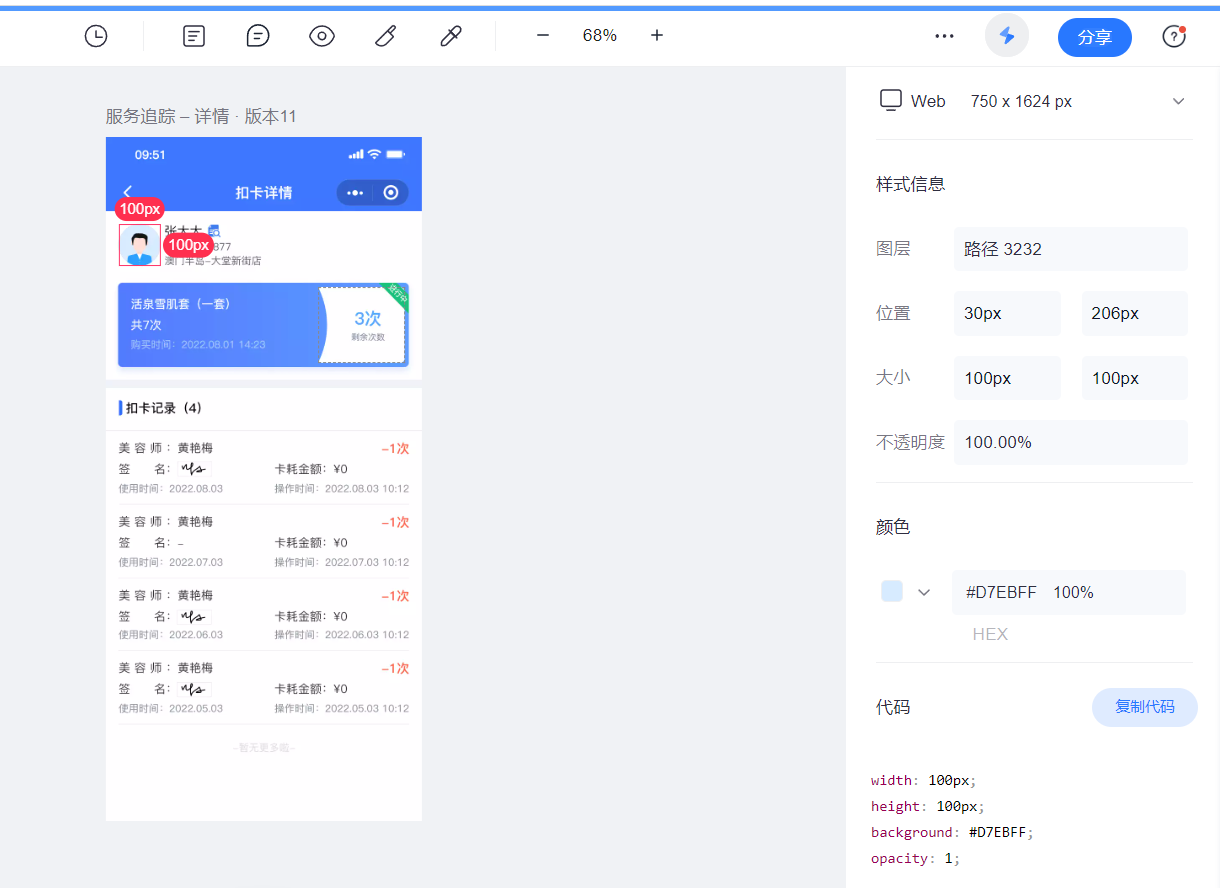
微信开发者工具选择元素时显示的是 px 。
rpx 是相对于基准宽度的单位,可以根据屏幕宽度进行自适应。uni-app 规定屏幕基准宽度 750rpx。
开发者可以通过设计稿基准宽度计算页面元素 rpx 值,设计稿 1px 与框架样式 1rpx 转换公式如下:
设计稿 1px / 设计稿基准宽度 = 框架样式 1rpx / 750rpx
换言之,页面元素宽度在 uni-app 中的宽度计算公式:
750 * 元素在设计稿中的宽度 / 设计稿基准宽度
举例说明:
- 若设计稿宽度为 750px,元素 A 在设计稿上的宽度为 100px,那么元素 A 在
uni-app里面的宽度应该设为:750 * 100 / 750,结果为:100rpx。 - 若设计稿宽度为 640px,元素 A 在设计稿上的宽度为 100px,那么元素 A 在
uni-app里面的宽度应该设为:750 * 100 / 640,结果为:117rpx。 - 若设计稿宽度为 375px,元素 B 在设计稿上的宽度为 200px,那么元素 B 在
uni-app里面的宽度应该设为:750 * 200 / 375,结果为:400rpx。
Tips
- 注意 rpx 是和宽度相关的单位,屏幕越宽,该值实际像素越大。如不想根据屏幕宽度缩放,则应该使用 px 单位。
- 如果开发者在字体或高度中也使用了 rpx ,那么需注意这样的写法意味着随着屏幕变宽,字体会变大、高度会变大。如果你需要固定高度,则应该使用 px 。
- rpx 不支持动态横竖屏切换计算,使用 rpx 建议锁定屏幕方向
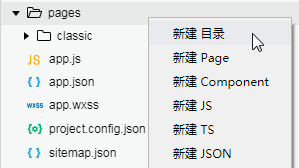
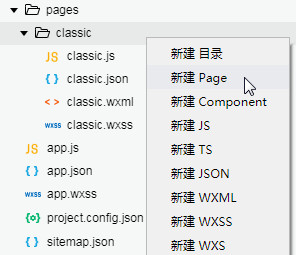
快捷键新建 Page ,取名回车即可快速新建页面所需的四个文件。
路径可以用绝对路径, 以 / 开头表示该项目文件夹。
微信的组件未必好用,比如 <button> 有默认的样式,可以自己用 <view> 自定义一个。
可以用选择器直接选择微信内置组件应用样式,例如 swiper 、image。
页面wxml 的 {{}} 取页面 js 的 data 数据。
{{}} 可以应用到 wxml 特性上,autoplay=true 可以省略为 autoplay,
特性值设置 false 时必须要双花括号false,其它值不是必须。(类似 react ?)
{{}} 可以接受 JS 表达式。
优先自定义组件,布局从外向内,从整体到细节,推荐 flex。
先静后动,先假数据再使用接口数据
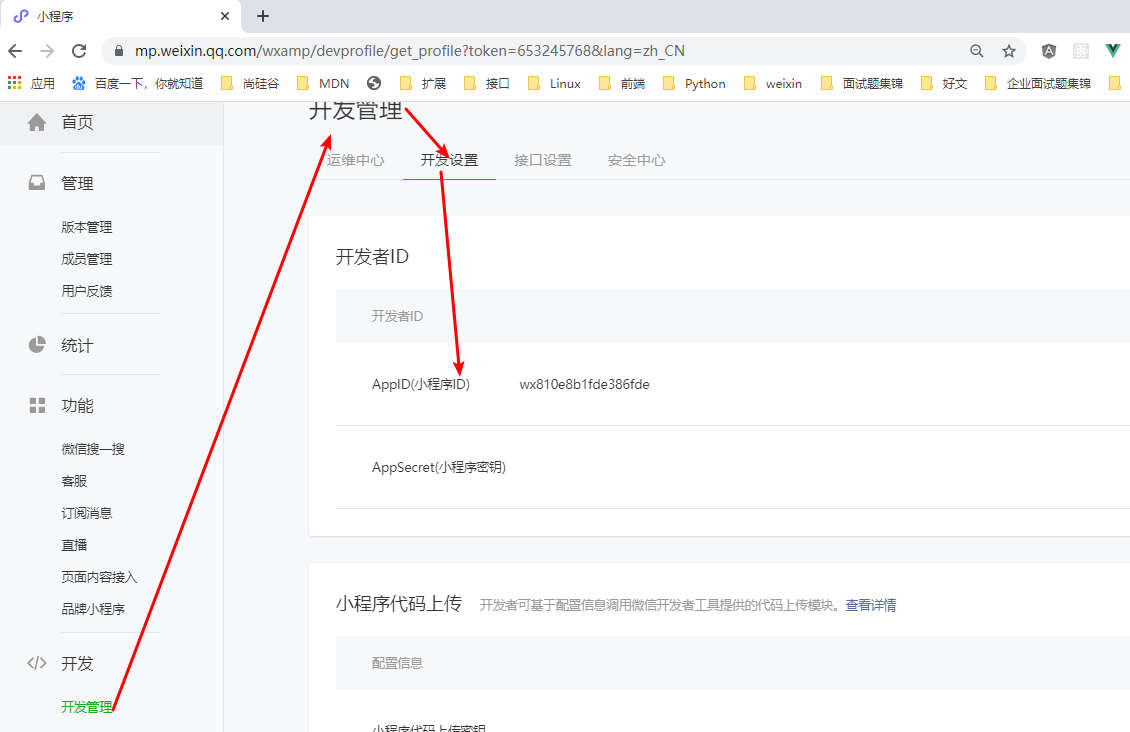
APPID 位置
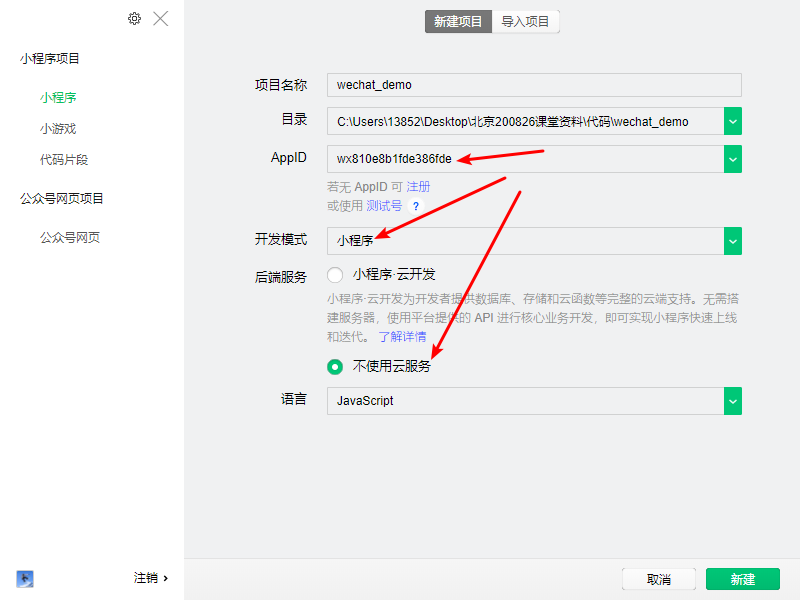
新建项目
# 快速上手/查找技巧
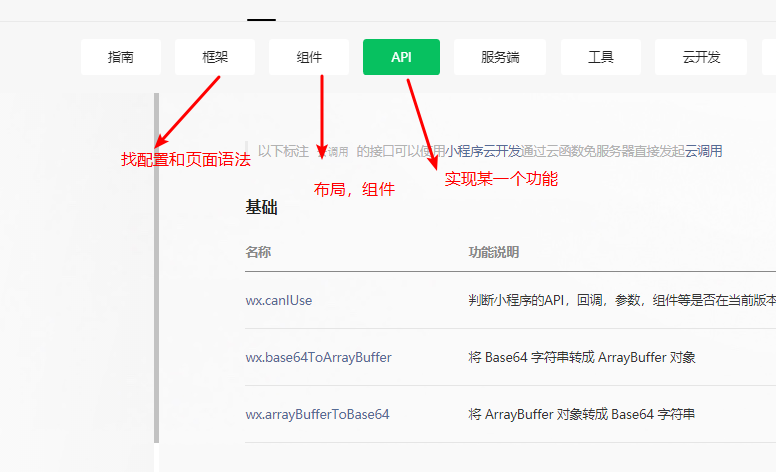
- 小程序的初学者可能对于小程序的官网的众多内容一时毫无头绪,无从下手不知道从哪来找想要的内容
- 当在小程序中想要实现某一种布局,查看:组件
- 当在小程序中想要实现某一个功能,查看: API
- 当在小程序中想要进行某一个配置或者某一种页面语法,查看: 框架 + 指南
- 查看小程序官网的时候要细心,最好是将要使用的 API 的相关内容看完整,因为 API 的配置及限制较多
# 小程序与普通网页开发的区别
网页开发:渲染线程和脚本线程是互斥的,长时间的脚本运行可能会导致页面失去响应。
小程序:渲染线程和脚本线程是分开的,逻辑层运行在 JSCore 中,缺少相关的DOM API和BOM API。
前端开发的一些库,例如 jQuery、 Zepto 等,在小程序中是无法运行的。
小程序的全局对象是 wx,不是 window。
需要申请小程序帐号、安装小程序开发者工具、配置项目等等过程方可完成。
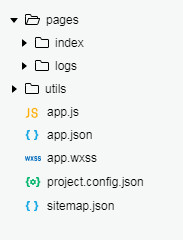
# 目录结构
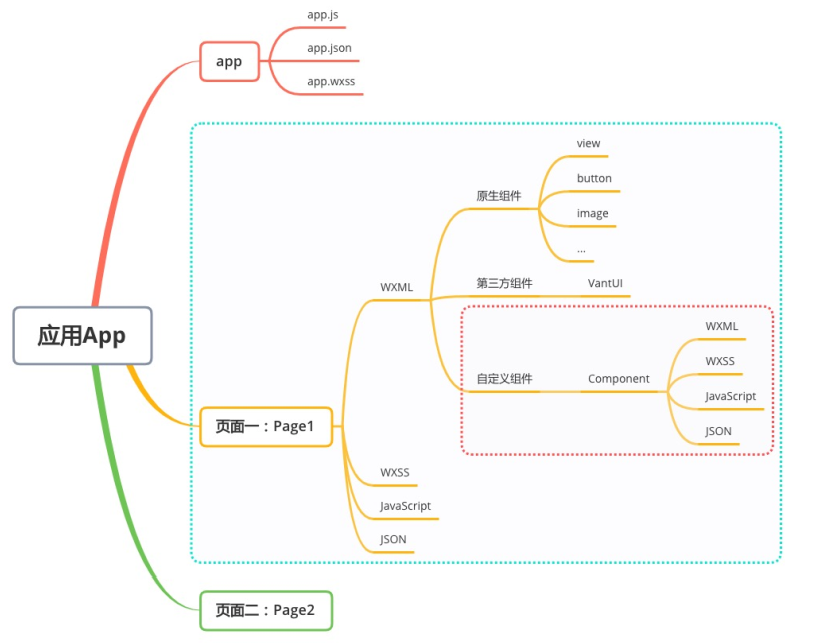
全局文件
![3 [1].jpg](https://cdn.nlark.com/yuque/0/2022/jpeg/1614731/1648092857242-093e9118-6d6b-4e83-85b7-895ef2c22fde.jpeg)
app全局文件不可重命名
页面文件
![3 [2].jpg](https://cdn.nlark.com/yuque/0/2022/jpeg/1614731/1648092857284-a90d7452-3a11-43e0-908f-b685bbb2784e.jpeg)
project.config.json(可忽略)
在详情里可以自动设置,不需要手写。
重新安装工具或者换电脑工作时,只要载入同一个项目的代码包,
开发者工具自动恢复开发项目时的个性化配置,包括编辑器的颜色、代码上传时自动压缩。
sitemap.json
配置小程序及其页面是否允许被微信索引,文件内容为一个 JSON 对象。
用于用户搜索时,微信爬虫建立索引,提高曝光率。
utils(自定义文件夹,无限制)
公共逻辑的工具包。
小程序会先运行全局配置(初始化)文件再运行特定页面的代码文件。
例如,写一个 app.wxss 作为全局样式,会作用于当前小程序的所有页面,
局部页面样式 page.wxss 仅对当前页面生效。
![3 [3].jpg](https://cdn.nlark.com/yuque/0/2022/jpeg/1614731/1648092857320-76a58ec2-c36d-416a-bdd1-b592150aea5e.jpeg)
# 新建一个小程序页面
app.js
// 注册应用
App({
  onLaunch: function () {
  }
})
2
3
4
5
app.json
{
  "pages": [
    "pages/classic/classic"   // 注册页面
  ],
  "window": {
    "navigationBarBackgroundColor": "#ffffff",
    "navigationBarTextStyle": "black",
    "navigationBarTitleText": "记录",
    "backgroundColor": "#eeeeee",
    "backgroundTextStyle": "light"
  },
  "sitemapLocation": "sitemap74.json"
}
2
3
4
5
6
7
8
9
10
11
12
13
# JSON 配置
JSON 是一种数据格式,并不是编程语言,在小程序中,JSON扮演的静态配置的角色。 JSON 文件中无法使用注释。
app.json全局配置 https://developers.weixin.qq.com/miniprogram/dev/reference/configuration/app.html
app.json 是当前小程序的全局配置,包括了小程序的所有页面路径、界面表现、网络超时时间、底部 tab 等。
pages 下是页面的局部配置。
![3 [6].jpg](https://cdn.nlark.com/yuque/0/2022/jpeg/1614731/1648092858322-84e8c384-a28c-44c7-a82e-44d46dcfc117.jpeg)
pages 字段 —— 用于描述当前小程序所有页面路径,让微信客户端知道当前小程序页面定义在哪个目录。
logs 代表启动日志,index 代表首页。
window 字段 —— 定义小程序所有页面的顶部背景颜色,文字颜色定义等。
1、pages
指定小程序由哪些页面组成,每一项都对应一个页面的路径。(不需要写文件后缀)
数组的第一项代表小程序的首页(启动页)。小程序中新增/减少页面,都需要对 pages 数组进行修改。
默认第一行字符串为入口页面路径。
在 app.json 中写(当做写.wxml文件的路径):
{
  "pages": ["pages/index/index", "pages/logs/logs"]
}
2
3
开发目录则变成:
![3 [7].jpg](https://cdn.nlark.com/yuque/0/2022/jpeg/1614731/1648092858690-500affc9-927d-49d5-982a-23394dd31a1c.jpeg)
pages 下页面文件夹的四个文件必须同名。
index.js
// 注册页面,指定页面的初始数据、生命周期回调、事件处理函数等
Page()
2
2、window
https://developers.weixin.qq.com/miniprogram/dev/reference/configuration/app.html
设置小程序的状态栏、导航条、标题、窗口背景色。
navigationBarBackgroundColor 导航栏背景颜色,如"#000000"
navigationBarTextStyle 导航栏标题颜色,仅支持 black/white
navigationBarTitleText 导航栏标题文字内容
backgroundColor 下拉刷新时窗口的背景色
backgroundTextStyle 下拉背景字体、loading 图的样式,仅支持 dark/light
enablePullDownRefresh 是否开启下拉刷新、
![3 [8].jpg](https://cdn.nlark.com/yuque/0/2022/jpeg/1614731/1648092859507-54026738-cec5-4356-b7e6-54407521eb07.jpeg?x-oss-process=image%2Fresize%2Cw_750%2Climit_0)
3、tabBar
https://developers.weixin.qq.com/miniprogram/dev/reference/configuration/app.html
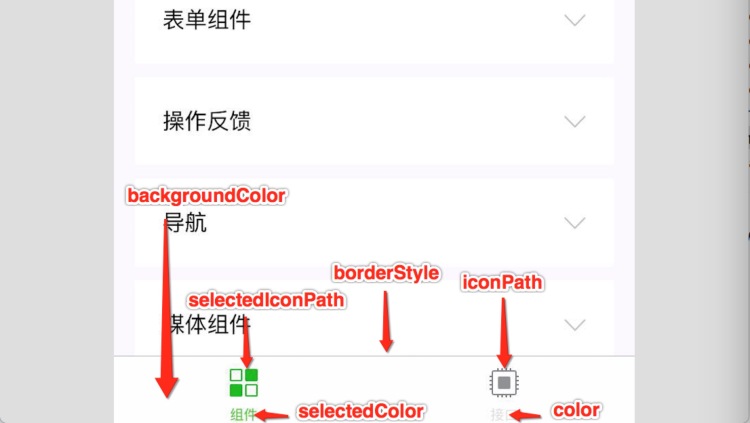
color tab 上的文字默认颜色
selectedColor tab 上的文字选中时的颜色
backgroundColor tab 的背景色
borderStyle tabbar上边框的颜色, 仅支持 black/white
list tab 的列表,详见 list 属性说明,最少2个、最多5个 tab
position 可选值 bottom、top,设置成top是无图标
list接受一个数组,数组中的每个项都是一个对象,其属性值如下:
pagePath 页面路径,必须在 pages 配置中先定义
text tab 上按钮文字
iconPath 图片路径,icon 大小限制为40kb,建议尺寸为 81px * 81px,当 postion 为 top 时,此参数无效
selectedIconPath 选中时的图片路径,icon 大小限制为40kb,建议尺寸为 81px * 81px ,当 postion 为 top 时,此参数无效
# 列表渲染
wx:for
在组件上使用 wx:for 控制属性绑定一个数组,即可使用数组中各项的数据重复渲染该组件。多渲染几次
<text wx:for="{{fruitList}}">第{{index + 1}}个水果是{{item}}。</text>
绑定数组,使用数组重复渲染几次取决于数组有几个值即 fruitList.length,
使用
{{index}},{{item}}
依次显示数组的索引和数据项。
wx:for-index 可以改变数组当前下标的变量名。
wx:for-item 可以改变数组当前元素的变量名。
<view wx:for="{{array}}" wx:for-index="idx" wx:for-item="itemName">
  {{idx}}: {{itemName.message}}
</view>
2
3
block wx:for
<block> 是区块标签,使用它不会渲染到页面,用来规范结构,不会被CSS选中。
多个标签同步循环
<block wx:for="{{[1, 2, 3]}}">
  <view>{{index}}:</view>
  <view>{{item}}</view>
</block>
2
3
4
![3 [19].jpg](https://cdn.nlark.com/yuque/0/2022/jpeg/1614731/1648092863118-30405154-7fa1-43aa-8418-b7d0aaf192f3.jpeg)
wx:key
提高性能,给key便于查找DOM上要操作的元素,key写唯一值(例如身份证、学号)数组找index,或者在对象上添加id。
# 条件渲染
wx:if
使用
wx:if="{{condition}}"
来判断是否需要渲染该代码块:
<view wx:if="{{length > 5}}">1</view>
<view wx:elif="{{length > 2}}">2</view>
<view wx:else>3</view>
2
3
<button bindtap='getCoupon'>领取优惠券</button>
<view wx:if='{{newUser}}'>你是新用户,快来领取优惠券吧</view>
<view wx:else>你是个老用户了</view>
2
3
# 生命周期
![3 [1].png](https://cdn.nlark.com/yuque/0/2022/png/1614731/1648092857291-73806b18-43c0-4e0d-b93b-04c6c04a64e3.png)
# 标签组件(微信内置组件)
# 1、view、text与input组件
view组件 width默认100%,hieght自适应 https://developers.weixin.qq.com/miniprogram/dev/component/view.html
hover-class 指定点击长按(出现点击状态)的样式类
hover-stop-propagation 指定是否阻止本节点的祖先节点出现点击态
hover-start-time 按住后多久出现点击态,单位毫秒,默认50毫秒
hover-stay-time 手指松开后点击态保留时间,单位毫秒,默认400毫秒
<view></view> 相当于 <div></div>
text></text> 相当于 <span></span>
pages/index/index.wxml
<view hover-class='change-color'>
我是一个父亲视图容器
<view hover-class='change-green' hover-stop-propagation='{{true}}'>我是一个儿子视图容器</view>
</view>
<view hover-class='change'>
我是一个视图容器
</view>
2
3
4
5
6
7
pages/index/index.wxss
.change-color{
  color: red;
}
.change-green{
  background-color: green;
  color: white;
}
.change{
  background-color: blue;
}
2
3
4
5
6
7
8
9
10
pages/index/index.wxml
<view class='login'>
用户名:<input placeholder='请输入用户名' maxlength='7' type='text' confirm-type='next' confirm-hold='{{true}}' bindinput='inputValue' value='{{dataValue}}'></input>
密码:<input placeholder='请输入密码' maxlength='7' disabled='{{false}}' password='{{true}}' type='number'></input>
<text>{{dataValue}}</text>
<view>{{dataValue}}</view>
</view>
2
3
4
5
6
pages/index/index.wxss
.login input{
  border: 1px solid #ccc;
  padding-left: 10rpx;
}
2
3
4
绑定事件和使用插值表达式(布尔值如果是字符串,字符串不为空则为true)让页面使用data的数据
bindinput='inputValue' value='{{dataValue}}'
Page({
    data: {
        dataValue:"js中存储的数据"
    },
    inputValue: function(event){
        console.log("用户输入了:" + event.detail.value);
    }
})
2
3
4
5
6
7
8
# 2、button组件
<button size='mini' type='primary' disabled='{{disabled}}' loading='{{loading}}' bindtap='clickBtn'>立即登录</button>
index.js(动态获取及改变data中的数据)
Page({
  data: {
    dataValue:"js中存储的数据" ,
    disabled: false,
    loading: false
  },
  clickBtn(){
    //在函数中使用this.data.来访问data中的数据
    console.log(this.data.dataValue);
    // this.setData({{}})改变data中存储的数据
    this.setData({
      dataValue:"数据已被修改",
      disabled:true,
      loading:true
    })
  }
})
2
3
4
5
6
7
8
9
10
11
12
13
14
15
16
17
# 3、<switch>和<radio>组件
导航、image与开放数据组件
<image></image> 相当于 <img /> <navigator></navigator> 相当于 <a></a>
使用<navigator>跳到选项卡页面时,记得添加open-type='switchTab'才可以跳转。
<navigator url='/pages/test/test' open-type='switchTab'>跳转到小猫页面</navigator>
<image src='../../assets/icons/bone.png'></image>
<open-data type="userNickName"></open-data>
<open-data type="userAvatarUrl"></open-data>
2
3
4
4、swiper(滑动视图组件)实现轮播图
pages/test/test.wxml
<swiper indicator-dots='{{indicatorDots}}' autoplay='{{autoplay}}' interval='{{interval}}' duration='{{duration}}' circular='{{circular}}' vertical='{{vertical}}' indicator-color = '{{indicatorColor}}'indicator-active-color ='{{indicatorActive}}'>
    <swiper-item>
        <image src= 'https://images.unsplash.com/photo-1551334787-21e6bd3ab135?w=640'class="slide-image" width="355" height="150" />
    </swiper-item>
    <swiper-item>
        <image src= 'https://images.unsplash.com/photo-1551214012-84f95e060dee?w=640'class="slide-image" width="355" height="150" />
    </swiper-item>
    <swiper-item>
        <image src= 'https://images.unsplash.com/photo-1551446591-142875a901a1?w=640'class="slide-image" width="355" height="150" />
    </swiper-item>
</swiper>
2
3
4
5
6
7
8
9
10
11
pages/test/test.js
Page({
/**
* 页面的初始数据
*/
    data: {
        indicatorDots: true,
        autoplay: true,
        interval: 2000,
        duration: 500,
        circular: true,
        vertical: true,
        indicatorColor: 'rgba(102, 204, 255, .6)',
        indicatorActive: 'rgba(255, 153, 0, .6)'
    }
})
2
3
4
5
6
7
8
9
10
11
12
13
14
15
pages/test/test.wxss
image {
  width: 100%;
}
2
3
# 4、<webview>组件
内嵌的网页跳转窗口
# 安装组件库
npm init -y
npm install
点击上方一栏的工具构建 npm
对应页面 .json 配置引入组件,放在 app.json 则是全局组件
{
  "usingComponents": {
    "自定义组件名":"组件路径到 index"
  }
}
2
3
4
5
添加编译模式可以设置启动页面(首页入口),方便编写页面,启动参数是查询字符串,如 pid=1
# 模块化
在 .js 中以ESM 方式引入
# 数据与更新
数据流向: .js setData 流向 pages 视图、有简易的双向数据绑定。
Vue、React、小程序都是单向数据流,双向数据绑定与单向数据流不冲突,只有 Angular 时双向数据流。
小程序的 setData 特点:无论如何都是同步的。
数据驱动、数据优先思想
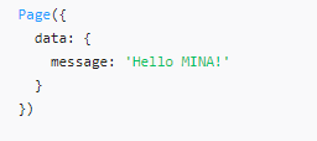
所有要在视图绑定的数据都要在页面的 data 中预先定义初始值(除了服务器数据),方法里使用this.data 获取 data 值
非视图绑定的 data 数据属性名前面加个 _
页面js 的setData 虽然可以创建数据(用于服务器数据),但主要方式是更新数据,更新{{}} 的数据应用到视图(wxml)上
setData 接受一个对象:
setData({数据名: 数据值})
相当于在 js 里
this.data.数据名 = 数据值 => wxml {{数据名}}
setData 可以多次调用
# 初始化数据
# 使用数据

# 修改数据
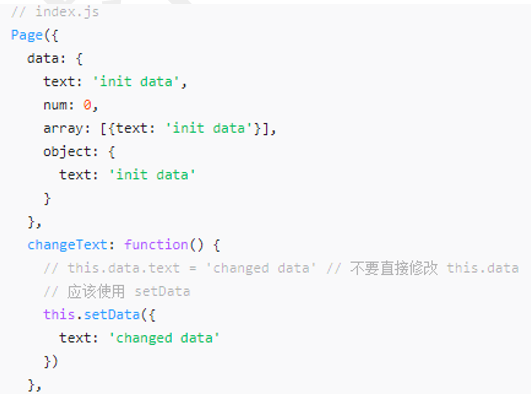
this.setData({message: ‘修改之后的数据’}, callback)
特点:
同步修改: this.data 值被同步修改
异步更新: 异步将 setData 函数用于将数据从逻辑层发送到视图层(异步)
# 列表渲染
列表渲染绑定一个数组,默认有 item 和 index,wx:key 不使用 {{}}
<view wx:for="{{array}}" wx:key="unique">
  {{index}}: {{item.message}}
</view>
2
3
# 事件绑定
默认冒泡到父元素相同事件
bindtap="事件回调函数"
bind:tap="事件回调函数"
阻止事件冒泡
catchtap="事件回调函数"
catch:tap="事件回调函数"
事件回调函数都放在对应的页面 js 里,和生命周期函数一起,参数可以接受一个事件对象 event
# 页面跳转
页面栈不能超过 10 个
wx.navigateTo 有回退,保留当前页面,只能打开非 tabBar 页面。
wx.redirectTo 不保留(卸载)当前页面,只能打开非 tabBar 页面。
wx.switchTab 跳转到带有 TabBar 的页面,只能打开 tabBar 页面。
wx.reLaunch 关闭所有页面,打开到应用内的某个页面,可以打开任意页面。
# 路由传参
小程序
- 方式: query
- 示例: url?key=vlaue
- 获取: 目标页面 onLoad 声明周期函数中通过实参
options获取,注意这里获取的类型是字符串
# 事件传参 获取 id
- 通过属性绑定(data-xx)的形式,把需要传递的参数绑定到 当前
DOM元素中 - 在对应的回调函数中,通过
e.target.dataset/e.currentTarget.dataset进行访问
wxml 的data-postid 使用 event.currentTarget.dataset.postid 获取
wxml 的data-post-id 使用event.currentTarget.dataset.postId 获取
pages\posts\posts.js
onGoToDetail(event){
      const pid = event.currentTarget.dataset.postId || event.detail.pid
      wx.navigateTo({
        url:'/pages/post-detail/post-detail?pid=' + pid
      })
  }
2
3
4
5
6
pages\post-detail\post-detail.js
onLoad(options) {
  console.log(options) // 打印 {postId: 3}
}
2
3
# 全局变量
可以通过 getApp 方法获取到全局唯一的 App 实例,获取App上的数据或调用注册在 App 上的函数。
app.js
App(
  {
    onLaunch(){
      console.log("小程序启动")
    },
    gIsPlayingMusic: false, // 音乐是否正在播放    定义全局变量,每次重启都初始化一次,状态丢失
    gIsPlayingPostId: -1,   // 哪篇文章的音乐在播放
    gBaseUrl: "http://t.talelin.com/v2/movie/",
  }
)
2
3
4
5
6
7
8
9
10
pages\post-detail\post-detail.js
const app = getApp()
console.log(app.gIsPlayingMusic)
2
# 缓存
wx.setStorageSync('flag', 2)
const flag = wx.getStorageSync('flag')
wx.removeStorageSync('flag')
wx.clearStorageSync()

// 用同步还是异步,看数据大小和响应时间
async onLoad(options) {
    wx.setStorageSync('flag', 2)

    // 新版 async/await
    const flag = await wx.getStorage({
        key: 'flag',
        // 旧版
        // success(value){
        //   console.log(value.data)
        // }
    })

    // 新版
    // flag.then((value)=>{
    //   console.log(value)
    // })

    console.log(flag)

    this.setData({
        postList
    })
}
2
3
4
5
6
7
8
9
10
11
12
13
14
15
16
17
18
19
20
21
22
23
24
25
26
27
28
29
# 父子通信
components\post\index.wxml
  <!-- 触发 mehods 的 onTap -->
  <view bind:tap="onTap" class="post-container">
		<view class="post-author-date">
			<image catch:tap="onMaxImage" class="post-author" src="{{res.avatar}}"></image>
			<text class="post-date">{{res.date}}</text>
		</view>
		<text class="post-title">{{res.title}}</text>
		<image class="post-image" src="{{res.imgSrc}}"></image>
		<text class="post-content">{{res.content}}</text>
		<view class="post-like">
			<!-- <image class="post-like-image" src="/images/icon/chat.png"></image> -->
			<l-icon class="post-like-image" color="#666" size="28" name="favor" />
			<text class="post-like-font">{{res.collection}}</text>
			<!-- <image class="post-like-image" src="/images/icon/view.png"></image> -->
			<l-icon class="post-like-image" color="#666" size="32" name="eye" />
			<text class="post-like-font">{{res.reading}}</text>
		</view>
   </view>
2
3
4
5
6
7
8
9
10
11
12
13
14
15
16
17
18
components\post\index.js
// components/post/index.js
Component({
  /**
   * 组件的属性列表
   */
  // 父传子 properties 接收传过来的数据
  properties: {
    res:Object
  },

  /**
   * 组件的初始数据
   */
  data: {

  },

  methods: {
    onTap(event){
      const pid = this.properties.res.postId
      // 子传父,posttap 触发自定义事件 bind:posttap , pid 传给 onGoToDetail 的 event.detail
      this.triggerEvent('posttap',{
        pid
      })
    },
  }
})
2
3
4
5
6
7
8
9
10
11
12
13
14
15
16
17
18
19
20
21
22
23
24
25
26
27
28
pages\posts\posts.wxml
<view>
	<swiper interval="3000" circular vertical="{{false}}" indicator-dots="{{true}}" autoplay="{{true}}">
		<swiper-item>
			<image data-post-id="3" bind:tap="onGoToDetail1"  src="/images/bestplayers.png"></image>
		</swiper-item>
		<swiper-item>
			<image data-post-id="0" bind:tap="onGoToDetail" src="/images/lpl.png">
			</image>
		</swiper-item>
		<swiper-item>
			<image data-post-id="4" bind:tap="onGoToDetail"  src="/images/jumpfly.png">
			</image>
		</swiper-item>
	</swiper>
    <block wx:for="{{postList}}" wx:key="index"  wx:for-item="item" wx:for-index="idx">
        <!-- 子传父接受自定义事件 父传子  res="{{item}}" -->
	    <post bind:posttap="onGoToDetail" res="{{item}}"/>
    </block>
</view>
2
3
4
5
6
7
8
9
10
11
12
13
14
15
16
17
18
19
pages\posts\posts.js
import {postList} from '../../data/data.js'

Page({

  /**
   * 页面的初始数据
   */
  data: {

  },
  async onLoad(options) {
    wx.setStorageSync('flag', 2)

    const flag = await wx.getStorage({
      key: 'flag',
      // success(value){
      //   console.log(value.data)
      // }
    })

    // flag.then((value)=>{
    //   console.log(value)
    // })

    console.log(flag)

    this.setData({
      postList
    })
  },

 /**
   * 组件的独立性
   * 组件的开发者不应该决定
   * 点击之后做什么事情
   * 而是由组件的使用者决定
   */
  // pid 传给 onGoToDetail 的 event.detail
  onGoToDetail(event){
      const pid = event.currentTarget.dataset.postId || event.detail.pid
      wx.navigateTo({
        url:'/pages/post-detail/post-detail?pid=' + pid
      })
  },
})
2
3
4
5
6
7
8
9
10
11
12
13
14
15
16
17
18
19
20
21
22
23
24
25
26
27
28
29
30
31
32
33
34
35
36
37
38
39
40
41
42
43
44
45
46
# 页面生命周期函数执行顺序
- 初始操作
onLoad,只执行一次 onShow,第一次显示时执行,后台切回到后台时也会执行onReady,只执行一次onHide,页面隐藏,如切换到后台时执行,条件触发onUnLoad,页面跳转,条件触发
其它生命周期函数是用户交互触发
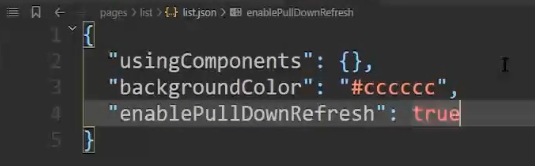
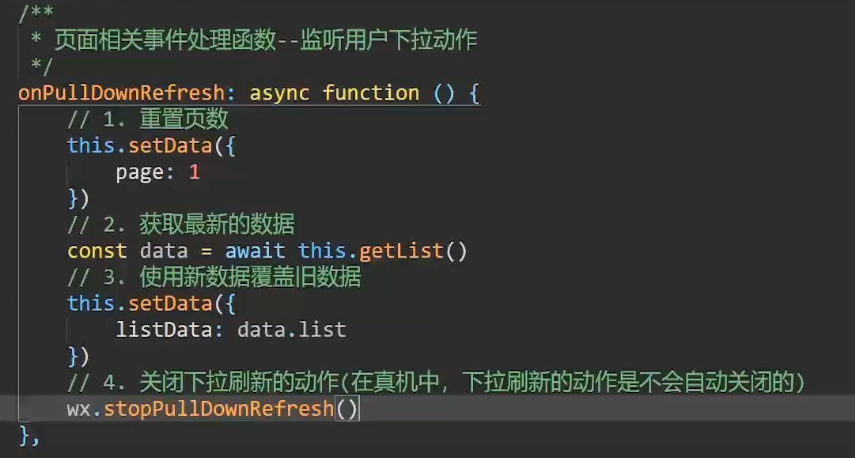
# 上拉加载与下拉刷新
上拉加载
下拉刷新
# 收藏状态切换
pages\post-detail\post-detail.wxml
<view class="container">
	<image class="head-image" src="{{postData.headImgSrc}}"></image>
	<image wx:if="{{!isPlaying}}" bind:tap="onMusicStart" class="audio" src="/images/music/music-start.png" />
	<image wx:else bind:tap="onMusicStop" class="audio" src="/images/music/music-stop.png" />
	<!-- <image bind:tap="onMusic" class="audio" src="{{isPlaying?'/images/music/music-stop.png':'/images/music/music-start.png'}}" /> -->
	<view class="author-date">
		<image class="avatar" src="{{postData.avatar}}"></image>
		<text class="author">{{postData.author}}</text>
		<text class="const-text">发表于</text>
		<text class="date">{{postData.dateTime}}</text>
	</view>
	<text class="title">{{postData.title}}</text>
	<view class="tool">
		<view class="circle">
    	     <image wx:if="{{collected}}" bind:tap="onCollect" class="" src="/images/icon/collection.png"></image>
			<image wx:else bind:tap="onCollect" class="" src="/images/icon/collection-anti.png"></image>
			<image bind:tap="onShare" class="share-img" src="/images/icon/share.png"></image>
		</view>
		<view class="horizon"></view>
	</view>
	<text class="detail">{{postData.detail}}</text>
</view>
2
3
4
5
6
7
8
9
10
11
12
13
14
15
16
17
18
19
20
21
22
pages\post-detail\post-detail.wxss
.container{
  display: flex;
  flex-direction: column;
}

.head-image{
  width: 100%;
  height: 460rpx;
}

.author-date{
  display: flex;
  flex-direction: row;
  align-items: center;
  margin-top: 20rpx;
  margin-left: 30rpx;
}

.avatar{
  width: 64rpx;
  height: 64rpx;
}

.author{
  font-size: 30rpx;
  font-weight: 300;
  margin-left:20rpx;
  color:#666;
}

.const-text{
  font-size: 24rpx;
  color: #999;
  margin-left: 20rpx;
}

.date{
  font-size: 24rpx;
  margin-left: 30rpx;
  color:#999;
}

.title{
  margin-left: 40rpx;
  font-size: 36rpx;
  font-weight: 700;
  margin-top: 30rpx;
  letter-spacing: 2px;
  color:#4b556c;
}

.tool{
  display: flex;
  flex-direction: column;
  align-items: center;
  justify-content: center;
  margin-top:20rpx;
}

.circle{
  display: flex;
  width: 660rpx;
  flex-direction: row;
  justify-content: flex-end;
}

.circle image{
  width: 90rpx;
  height: 90rpx;
}

.share-img{
  margin-left: 30rpx;
}

/* 主轴 交叉轴 */

.horizon{
  width: 660rpx;
  height: 1px;
  background-color: #e5e5e5;
  position: absolute;
  z-index: -99;
}


.detail {
  color: #666;
  margin-left: 30rpx;
  margin-top: 20rpx;
  margin-right: 30rpx;
  line-height: 44rpx;
  letter-spacing: 2px;
}

/* 230 */
.audio{
  width: 102rpx;
  height: 110rpx;
  position: absolute;
  left:50%;
  margin-left: -51rpx;
  top:185rpx;
  opacity: 0.6;
}
2
3
4
5
6
7
8
9
10
11
12
13
14
15
16
17
18
19
20
21
22
23
24
25
26
27
28
29
30
31
32
33
34
35
36
37
38
39
40
41
42
43
44
45
46
47
48
49
50
51
52
53
54
55
56
57
58
59
60
61
62
63
64
65
66
67
68
69
70
71
72
73
74
75
76
77
78
79
80
81
82
83
84
85
86
87
88
89
90
91
92
93
94
95
96
97
98
99
100
101
102
103
104
105
pages\post-detail\post-detail.js
import {postList} from '../../data/data.js'

data: {
    postData: {},
    collected: false,
    _pid: null,
    _postsCollected: {},
},

onLoad: function (options) {
    const postData = postList[options.pid] // 获取不同 pid 数据,展示不同的详情页数据
    this.data._pid = options.pid
    const postsCollected = wx.getStorageSync('posts_collected')

    if (postsCollected) {
      this.data._postsCollected = postsCollected
    }

    let collected = postsCollected[this.data._pid]

    if (collected === undefined) {
      // 如果undefined 说明文章从来没有被收藏过
      collected = false
    }

    this.setData({
      postData,
      collected
    })
},

onCollect(event) {
    const postsCollected = this.data._postsCollected
    postsCollected[this.data._pid] = !this.data.collected

    this.setData({
      collected: !this.data.collected
    })

    wx.setStorageSync('posts_collected', postsCollected)

    wx.showToast({
      title: this.data.collected ? '收藏成功' : '取消收藏',
      duration: 3000
    })
},
2
3
4
5
6
7
8
9
10
11
12
13
14
15
16
17
18
19
20
21
22
23
24
25
26
27
28
29
30
31
32
33
34
35
36
37
38
39
40
41
42
43
44
45
46
# 音乐播放器功能
mgr.stop() 音乐播放器关掉(消失)
mgr.pause() 音乐播放器暂停
data\data.js
var postList = [
  {
    title: "2020LPL夏季赛季后赛观赛指南",
    content: "8月9号,LPL常规赛收官之战结束,在事关季后赛轮次的比赛中关键对局中,SN战胜了FPX,为本赛季常规赛画上句号。进入季后赛的战队依次为,TES、JDG、IG、SN、V5、LGD、WE、FPX",
    imgSrc: "/images/lpl.png",
    reading: 102,
    detail: "8月9号,LPL常规赛收官之战结束,在事关季后赛轮次的比赛中关键对局中,SN战胜了FPX,为本赛季常规赛画上句号。进入季后赛的战队依次为,TES、JDG、IG、SN、V5、LGD、WE、FPX。既有传统四强,又有新崛起的黑马。本文主要是从上路的大改动展开,引发对所有其他的影响。牵一发而动全身,上路一旦回归carry上单版本,对野区和中路的影响是显而易见的。而下路在艾希大砍一刀之后,女警的过于强势,使她只能出现在BAN位上,因此主流下路还是会回归功能性下路英雄。由此,可以对应各位选手的英雄池,对应各支战队的战术储备,漫长的季后赛,考验的就是各队适应版本的能力。",
    collection: 92,
    dateTime: "24小时前",
    headImgSrc: "/images/lpl.png",
    author: "猫是猫的猫",
    date: "Nov 20 2020",
    avatar: "/images/avatar/5.png",
    postId: 0,
    music: {
      url: "http://music.163.com/song/media/outer/url?id=1372060183.mp3",
        title: "空-徐海俏",
        coverImg: "https://y.gtimg.cn/music/photo_new/T002R300x300M000002sNbWp3royJG_1.jpg?max_age=2592000",
    }
  }
]
2
3
4
5
6
7
8
9
10
11
12
13
14
15
16
17
18
19
20
21
app.js
App(
  {
    onLaunch(){
      console.log("小程序启动")
    },
    gIsPlayingMusic:false,
    gIsPlayingPostId:-1,
    gBaseUrl:"http://t.talelin.com/v2/movie/",
  }
)
2
3
4
5
6
7
8
9
10
pages/post-detail/post-detail.js
import {postList} from '../../data/data.js'
const app = getApp()

Page({
  data: {
    postData:{},
    isPlaying:false,
    _pid:null,
    _mgr:null
  },

  onLoad: function (options) {
    const postData = postList[options.pid]
    this.data._pid = options.pid

    this.setData({
      isPlaying: this.currentMusicIsPlaying()
    })

    const mgr = wx.getBackgroundAudioManager()
    this.data._mgr = mgr
    mgr.onPlay(this.onMusicStart)
    mgr.onPause(this.onMusicStop)
  },

  currentMusicIsPlaying(){
    if(app.gIsPlayingMusic && app.gIsPlayingPostId === this.data._pid ){
      return true
    }
    return false
  },

  onMusicStart(event){
    const mgr = this.data._mgr
    const music = postList[this.data._pid].music

    mgr.src = music.url
    mgr.title = music.title
    mgr.coverImgUrl = music.coverImg

    app.gIsPlayingMusic = true
    app.gIsPlayingPostId = this.data._pid

    this.setData({
      isPlaying:true
    })
  },

  onMusicStop(event){
    const mgr = this.data._mgr
    mgr.pause()
    app.gIsPlayingMusic = false
    app.gIsPlayingPostId = -1
    this.setData({
      isPlaying:false
    })
  },
})
2
3
4
5
6
7
8
9
10
11
12
13
14
15
16
17
18
19
20
21
22
23
24
25
26
27
28
29
30
31
32
33
34
35
36
37
38
39
40
41
42
43
44
45
46
47
48
49
50
51
52
53
54
55
56
57
58
# 自定义组件
新建文件夹 => 右键新建 Component ,取名 Index 即可创建四个文件
properties 可以作数据绑定,推荐以对象形式定义类型和默认值
自定义组件也可以使用 "usingComponents" 来使用其它自定义组件,可以使用单标签。
组件从小到大来写
要编写一个自定义组件,
首先需要在 json 文件中进行自定义组件声明(将 component 字段设为 true 可将这一组文件设为自定义组件):
{
  "component": true
}
2
3
# 组件的生命周期
其中,最重要的生命周期是 created attached detached ,包含一个组件实例生命流程的最主要时间点。
组件实例刚刚被创建好时,
created生命周期被触发。此时,组件数据
this.data就是在Component构造器中定义的数据data。此时还不能调用
setData。 通常情况下,这个生命周期只应该用于给组件this添加一些自定义属性字段。在组件完全初始化完毕、进入页面节点树后,
attached生命周期被触发。此时,
this.data已被初始化为组件的当前值。这个生命周期很有用,绝大多数初始化工作可以在这个时机进行。在组件离开页面节点树后,
detached生命周期被触发。退出一个页面时,如果组件还在页面节点树中,则
detached会被触发
Component({
  lifetimes: {
    attached: function() {
      // 在组件实例进入页面节点树时执行
    },
    detached: function() {
      // 在组件实例被从页面节点树移除时执行
    },
  }
})
2
3
4
5
6
7
8
9
10
组件的生命周期一共有三个:
created: 组件实例刚刚被创建好。此时还不能调用setDataattached:组件完全初始化完毕、进入页面节点树后。绝大多数初始化工作可以在这个时机进行detached:在组件离开页面节点树后
    /**
     * 组件的初始数据
     */
    data: {
        // 数据源
        listData: [],
        // 选中项
        active: -1
    },
	/**
     * 生命周期函数
     */
    lifetimes: {
        attached() {
            this.loadTabsData()
        }
    },
    /**
     * 组件的方法列表(组件中的方法必须定义到 methods 中)
     */
    methods: {
        /**
         * 获取数据的方法
         */
        loadTabsData() {
            wx.request({
                url: 'https://api.imooc-blog.lgdsunday.club/api/hot/tabs',
                success: (res) => {
                    this.setData({
                        listData: res.data.data.list,
                        active: 0
                    })
                }
            })
        }
    }
2
3
4
5
6
7
8
9
10
11
12
13
14
15
16
17
18
19
20
21
22
23
24
25
26
27
28
29
30
31
32
33
34
35
36
37
<scroll-view class="tabs-box" scroll-x>
    <view wx:for="{{ listData }}" wx:key="index" class="tab {{ active === index ? 'active' : '' }}">
        {{item.label}}
    </view>
</scroll-view>
2
3
4
5
.tabs-box {
    /* 指定宽度 + 不换行 */
    width: 750rpx;
    white-space: nowrap;
    border-bottom: 1px solid #cccccc;
}

.tab {
    /* 指定 display */
    display: inline-block;
    padding: 12px 22px;
}

.active {
    color: #f94d2a;
}
2
3
4
5
6
7
8
9
10
11
12
13
14
15
16
# 数据监听器
场景
如果想要获取 list 那么我们需要传递一个 type 的参数,而这个 type 就是用户选中的 tab 项 的 id
所以接下来我们就需要来做一件事情:监听用户选中的 tab,根据用户选中的 tab 来切换底部 list 的数据
步骤拆解如下:
- 监听用户选中项的变化
- 获取用户选中的数据的
id- 把
id传递给list组件list组件根据接收到的id获取对应的数据
<view wx:for="{{ listData }}" wx:key="index" class="tab {{ active === index ? 'active' : '' }}" bindtap="onItemClick" data-index="{{index}}">
        {{item.label}}
    </view>
2
3
        /**
         * 1. 监听用户选中项的变化
         * item 点击事件处理
         */
        onItemClick(e) {
            // 1.1:获取用户选中的 下标
            const {
                index
            } = e.target.dataset;
            // 1.2:修改选中项
            this.setData({
                active: index
            })
        }


	/**
     * 1.3:监听 active 的变化
     * 通过 observers 定义数据监听器
     */
    observers: {
        // key 为要监听的数据
        // value 为当数据发生变化时,调用的函数
        active: function (active) {
            // 2:获取用户选中的数据的 `id`
            const {id} = this.data.listData[active]
        }
    }
2
3
4
5
6
7
8
9
10
11
12
13
14
15
16
17
18
19
20
21
22
23
24
25
26
27
28
# 组件插槽
定义单一插槽:
在 组件 中使用 slot 组件定义插槽。
表示:占据了这一块空间,等待父组件填充。
<!-- 组件模板 -->
<view class="wrapper">
  <view>这里是组件的内部节点</view>
  <slot></slot>
</view>
2
3
4
5
定义多个插槽
小程序默认只能定义一个插槽,如果要定义多个插槽那么需要:在组件中指定 options 选项的 multipleSlots 选项为 true
Component({
  options: {
    multipleSlots: true // 在组件定义时的选项中启用多 slot 支持
  },
  properties: { /* ... */ },
  methods: { /* ... */ }
})
2
3
4
5
6
7
然后通过 slot 的 name 属性为插槽命名。例如:<slot name="header"></slot>
<!-- 组件模板 -->
<view class="wrapper">
  <slot name="before"></slot>
  <view>这里是组件的内部细节</view>
  <slot name="after"></slot>
</view>
2
3
4
5
6
使用单一插槽
在组件使用时,以 innerHTML 的形式插入内容:
<component>
    <view>单一插槽插入的 DOM</view>
</component>
2
3
使用多个插槽
在组件使用时,以 innerHTML 的形式插入内容,以 slot 属性标记当前 DOM 插入到哪个插槽中:
<component>
    <view slot="header">该元素将被插入到 name=header 的插槽中</view>
    <view slot="footer">该元素将被插入到 name=footer 的插槽中</view>
</component>
2
3
4
# 外部样式类
externalCLasses 使用外部传入的样式来改变自定义组件的样式,不需要改源码
movie-list 组件接受 movies 传过来的样式
components/movie-list/index.js
Component({
  /**
   * 组件的属性列表
   */
  externalClasses:['f-class'],

  properties: {
    title:String,
    movies:Array
  },
})
2
3
4
5
6
7
8
9
10
11
pages\movies\movies.wxml
<movie-list data-type="top250" bind:tap="onGotoMore" movies="{{top250}}" title="豆瓣Top250" f-class="movie-list" />
pages\movies\movies.wxss
.movie-list{
  margin-bottom: 30rpx;
}
2
3
# 从服务器加载数据
通常来讲,不在自定义组件里发起网络请求,因为这会降低通用性。
wx.request 默认为 Get 方法, Get / Post 都是使用 data 传参,放的位置不同(url 和 body)。
注意点:
- 小程序发请求之前需要在小程序后台管理的主界面设置请求的域名列表
- 小程序为了安全起见要求发送所有的请求必须是 https 协议
- 最大并发限制是 10 个;
# 电影列表
pages\movies\movies.json
{
  "usingComponents": {
    "movie-list":"/components/movie-list/index",
    "l-search-bar":"/miniprogram_npm/lin-ui/search-bar/index"
  },
  "navigationBarTitleText":"光与影"
}
2
3
4
5
6
7
pages\movies\movies.wxml
<l-search-bar bind:linconfirm="onConfirm" bind:lincancel="onSearchCancel"  l-class="ex-search-bar" placeholder="盗梦空间、你的名字"/>

<view wx:if="{{!searchResult}}">
<movie-list data-type="in_theaters" bind:tap="onGotoMore" movies="{{inTheaters}}" title="正在热映" f-class="movie-list" />
<movie-list data-type="coming_soon" bind:tap="onGotoMore" movies="{{comingSoon}}" title="即将上映" f-class="movie-list" />
<movie-list data-type="top250" bind:tap="onGotoMore" movies="{{top250}}" title="豆瓣Top250" f-class="movie-list" />
</view>
<view class="search-container" wx:else>
  <block wx:for="{{searchData}}" wx:key="index">
    <movie class="movie" movie="{{item}}" />
  </block>
</view>
2
3
4
5
6
7
8
9
10
11
12
pages\movies\movies.js
Page({

  /**
   * 页面的初始数据
   */
  data: {
    inTheaters:[],
    comingSoon:[],
    top250:[],
    searchResult:false,
    searchData:[]
  },

  /**
   * 生命周期函数--监听页面加载
   */
  onLoad: function (options) {
    wx.request({
      url: app.gBaseUrl + 'in_theaters',
      data:{
        start:0,
        count:3
      },
      success:(res)=>{
        this.setData({
          inTheaters:res.data.subjects
        })
      }
    })

    wx.request({
      url: app.gBaseUrl + 'coming_soon',
      data:{
        start:0,
        count:3
      },
      success:(res)=>{
        this.setData({
          comingSoon:res.data.subjects
        })
      }
    })
    wx.request({
      url: app.gBaseUrl + 'top250',
      data:{
        start:0,
        count:3
      },
      success:(res)=>{
        this.setData({
          top250:res.data.subjects
        })
      }
    })
  },

  onGotoMore(event){
    console.log(event)
    const type = event.currentTarget.dataset.type
    // 与 more-movie 的 onLoad(options) 配合使用
    wx.navigateTo({
      url: '/pages/more-movie/more-movie?type=' + type,
    })
  },

  onConfirm(event){
    this.setData({
      searchResult:true
    })
    wx.request({
      url: app.gBaseUrl + 'search',
      data:{
        q:event.detail.value
      },
      success:(res)=>{
        this.setData({
          searchData:res.data.subjects
        })
      },
    })
  },

  onSearchCancel(event){
    this.setData({
      searchResult:false
    })
  },
})
2
3
4
5
6
7
8
9
10
11
12
13
14
15
16
17
18
19
20
21
22
23
24
25
26
27
28
29
30
31
32
33
34
35
36
37
38
39
40
41
42
43
44
45
46
47
48
49
50
51
52
53
54
55
56
57
58
59
60
61
62
63
64
65
66
67
68
69
70
71
72
73
74
75
76
77
78
79
80
81
82
83
84
85
86
87
88
app.js
App(
  {
    onLaunch(){
      console.log("小程序启动")
    },
    gIsPlayingMusic:false,
    gIsPlayingPostId:-1,
    gBaseUrl:"http://t.talelin.com/v2/movie/",
  }
)
2
3
4
5
6
7
8
9
10
# 更多电影、上拉加载、下拉刷新
pages\more-movie\more-movie.json
{
  "usingComponents": {
    "movie":"/components/movie/index"
  },
  "enablePullDownRefresh":true
}
2
3
4
5
6
pages\more-movie\more-movie.wxml
<view class="container">
<block wx:for="{{movies}}" wx:key="index">
    <movie class="movie" movie="{{item}}" />
</block>
</view>
2
3
4
5
pages\more-movie\more-movie.wxss
/* pages/more-movie/more-movie.wxss */

.container{
  display: flex;
  flex-direction: row;
  flex-wrap: wrap;
  padding: 30rpx 28rpx;
  justify-content: space-between;
}

.movie{
  margin-bottom: 30rpx;
}
2
3
4
5
6
7
8
9
10
11
12
13
pages\more-movie\more-movie.js
// pages/more-movie/more-movie.js
const app = getApp()

Page({

  /**
   * 页面的初始数据
   */
  data: {
    movies:[],
    _type:''
  },

  /**
   * 生命周期函数--监听页面加载
   */
  onLoad: function (options) {
    // 点击不同类型的更多,加载不同数据
    const type = options.type
    this.data._type = type
    wx.request({
      url: app.gBaseUrl + type,
      data:{
        start:0,
        count:12
      },
      success:(res)=>{
        console.log(res)
        this.setData({
          movies:res.data.subjects
        })
      }
    })
  },

  /**
   * 生命周期函数--监听页面初次渲染完成
   */
  onReady: function () {
    let title = '电影'
    switch(this.data._type){
      case 'in_theaters':
        title='正在热映'
        break
      case 'coming_soon':
        title = '即将上映'
        break
      case 'top250':
        title = '豆瓣Top250'
        break
    }
    wx.setNavigationBarTitle({
      title: title,
    })
  },

  /**
   * 页面相关事件处理函数--监听用户下拉动作
   */
  onPullDownRefresh: function () {
    wx.request({
      url: app.gBaseUrl + this.data._type,
      data:{
        start:0,
        count:12,
      },
      success:(res)=>{
        this.setData({
          movies:res.data.subjects
        })
        wx.stopPullDownRefresh()
      }
    })
  },

  /**
   * 页面上拉触底事件的处理函数
   */
  onReachBottom: function () {
    // [1,2,3...... 12,13,]
    // [0,1,2....11] + [12,13....23] + [24...35] + [36...47]
    wx.showNavigationBarLoading()
    wx.request({
      url: app.gBaseUrl + this.data._type,
      data:{
        start: this.data.movies.length,
        count:12
      },
      success:(res)=>{
        console.log(res)
        this.setData({
          movies:this.data.movies.concat(res.data.subjects)
        })
        wx.hideNavigationBarLoading()
      }
    })
  },
})
2
3
4
5
6
7
8
9
10
11
12
13
14
15
16
17
18
19
20
21
22
23
24
25
26
27
28
29
30
31
32
33
34
35
36
37
38
39
40
41
42
43
44
45
46
47
48
49
50
51
52
53
54
55
56
57
58
59
60
61
62
63
64
65
66
67
68
69
70
71
72
73
74
75
76
77
78
79
80
81
82
83
84
85
86
87
88
89
90
91
92
93
94
95
96
97
98
# 搜索
pages\movies\movies.json
{
  "usingComponents": {
    "movie-list":"/components/movie-list/index",
    "l-search-bar":"/miniprogram_npm/lin-ui/search-bar/index"
  },
  "navigationBarTitleText":"光与影"
}
2
3
4
5
6
7
pages\movies\movies.wxml
<l-search-bar bind:lincancel="onSearchCancel" bind:linconfirm="onConfirm" l-class="ex-search-bar" placeholder="盗梦空间、你的名字"/>

<view wx:if="{{!searchResult}}">
<movie-list data-type="in_theaters" bind:tap="onGotoMore" movies="{{inTheaters}}" title="正在热映" f-class="movie-list" />
<movie-list data-type="coming_soon" bind:tap="onGotoMore" movies="{{comingSoon}}" title="即将上映" f-class="movie-list" />
<movie-list data-type="top250" bind:tap="onGotoMore" movies="{{top250}}" title="豆瓣Top250" f-class="movie-list" />
</view>
<view class="search-container" wx:else>
  <block wx:for="{{searchData}}" wx:key="index">
    <movie class="movie" movie="{{item}}" />
  </block>
</view>
2
3
4
5
6
7
8
9
10
11
12
pages\movies\movies.js
// pages/movies/movies.js

const app = getApp()
Page({

  /**
   * 页面的初始数据
   */
  data: {
    inTheaters:[],
    comingSoon:[],
    top250:[],
    searchResult:false,
    searchData:[]
  },

  onConfirm(event){
    this.setData({
      searchResult:true
    })
    wx.request({
      url: app.gBaseUrl + 'search',
      data:{
        q:event.detail.value
      },
      success:(res)=>{
        this.setData({
          searchData:res.data.subjects
        })
      },
    })
  },

  onSearchCancel(event){
    this.setData({
      searchResult:false
    })
  },
})
2
3
4
5
6
7
8
9
10
11
12
13
14
15
16
17
18
19
20
21
22
23
24
25
26
27
28
29
30
31
32
33
34
35
36
37
38
39
pages\movies\movies.wxss
/* pages/movies/movies.wxss */
.movie-list{
  margin-bottom: 30rpx;
  /* background-color: teal !important; */
}

.ex-search-bar{
  height: 90rpx !important;
}

.search-container{
  display: flex;
  flex-direction: row;
  flex-wrap: wrap;
  padding: 30rpx 28rpx;
  justify-content: space-between;
}

.search-container::after{
  content:'';
  width:200rpx;
}


page{
  background-color: #f2f2f2;
  /* background-color: teal; */
}
2
3
4
5
6
7
8
9
10
11
12
13
14
15
16
17
18
19
20
21
22
23
24
25
26
27
28
# 电影详情
components\movie\index.wxml
<view bind:tap="onGoToDetail" class="container">
    <image class="poster" src="{{movie.images.large}}"></image>
    <text class="title">{{movie.title}}</text>
    <view class="rate-container">
    <l-rate disabled="{{true}}" size="22" score="{{movie.rating.stars/10}}" />

    <text class="score">{{movie.rating.average}}</text>
    </view>
</view>
2
3
4
5
6
7
8
9
components\movie\index.js
// components/movie/index.js
Component({
  /**
   * 组件的属性列表
   */
  properties: {
    movie:Object
  },

  /**
   * 组件的方法列表
   */
  methods: {
    onGoToDetail(event){
      // console.log(this.properties.movie)
      const mid = this.properties.movie.id
      wx.navigateTo({
        url: '/pages/movie-detail/movie-detail?mid=' + mid
      })
    }
  }
})
2
3
4
5
6
7
8
9
10
11
12
13
14
15
16
17
18
19
20
21
22
23
components\movie\index.wxss
.container{
  display: flex;
  flex-direction: column;
  width: 200rpx;
}

.poster{
  width: 100%;
  height: 270rpx;
  margin-bottom: 22rpx;
}

.title{
  white-space: nowrap;
  text-overflow: ellipsis;
  overflow: hidden;
  word-break: break-all;
}

.rate-container{
  margin-top:6rpx;
  display: flex;
  flex-direction: row;
  align-items: baseline;
}

.score{
  margin-left:20rpx;
  font-size:24rpx;
}
2
3
4
5
6
7
8
9
10
11
12
13
14
15
16
17
18
19
20
21
22
23
24
25
26
27
28
29
30
pages\movie-detail\movie-detail.wxml
<view class="container">
  <image mode="aspectFill"  class="head-img" src="{{movie.image}}"></image>
  <view  class="head-img-hover">
    <text class="main-title">{{movie.title}}</text>
    <text class="sub-title">{{movie.subtitle}}</text>
    <view class="like">
      <text class="highlight-font">{{movie.wishCount}}</text>
      <text class="plain-font">人喜欢</text>
      <text class="highlight-font">{{movie.commentsCount}}</text>
      <text class="plain-font">条评论</text>
    </view>
    <image bind:tap="onViewPost" class="movie-img" src="{{movie.image}}"></image>
  </view>

  <view class="summary">
    <view class="original-title">
      <text>{{movie.title}}</text>
    </view>
    <view class="flex-row">
       <text class="mark">评分</text>
       <view class="score-container">
       <l-rate disabled="{{true}}" size="22" score="{{movie.rating}}" />
       <text class="average">{{movie.average}}</text>
       </view>
    </view>
    <view class="flex-row">
      <text class="mark">导演</text>
      <text>{{movie.directors}}</text>
    </view>
    <view class="flex-row">
      <text class="mark">影人</text>
      <text>{{movie.casts}}</text>
    </view>
    <view class="flex-row">
      <text class="mark">类型</text>
      <text>{{movie.genres}}</text>
    </view>
  </view>

  <view class="hr"></view>

  <view class="synopsis">
    <text class="synopsis-font">剧情简介</text>
    <text class="summary-content">{{movie.summary}}</text>
  </view>

    <view class="hr"></view>


  <view class="casts">
      <text class="cast-font"> 影人</text>
      <scroll-view  enable-flex scroll-x class="casts-container">
        <block wx:for="{{movie.castsInfo}}" wx:key="index">
          <view class="cast-container">
              <image class="cast-img" src="{{item.img}}"></image>
              <text>{{item.name}}</text>
          </view>
                    <view class="cast-container">
              <image class="cast-img" src="{{item.img}}"></image>
              <text>{{item.name}}</text>
          </view>
                    <view class="cast-container">
              <image class="cast-img" src="{{item.img}}"></image>
              <text>{{item.name}}</text>
          </view>
        </block>
      </scroll-view>
    </view>
</view>
2
3
4
5
6
7
8
9
10
11
12
13
14
15
16
17
18
19
20
21
22
23
24
25
26
27
28
29
30
31
32
33
34
35
36
37
38
39
40
41
42
43
44
45
46
47
48
49
50
51
52
53
54
55
56
57
58
59
60
61
62
63
64
65
66
67
68
69
pages\movie-detail\movie-detail.js
// pages/movie-detail/movie-detail.js
import {convertToCastString, convertToCastInfos} from '../../utils/util.js'
const app = getApp()
Page({

  /**
   * 页面的初始数据
   */
  data: {
    movie:{}
  },

  /**
   * 生命周期函数--监听页面加载
   */
  onLoad: function (options) {
    const mid = options.mid
    wx.request({
      url: app.gBaseUrl + 'subject/' + mid,
      success:(res)=>{
        console.log(res.data)
        this.processMovieData(res.data)
        // this.setData({
        //   movie:res.data
        // })
      }
    })
  },

  processMovieData(movie){
    const data = {}
    data.directors = convertToCastString(movie.directors)
    data.casts = convertToCastString(movie.casts)
    data.image = movie.images.large
    data.title = movie.title
    data.subtitle = movie.countries[0]+'·'+movie.year
    data.wishCount = movie.wish_count
    data.commentsCount = movie.comments_count
    data.rating = movie.rating.stars/10
    data.average = movie.rating.average
    data.genres = movie.genres.join('、')
    data.summary = movie.summary
    data.castsInfo = convertToCastInfos(movie.casts)
    this.setData({
      movie:data
    })
  },

  onViewPost(event){
    // 预览图片
    wx.previewImage({
      urls: [this.data.movie.images.large],
    })
  },
})
2
3
4
5
6
7
8
9
10
11
12
13
14
15
16
17
18
19
20
21
22
23
24
25
26
27
28
29
30
31
32
33
34
35
36
37
38
39
40
41
42
43
44
45
46
47
48
49
50
51
52
53
54
55
utils\util.js
function convertToCastString(casts){
  let castsjoin = "";
  for (let idx of casts) {
    castsjoin = castsjoin + casts[idx].name + " / ";
  }
  return castsjoin.substring(0, castsjoin.length - 2);
}

function convertToCastInfos(casts) {
  let castsArray = []
  for (let idx of casts) {
    let cast = {
      img: casts[idx].avatars ? casts[idx].avatars.large : "",
      name: casts[idx].name
    }
    castsArray.push(cast);
  }
  return castsArray;
}

export {
  convertToCastString,
  convertToCastInfos
}
2
3
4
5
6
7
8
9
10
11
12
13
14
15
16
17
18
19
20
21
22
23
24
pages\movie-detail\movie-detail.wxss
.container{
  display: flex;
  flex-direction: column;
}

.head-img{
  width: 100%;
  height: 320rpx;
  -webkit-filter:blur(20px);
}

.head-img-hover{
  width: 100%;
  height: 320rpx;
  position: absolute;
  display: flex;
  flex-direction: column;
}

.main-title{
  font-size:38rpx;
  color:#fff;
  font-weight:bold;
  letter-spacing: 2px;
  margin-top: 50rpx;
  margin-left: 40rpx;
}

.sub-title{
  font-size: 28rpx;
  color:#fff;
  margin-left: 40rpx;
  margin-top: 30rpx;
}

.like{
  display:flex;
  flex-direction: row;
  margin-top: 30rpx;
  margin-left: 40rpx;
}

.highlight-font{
  color: #f21146;
  font-size:22rpx;
  margin-right: 10rpx;
}

.plain-font{
  color: #666;
  font-size:22rpx;
  margin-right: 30rpx;
}

.movie-img{
  height:238rpx;
  width: 175rpx;
  position: absolute;
  top:160rpx;
  right: 30rpx;
}

.summary{
  margin-left:40rpx;
  margin-top: 40rpx;
  color: #777777;
}

.original-title{
  color: #1f3463;
  font-size: 24rpx;
  font-weight: bold;
  margin-bottom: 40rpx;
}

.flex-row{
  display: flex;
  flex-direction: row;
  align-items: baseline;
  margin-bottom: 10rpx;
}

.mark{
  margin-right: 30rpx;
  white-space:nowrap;
  color: #999999;
}

.score-container{
  display: flex;
  flex-direction: row;
  align-items: baseline;
}

.average{
  margin-left:20rpx;
  margin-top:4rpx;
}

.hr{
  margin-top:45rpx;
  width: 100%;
  height: 1px;
  background-color: #d9d9d9;
}

.synopsis{
  margin-left:40rpx;
  display:flex;
  flex-direction: column;
  margin-top: 50rpx;
}

.synopsis-font{
  color:#999;
}

.summary-content{
  margin-top: 20rpx;
  margin-right: 40rpx;
  line-height:40rpx;
  letter-spacing: 1px;
}

.casts{
  display: flex;
  flex-direction: column;
  margin-top:50rpx;
  margin-left:40rpx;
}

.cast-font{
  color: #999;
  margin-bottom: 40rpx;
}

.cast-img{
  width: 170rpx;
  height: 210rpx;
  margin-bottom: 10rpx;
}

.casts-container{
  display: flex;
  flex-direction: row;
  margin-bottom: 50rpx;
  margin-right: 40rpx;
  height: 300rpx;
}

.cast-container{
  display: flex;
  flex-direction: column;
  align-items: center;
  margin-right: 40rpx;
}
2
3
4
5
6
7
8
9
10
11
12
13
14
15
16
17
18
19
20
21
22
23
24
25
26
27
28
29
30
31
32
33
34
35
36
37
38
39
40
41
42
43
44
45
46
47
48
49
50
51
52
53
54
55
56
57
58
59
60
61
62
63
64
65
66
67
68
69
70
71
72
73
74
75
76
77
78
79
80
81
82
83
84
85
86
87
88
89
90
91
92
93
94
95
96
97
98
99
100
101
102
103
104
105
106
107
108
109
110
111
112
113
114
115
116
117
118
119
120
121
122
123
124
125
126
127
128
129
130
131
132
133
134
135
136
137
138
139
140
141
142
143
144
145
146
147
148
149
150
151
152
153
154
155
156
157
# 常规分包
在 app.json subpackages 字段声明项目分包结构
开发者通过在 app.json subpackages 字段声明项目分包结构
加载小程序的时候先加载主包,当需要访问分包的页面时候才加载分包内容
分包的页面可以访问主包的文件,数据,图片等资源
主包:
来源: 除了分包以外的内容都会被打包到主包中,通常放置启动页/tabBar页面
# 独立分包
设置 independent 为 true
- 独立分包可单独访问分包的内容,不需要下载主包,
- 独立分包不能依赖主包或者其他包的内容,主包也不能使用(依赖)独立分包的内容
- 通常某些页面和当前小程序的其他页面关联不大的时候可进行独立分包,如:临时加的广告页 || 活动页
# 分包预下载
app.json 中配置 preloadRule 选项
页面路径: {
  packages: [预下载的包名 ||  预下载的包的根路径])
}
2
3
在加载当前包的时候可以设置预下载其他的包
缩短用户等待时间,提高用户体验