# Vue-Router
https://router.vuejs.org/ (opens new window)
# 路由的概念
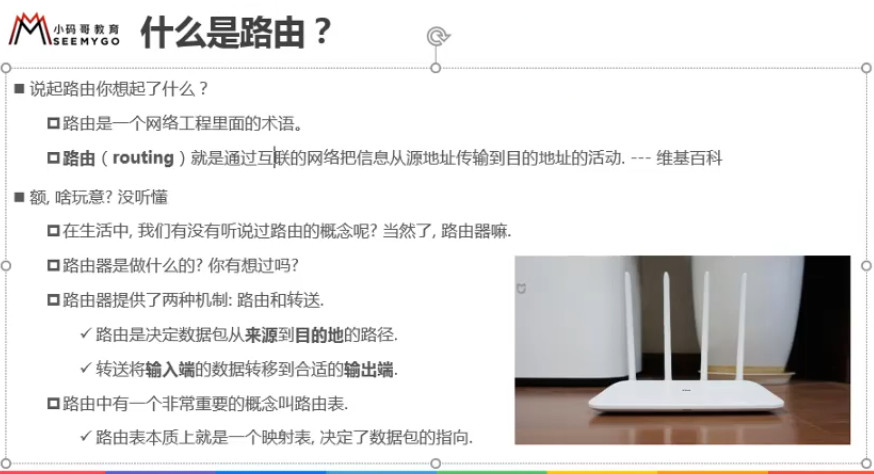
内网IP:同一个局域网内的IP地址,在同一局域网内是唯一的(其他局域网内的IP地址可以一样)
猫会配置公网IP,对外统一:202.111.23.45
映射表:内网IP地址对应mac地址对应电脑
![3 [1].jpg](https://cdn.nlark.com/yuque/0/2022/jpeg/1614731/1653713902150-cda9e3bf-e613-4563-97b1-41eb8652037a.jpeg)
# 前端渲染和后端渲染、前端路由和后端路由
# 1、后端路由阶段
什么是后端渲染
JSP、PHP、ASP
url发送到服务器,JAVA在服务器就解析并渲染好页面 最后返回HTML + CSS
![3 [2].jpg](https://cdn.nlark.com/yuque/0/2022/jpeg/1614731/1653713902128-c494f47b-8517-4d7b-a674-a62d7a19a1a0.jpeg)
什么是后端路由
URL 映射到 服务器页面
![3 [3].jpg](https://cdn.nlark.com/yuque/0/2022/jpeg/1614731/1653713902621-095a8518-a133-4f3d-ab7c-5dca2e3265c9.jpeg)
![3 [4].jpg](https://cdn.nlark.com/yuque/0/2022/jpeg/1614731/1653713903495-6b9bd3bb-b6e1-466b-b0e1-267c1d55d9f9.jpeg)
# 2、前后端分离阶段(jQuery)
静态资源服务器(Apache、Ngnix),有些公司静态资源服务器和API接口服务器是同一台
静态资源服务器 => 浏览器 => API => 浏览器
![3 [5].jpg](https://cdn.nlark.com/yuque/0/2022/jpeg/1614731/1653713903208-5e7f091a-4499-47d3-98a1-f8a7ea8f0044.jpeg)
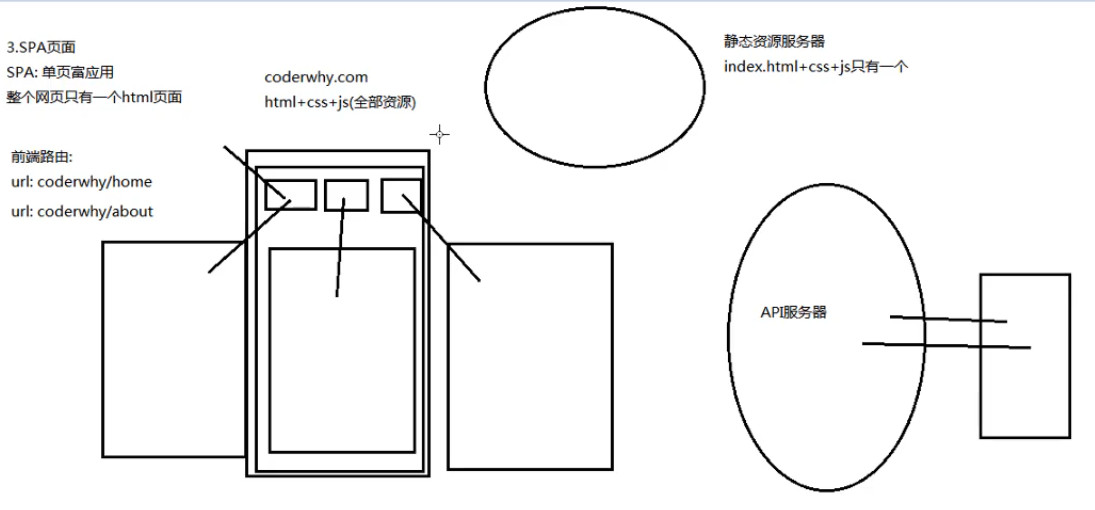
# 3、前端路由阶段(Vue)
一套 API 接口 负责多端 不管PC端还是移动端
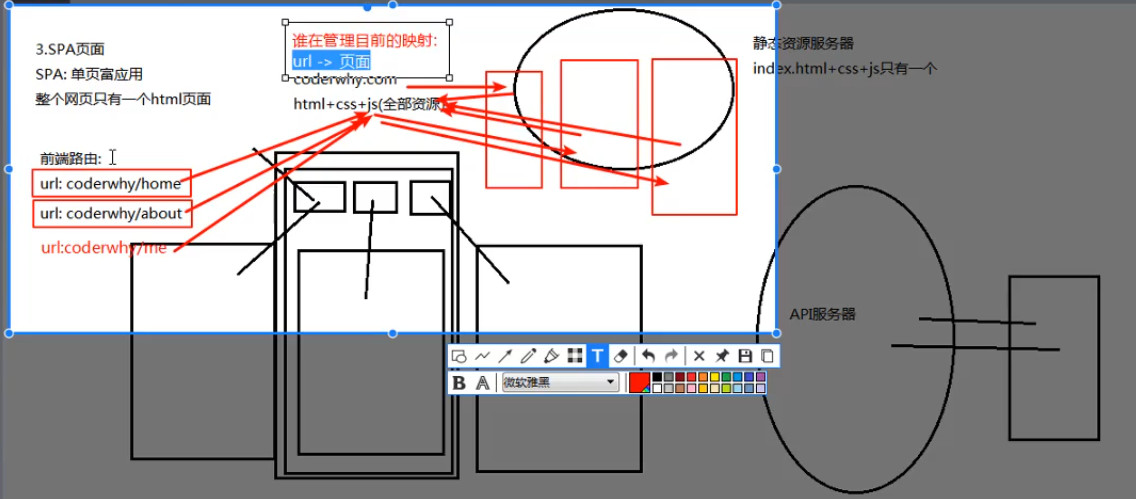
前端把全部资源放到浏览器之后通过 JS 代码判断要显示哪个页面,
比如三个按钮:首页、关于、我的,要显示不同的页面
输入URL => 抽取一部分JS,JS寻找属于这个页面相关的所有组件(一个URL对应一个页面,一个URL对应一个组件)
打包资源时会打包好几个页面到JS(当然后面还要分离)
# url 的 hash 和 HTML5 的 history
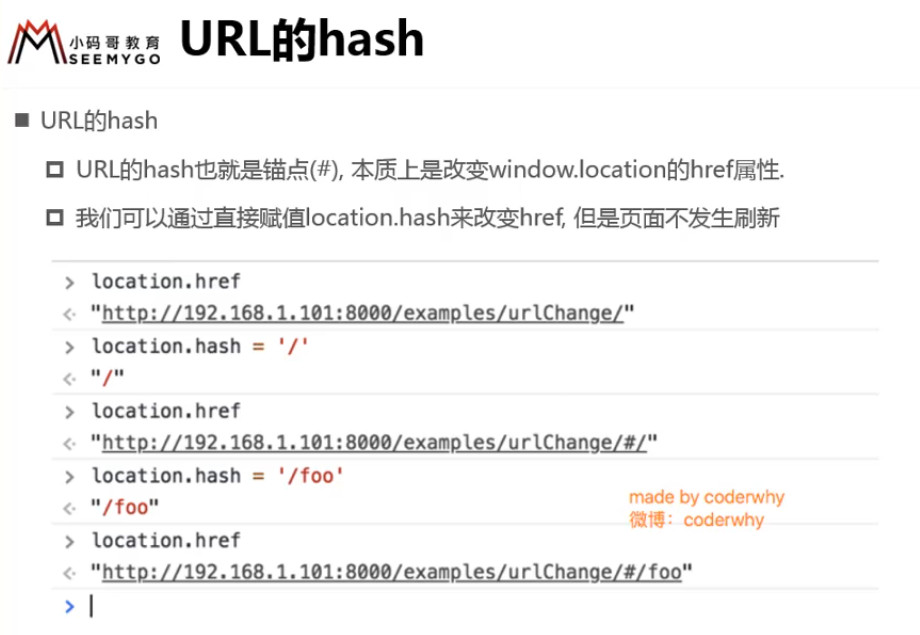
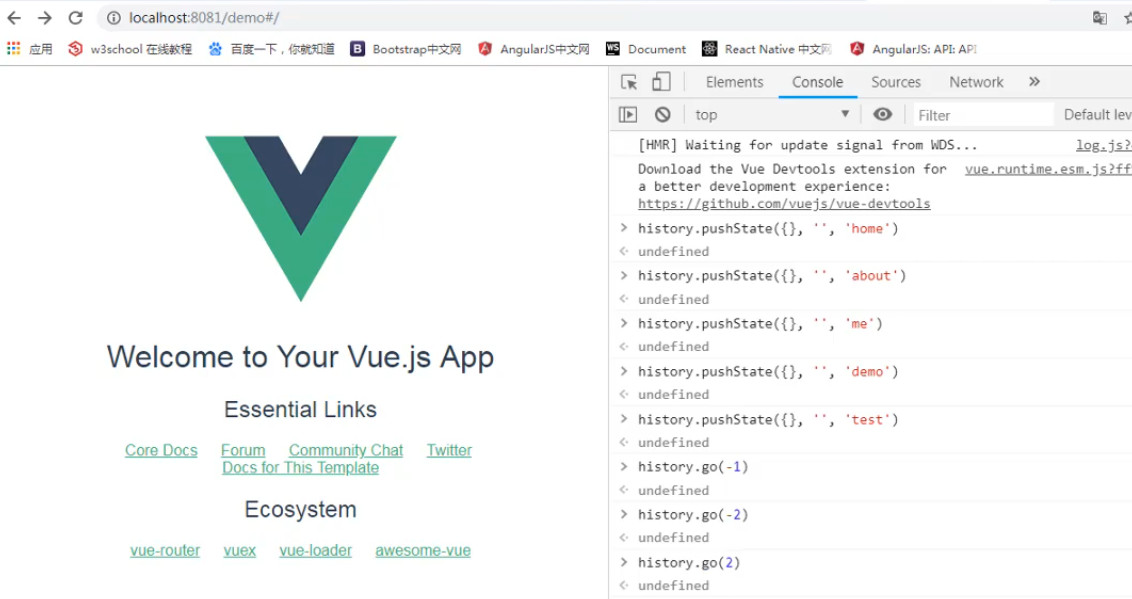
初始地址为: localhost:8081/#
location.hash = 'aaa'  // localhost:8081/#/aaa

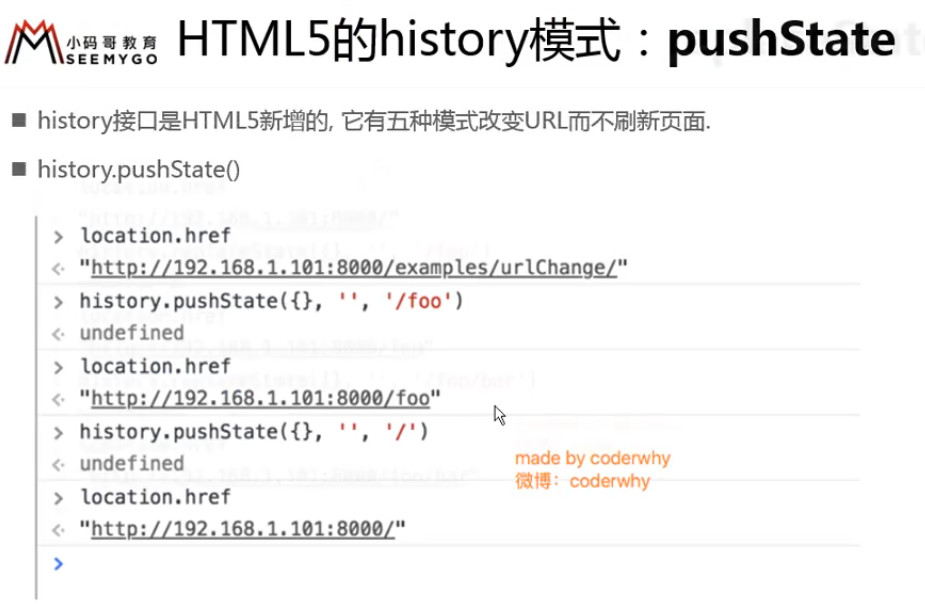
history.pushState({}, '', 'home') // localhost:8081/home 入栈

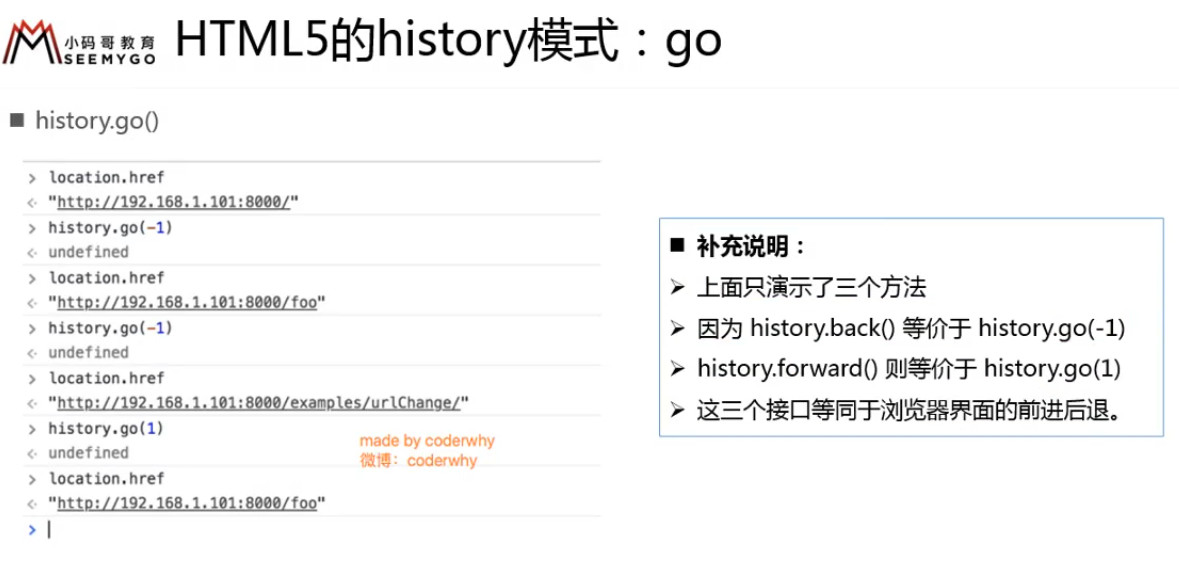
history.back(); // 出栈
2
3
4
5
demo 和 me 出栈,显示 about(从 demo 开始,往回走两步,到达 about)
![3 [11].jpg](https://cdn.nlark.com/yuque/0/2022/jpeg/1614731/1653713904980-69ed33f1-8a91-482f-b11a-2cb6004826b1.jpeg)
下方两个箭头分别代表:history.back() 和 history.forward()
![3 [12].jpg](https://cdn.nlark.com/yuque/0/2022/jpeg/1614731/1653713905893-cd58d1d2-3094-44ee-94a8-07ff43dca6c2.jpeg)
# vue-router 安装和配置方式
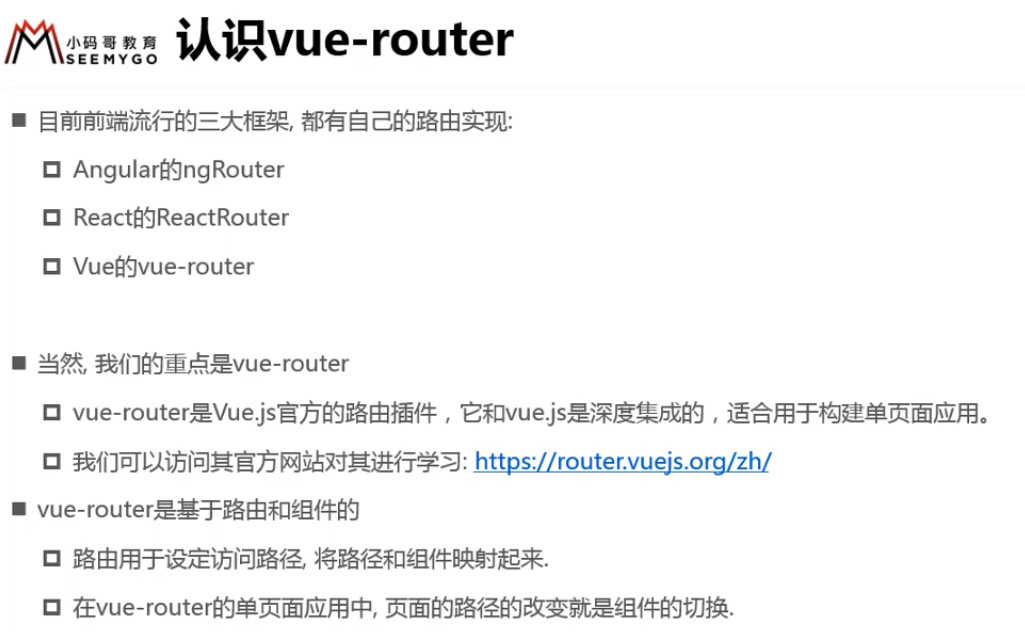
Vue 中的 路由 就是 URL 映射成 组件
index.js
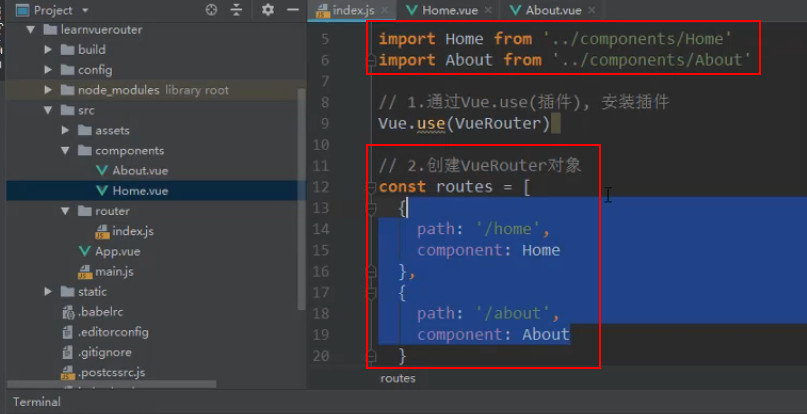
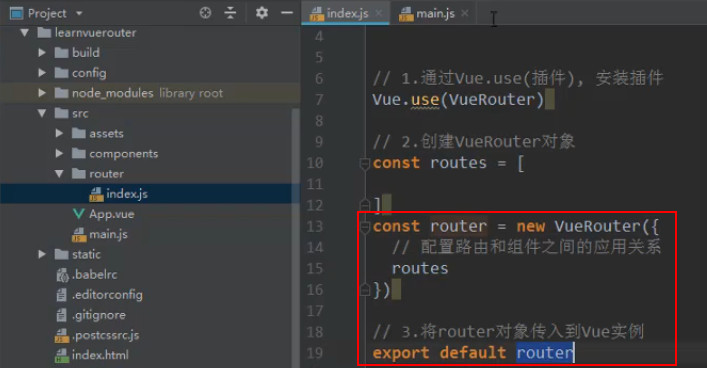
main.js
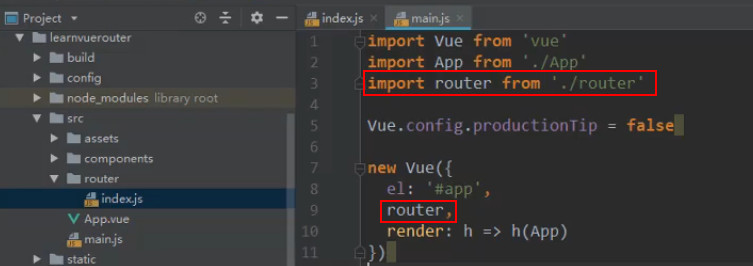
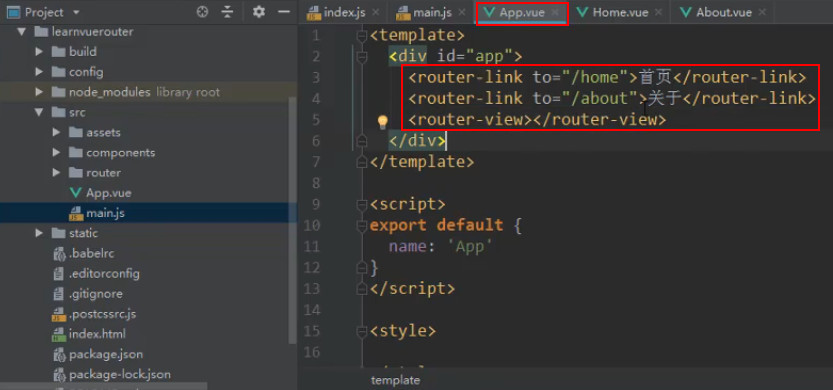
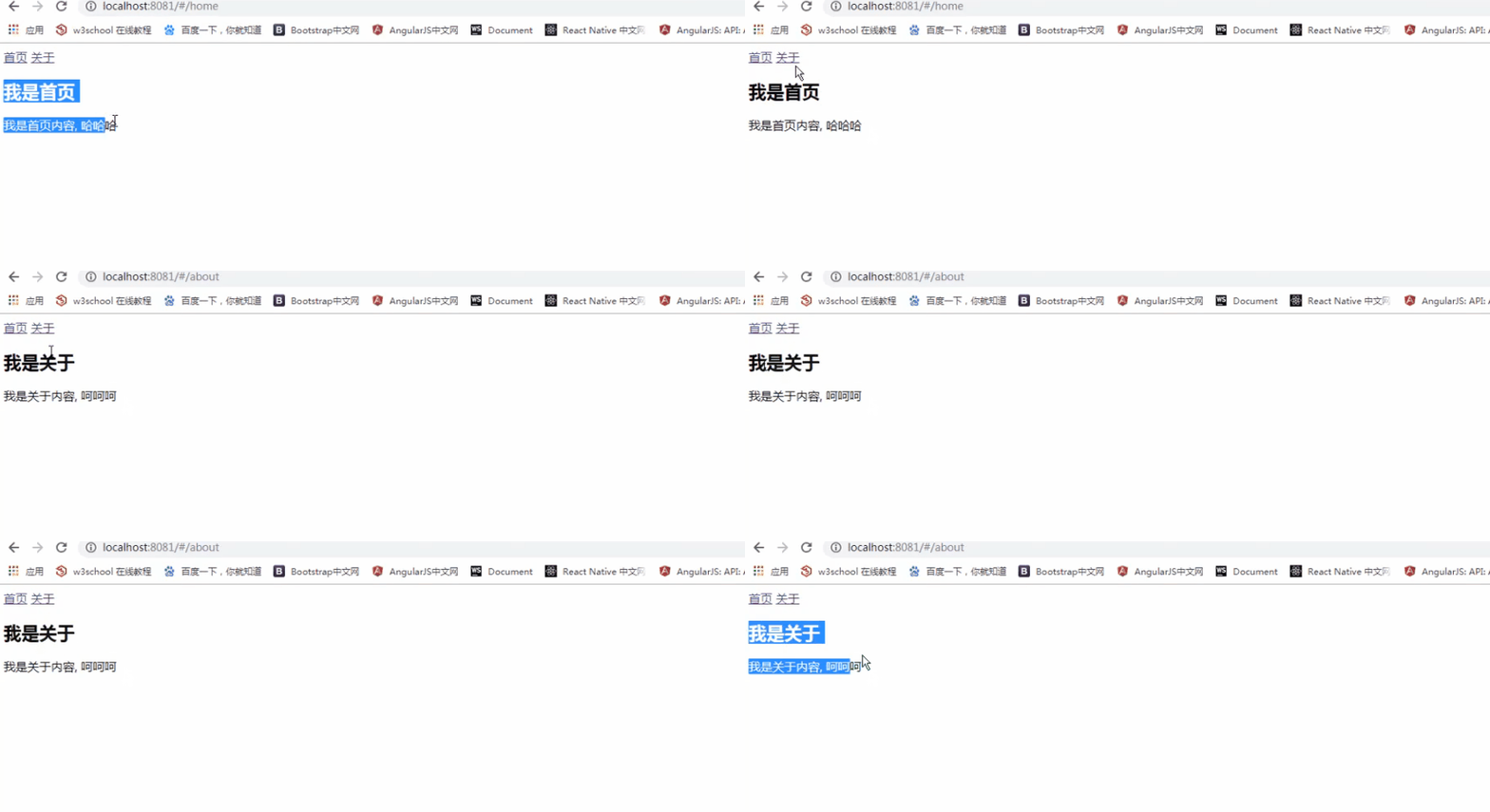
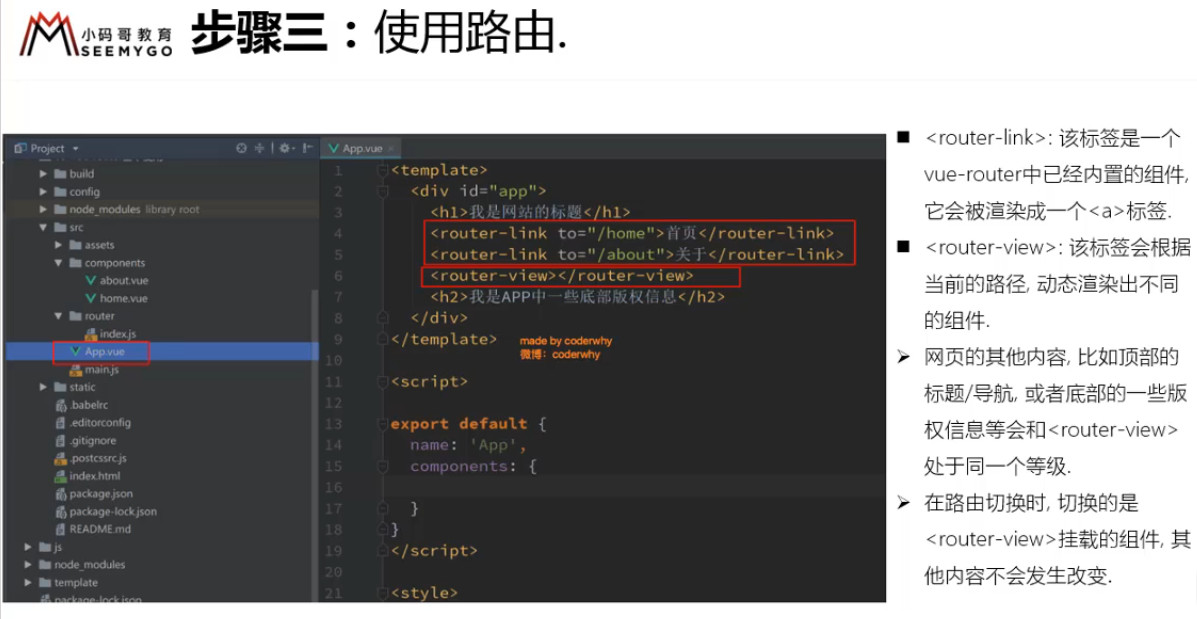
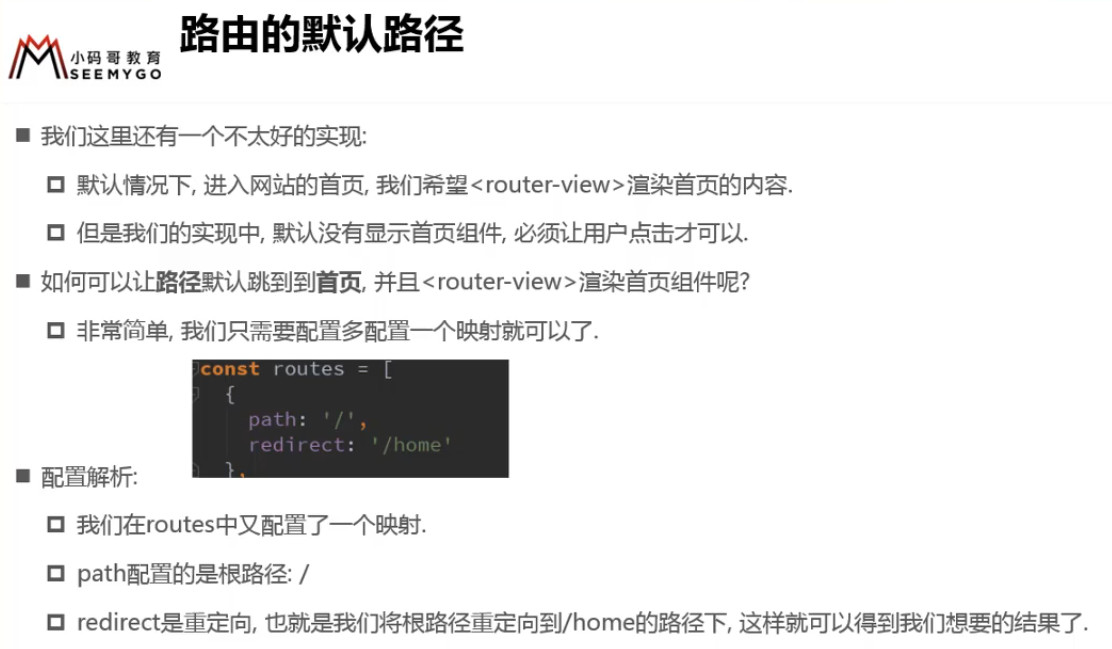
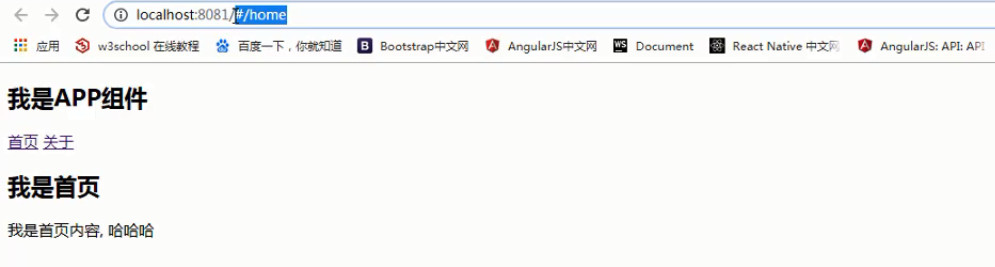
路径前面带#表示Hash模式,这样不好看
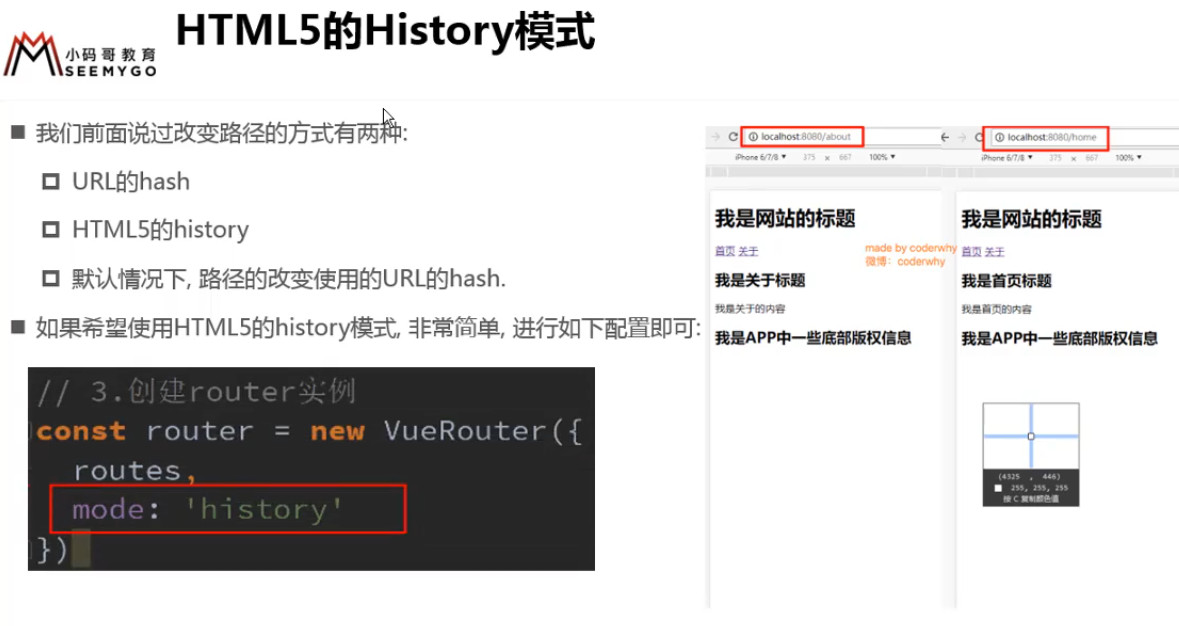
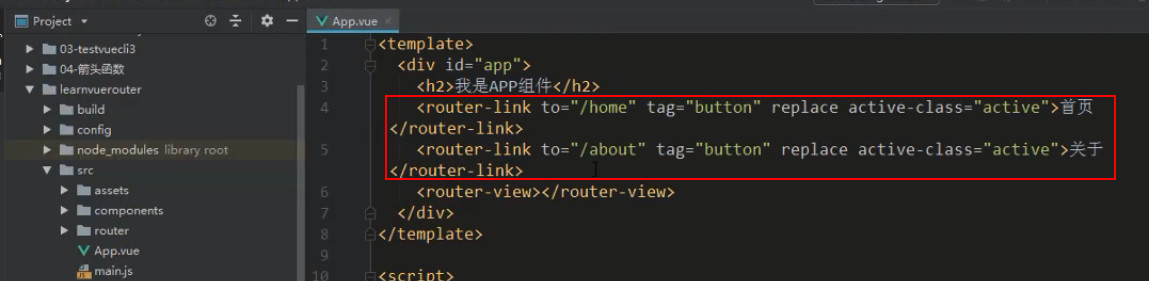
上图 replace 特性表示无法前进和后退
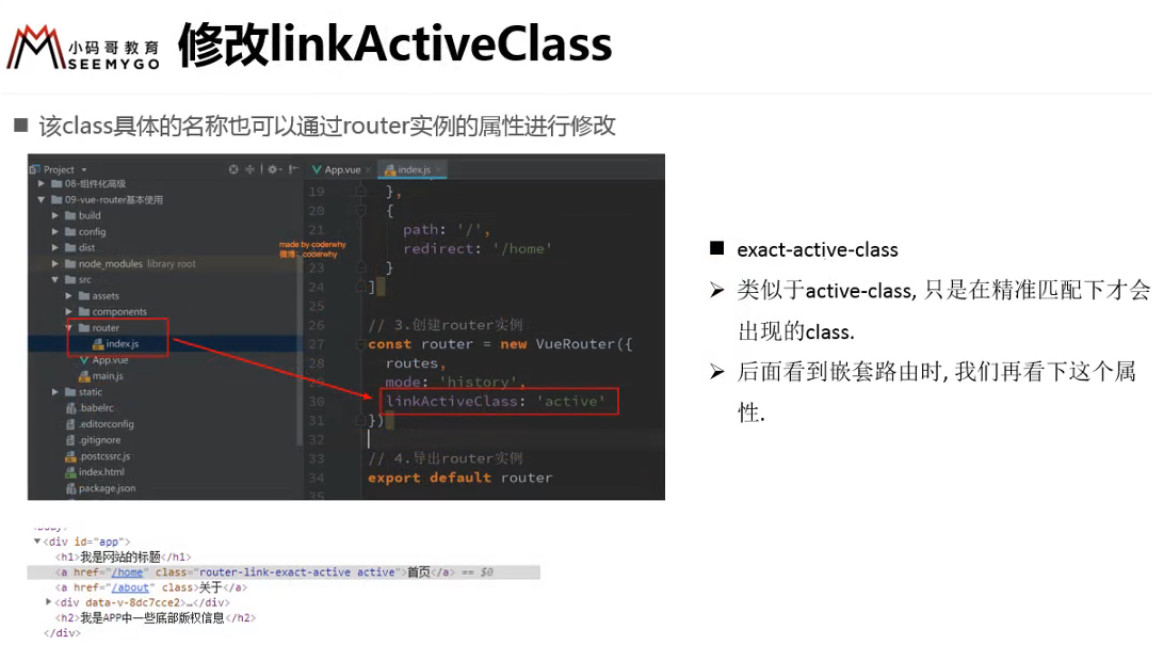
当路由处于激活时会默认为元素添加class,上图 active-class 特性会修改元素 router-link-active 为 active
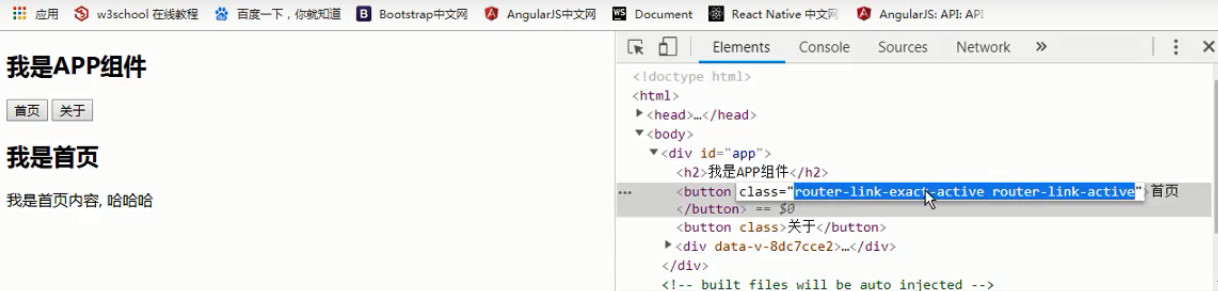
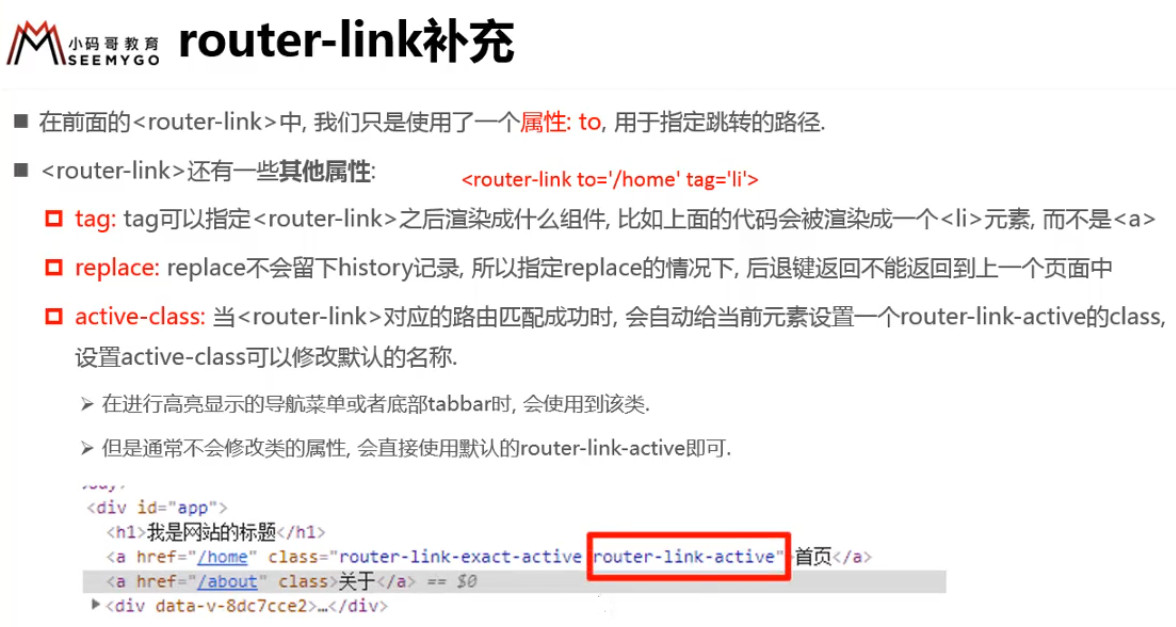
下图的 linkActiveClass 会修改所有 <router-link> 的 class 为 active
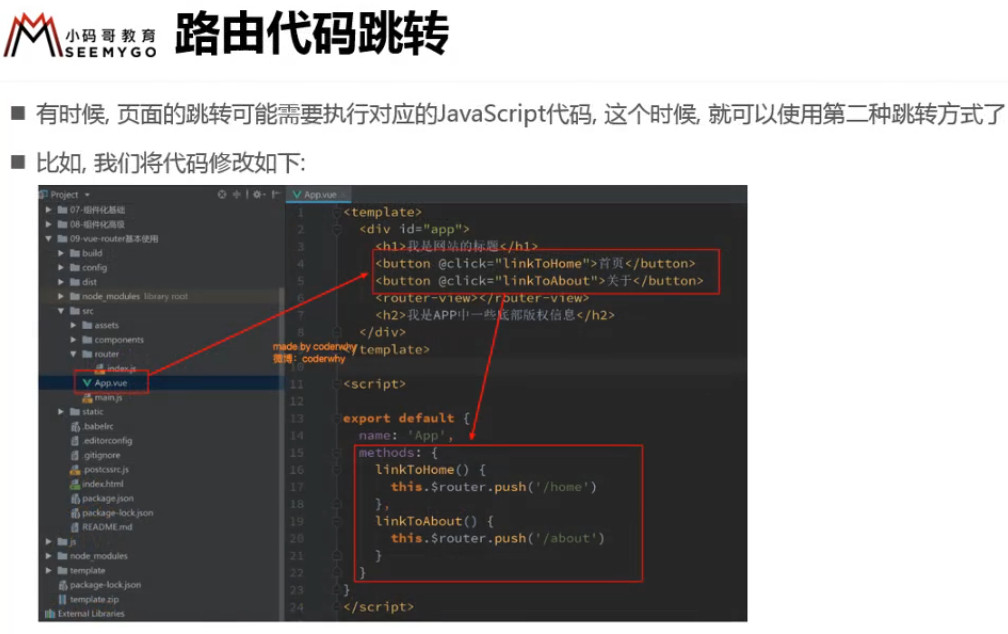
在 Vue 里,不使用 history 绕过 vue-router 去改变路由,可以通过 this.$router.replace()
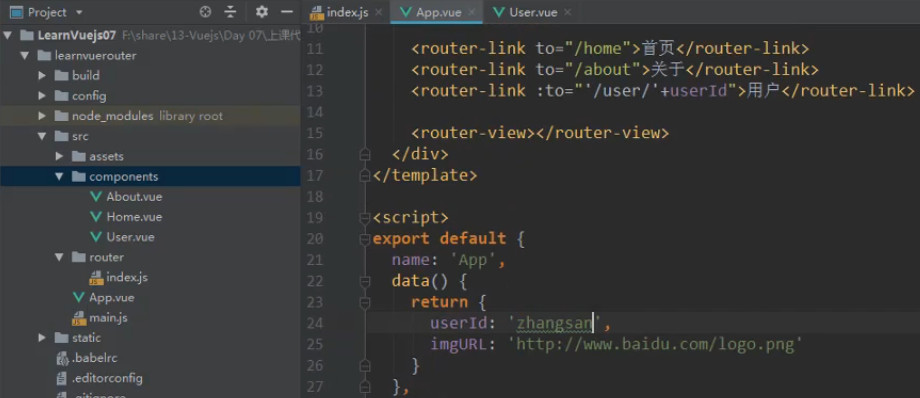
# 动态路径参数(router-link 通过 :to 取 data 的 id 传给 path)
![3 [33].jpg](https://cdn.nlark.com/yuque/0/2022/jpeg/1614731/1653713910370-0794cb62-7586-4566-9d5d-9a9b53314ee8.jpeg)
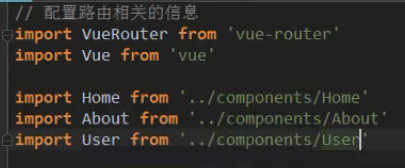
index.js
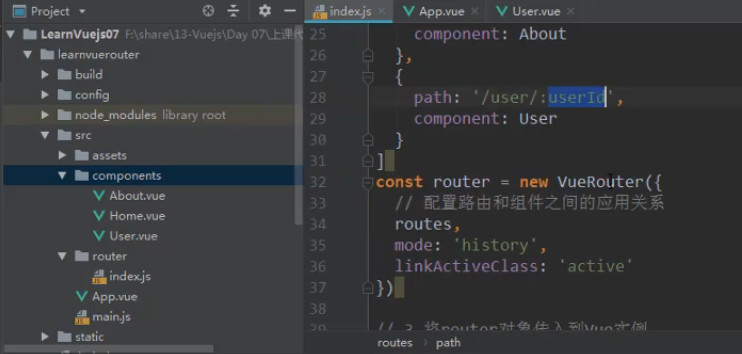
APP.vue
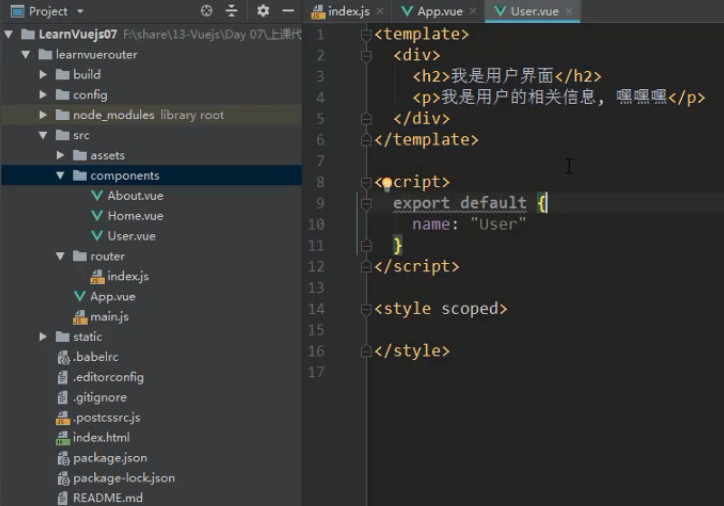
User.vue
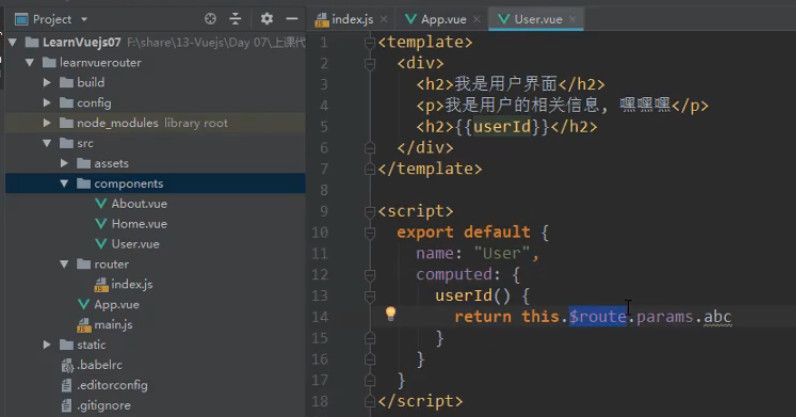
this.$routeS.params.abc 应为 this.$routeS.params.userId

# $route 和 $router 的区别
两者在 template 中都可以直接使用,不需要 this.xxx,在 script 中需要 this.$xxx
$router 表示 new 出来的 VueRouter 对象(管家),包含所有的方法
$route 表示当前点击进入后处于活跃的路由(佣人), 包含所有的属性
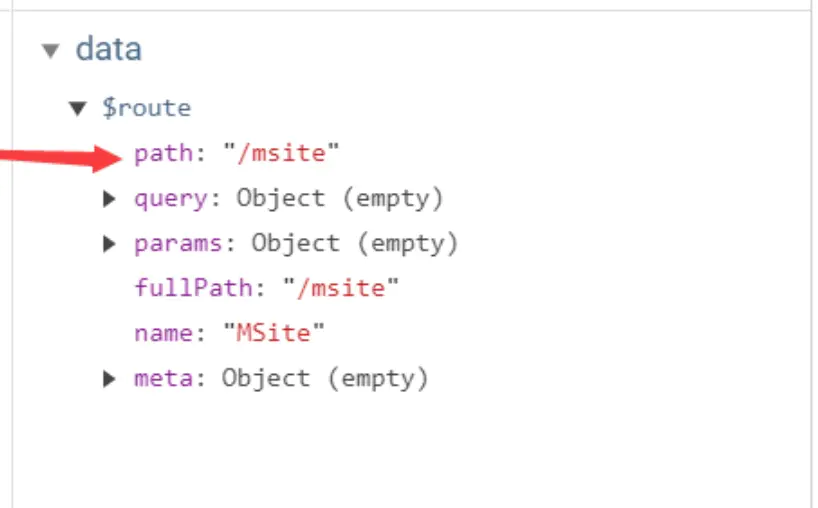
我们可以根据这两个单词的长度来进行判断,
一个是 router,这个单词长一些,代表的是整个路由对象,里面是整个静态路由表的配置信息。
如果需要实现路由的跳转,则需要从整个静态路由表对象中进行匹配,所以使用的是 router。
而 route 这个单词短一些,代表的是当前的路由页面内容,如果需要获取当前路由对象的参数信息,则可以对 route 内容进行处理。

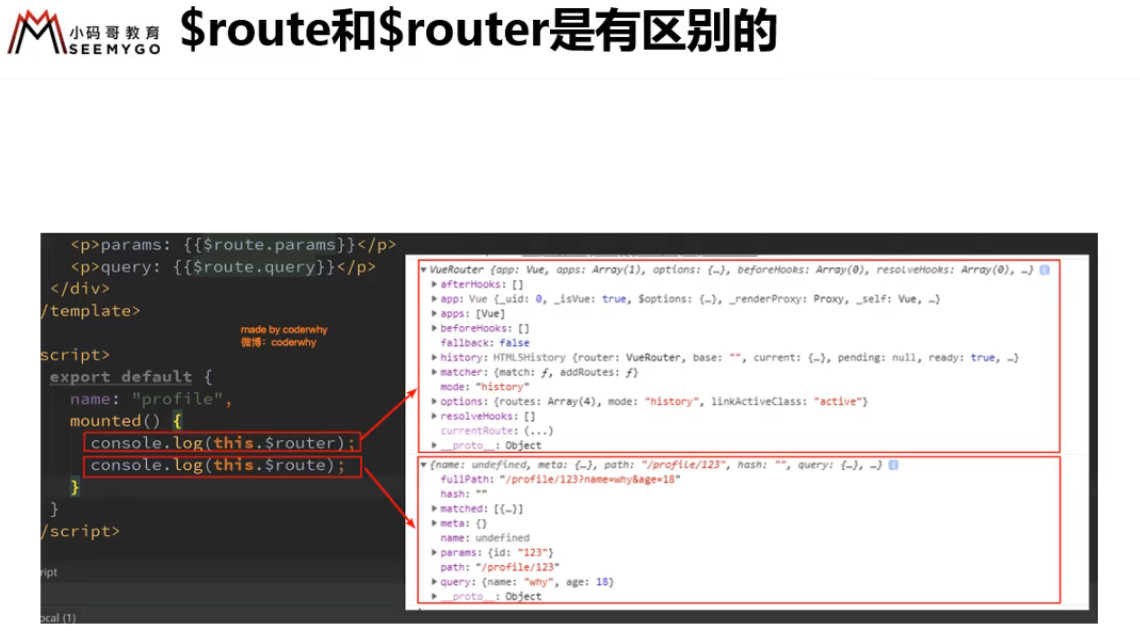
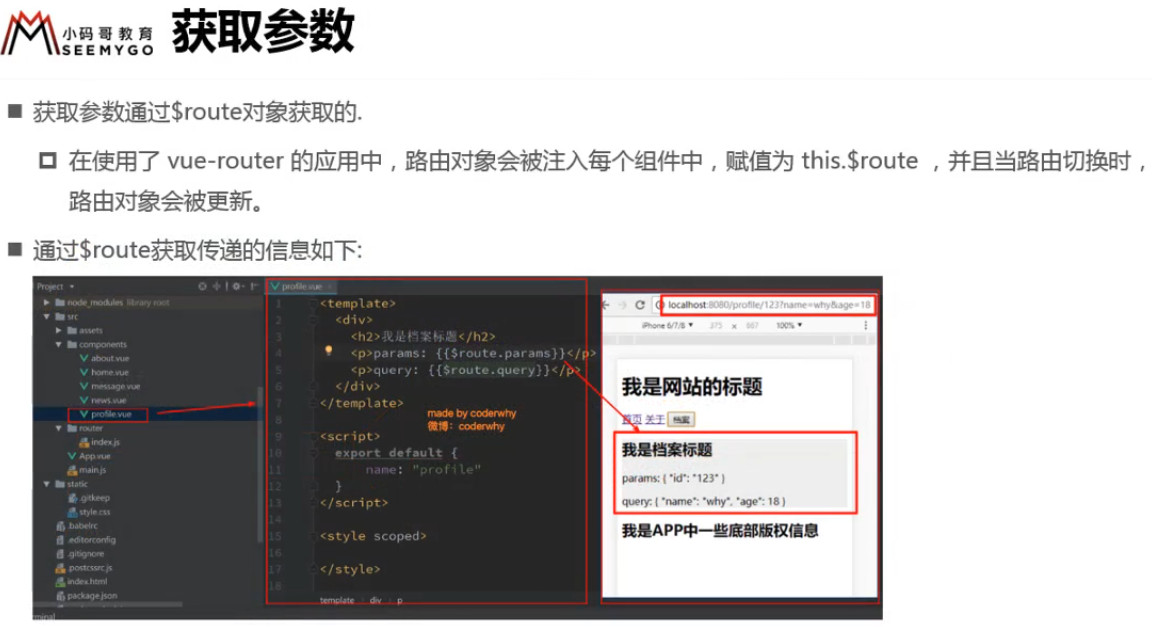
router下的index.js
import VueRouter from 'vue-router';
import Vue from 'vue';
import Home from '../components/Home';
import About from '../components/About';
import User from '../components/User';

Vue.use(VueRouter);

const routes = [
  {
    path: '/',
    redirect: '/home'
  },
  {
    path: '/home',
    component: Home
  },
  {
    path: '/about',
    component: About
  },
  {
    path: '/user/:userId',
    component: User
  }
];

const router = new VueRouter({
  routes,
  mode: 'history'
})

export default router
2
3
4
5
6
7
8
9
10
11
12
13
14
15
16
17
18
19
20
21
22
23
24
25
26
27
28
29
30
31
32
33
APP.vue
<template>
  <div id="app">
    <h1>我是APP</h1>
    <router-link to='/home'>首页</router-link>
    <router-link to='/about'>关于</router-link>
    <router-link :to="'/user/' + userId">用户</router-link>
    <router-view></router-view>
  </div>
</template>

<script>
export default {
  name: 'App',
  data() {
    return {
      userId: '上帝'
    }
  }
}
</script>

<style>
</style>
2
3
4
5
6
7
8
9
10
11
12
13
14
15
16
17
18
19
20
21
22
23
User.vue
<template>
  <div>
    <h1>我是用户</h1>
    <p>用户就是上帝</p>
    <h2 v-text="userId"></h2>
  </div>
</template>

<script>
export default {
  name: 'User',
  computed: {
    userId() {
      return '你好,' + this.$route.params.userId
    }
  }
}
</script>

<style>
</style>
2
3
4
5
6
7
8
9
10
11
12
13
14
15
16
17
18
19
20
21
![3 [44].jpg](https://cdn.nlark.com/yuque/0/2022/jpeg/1614731/1653713913197-79e8f636-af93-4a0f-81bd-5d16852eac11.jpeg)
# 打包文件的解析
![3 [45].jpg](https://cdn.nlark.com/yuque/0/2022/jpeg/1614731/1653713913199-fccfd425-4d25-4969-96e2-65ed6d19832e.jpeg)
# 路由懒加载
![3 [46].jpg](https://cdn.nlark.com/yuque/0/2022/jpeg/1614731/1653713913612-99e6d7b1-d8f0-46c1-b049-a1688a28ac0b.jpeg)
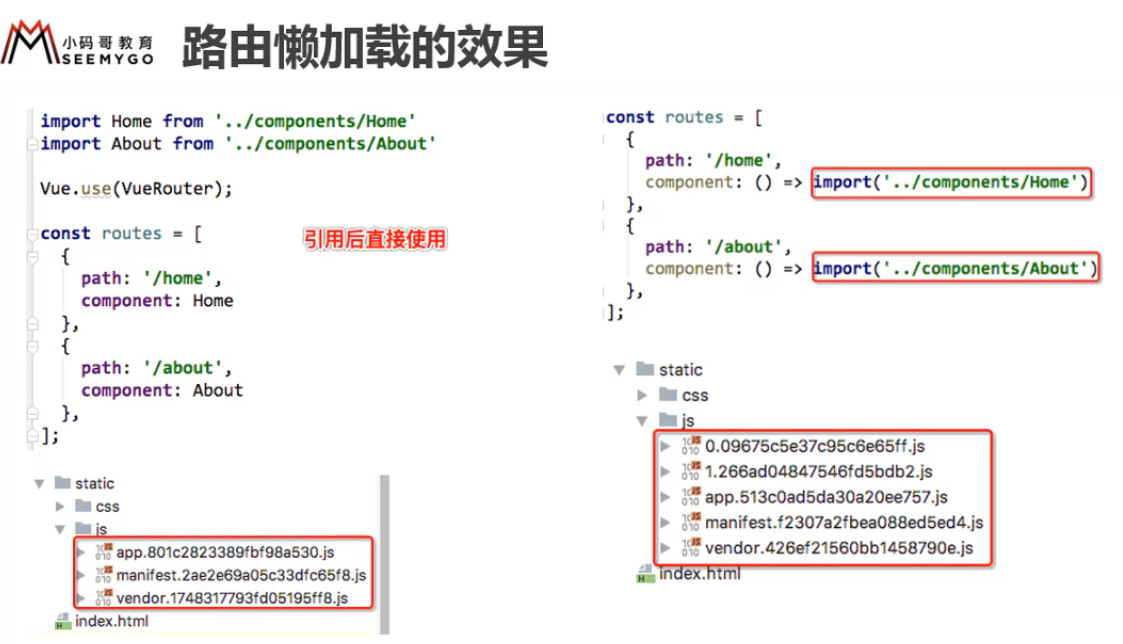
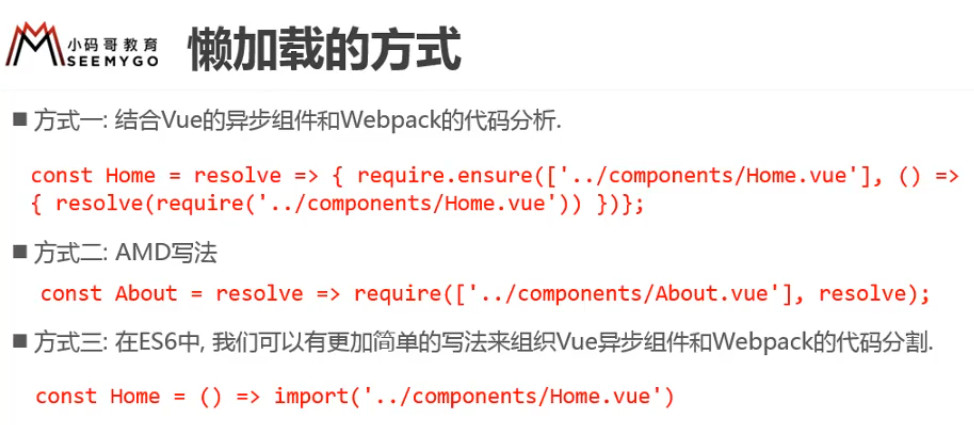
一个懒加载对应一个打包后的JS文件
const Home = () => import('../components/Home');

const About = () => import('../components/About');

const User = () => import('../components/User');

const HomeNews = () => import('../components/HomeNews');

const HomeMessage = () => import('../components/HomeMessage');
2
3
4
5
6
7
8
9
# 路由的嵌套(children子路由)
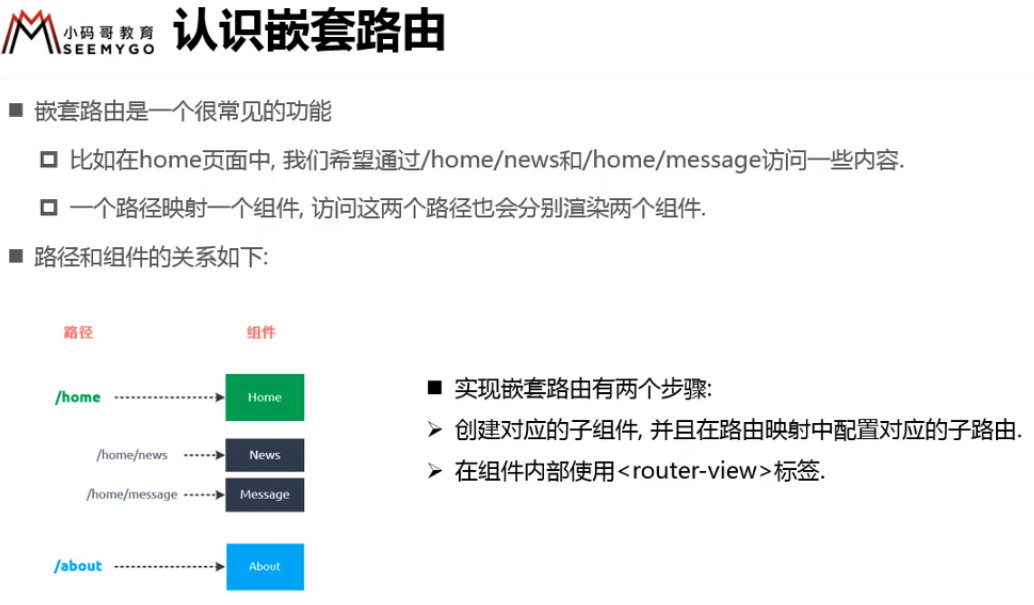
router下的 index.js
const routes = [
  {
    path: '/',
    redirect: '/home'
  },
  {
    path: '/home',
    component: Home,
    children: [
      {
        path: '/',
        redirect: 'news'
      },
      {
        path: 'news',
        component: HomeNews
      },
      {
        path: 'message',
        component: HomeMessage
      }
    ]
  },
  {
    path: '/about',
    component: About
  },
  {
    path: '/user/:userId',
    component: User
  }
];
2
3
4
5
6
7
8
9
10
11
12
13
14
15
16
17
18
19
20
21
22
23
24
25
26
27
28
29
30
31
32
Home.vue
<template>
   <div>
     <h1>我是首页</h1>
     <p>首页的首,首页的页</p>
     <router-link to="/home/news">新闻</router-link>
     <router-link to="/home/message">消息</router-link>
     <router-view></router-view>
   </div>
</template>

<script>
export default {
  name: 'Home'
}
</script>

<style>
</style>
2
3
4
5
6
7
8
9
10
11
12
13
14
15
16
17
18
首页路径会变成:localhost:8081/home/news 或 localhost:8081/home/message
![3 [1].gif](https://cdn.nlark.com/yuque/0/2022/gif/1614731/1653713902067-05e69d7f-bb2e-49f7-8e17-a562735fd520.gif)
# 传递参数
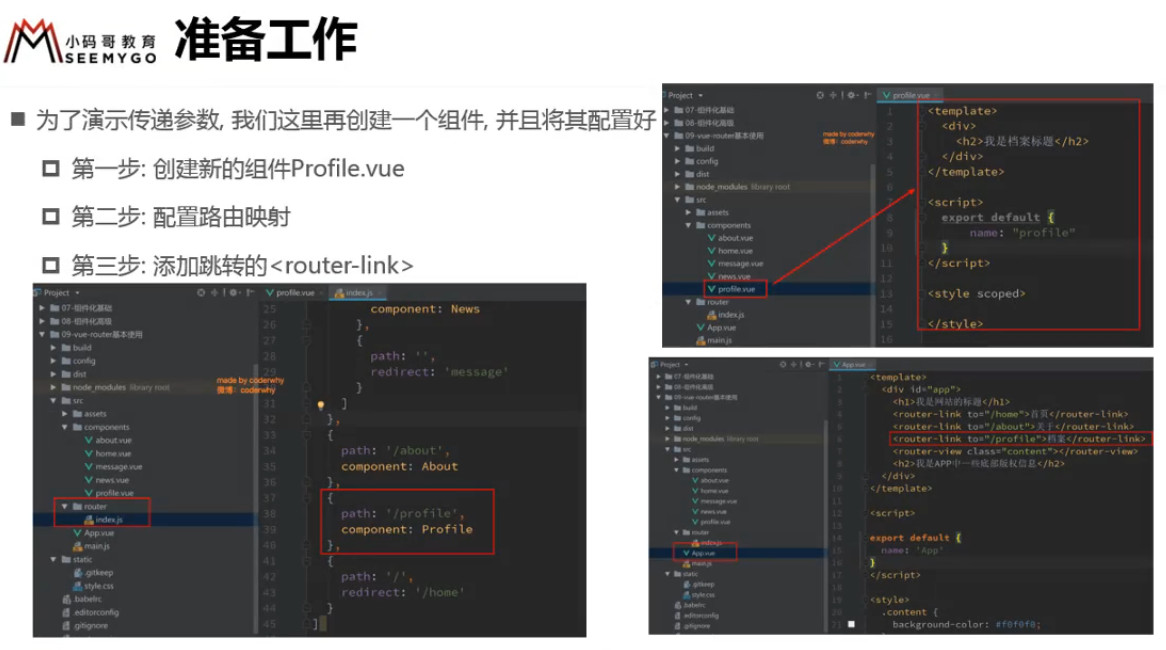
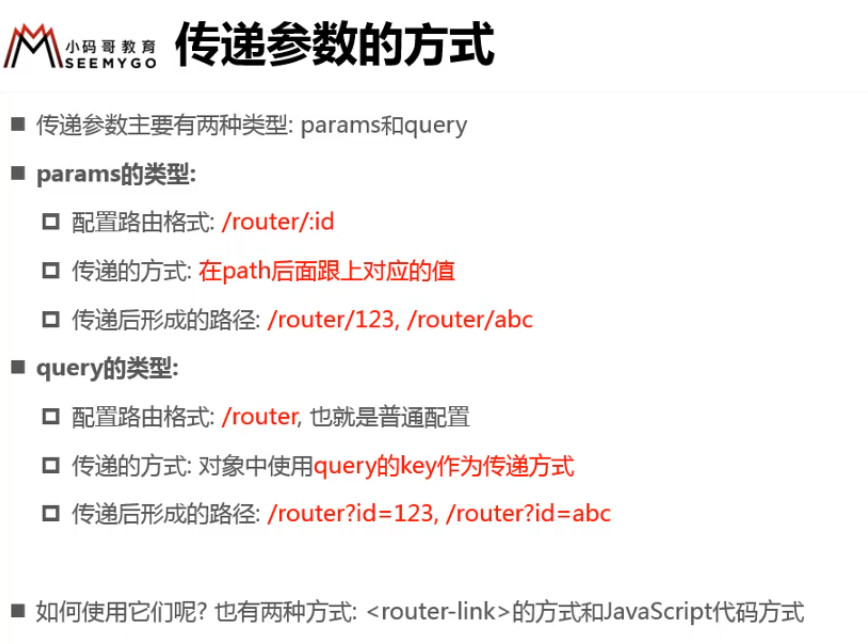
APP.vue
<template>
  <div id="app">
    <h1>我是APP</h1>
    <router-link to='/home'>首页</router-link>
    <router-link to='/about'>关于</router-link>
    <router-link :to="'/user/' + userId">用户</router-link>
    <router-link :to="{ path: '/profile', query: { name: 'coder', age: 18, height: 1.88 } }">档案</router-link>
    <router-view></router-view>
  </div>
</template>

<script>
export default {
  name: 'App',
  data() {
    return {
      userId: '上帝'
    }
  }
}
</script>

<style>
</style>
2
3
4
5
6
7
8
9
10
11
12
13
14
15
16
17
18
19
20
21
22
23
24
Profile.vue
<template>
  <div>
    <h1>个人档案</h1>
    <h1>{{$route.query.name}}</h1>
    <h1>{{$route.query.age}}</h1>
    <h1>{{$route.query.height}}</h1>
  </div>
</template>

<script>
export default {
  name: 'profile'
}
</script>

<style>
</style>
2
3
4
5
6
7
8
9
10
11
12
13
14
15
16
17
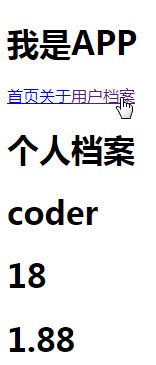
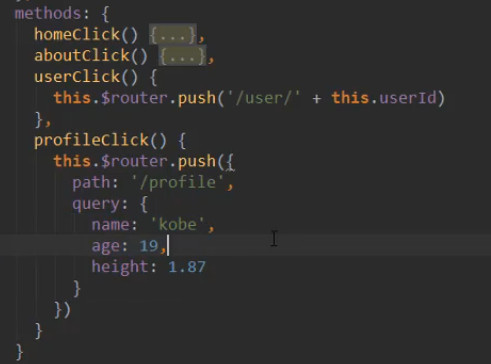
第二种方式 JS 按钮点击的方式(数据较多时使用)
# 全局导航守卫/路由守卫(beforeEach 和 afterEach)

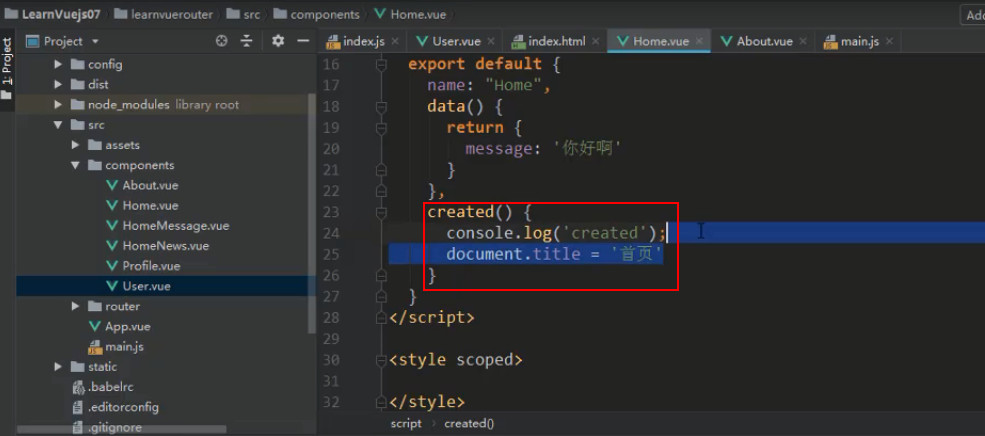
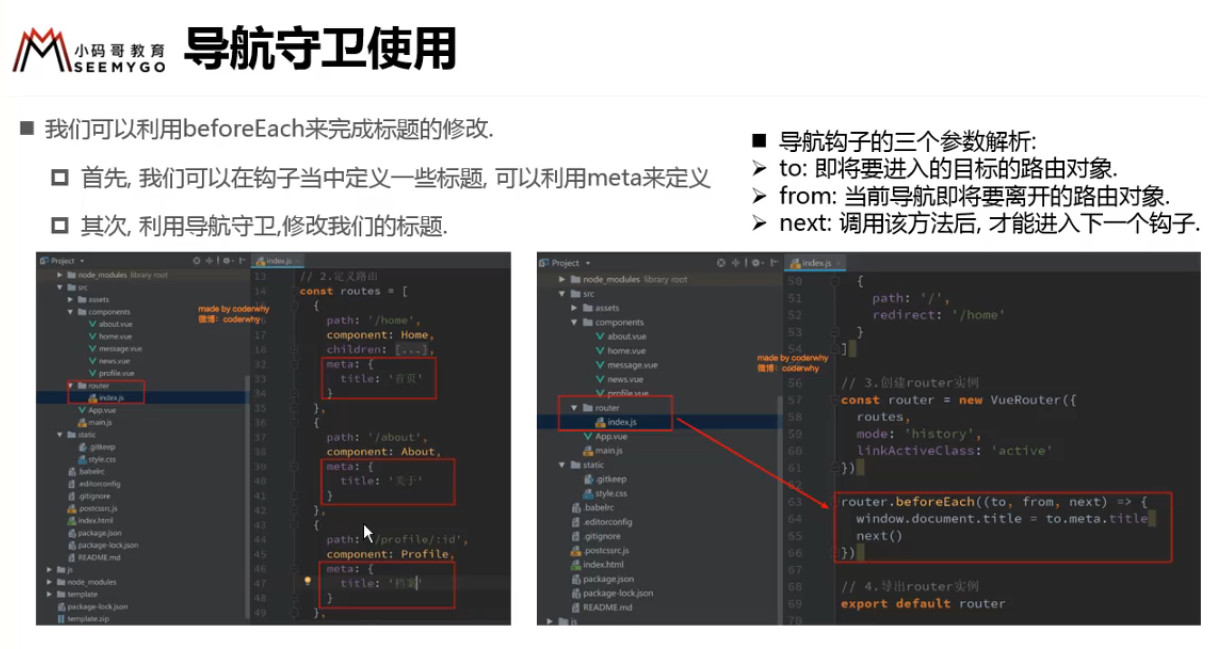
beforeEach() 跳转之前做点什么
router 下的 index.js
import VueRouter from 'vue-router'
import Vue from 'vue'

Vue.use(VueRouter);

const Home = () => import('../components/Home');
const About = () => import('../components/About');
const User = () => import('../components/User');
const HomeNews = () => import('../components/HomeNews');
const HomeMessage = () => import('../components/HomeMessage');
const Profile = () => import('../components/Profile');

const routes = [
  {
    path: '/',
    redirect: '/home'
  },
  {
    path: '/home',
    component: Home,
    meta: {
      title: '首页'
    },
    children: [
      {
        path: '/',
        redirect: 'news'
      },
      {
        path: 'news',
        component: HomeNews
      },
      {
        path: 'message',
        component: HomeMessage
      }
    ]
  },
  {
    path: '/about',
    component: About,
    meta: {
      title: '关于'
    }
  },
  {
    path: '/user/:userId',
    component: User,
    meta: {
      title: '用户'
    }
  },
  {
    path: '/profile',
    component: Profile,
    meta: {
      title: '个人档案'
    }
  }
]

const router = new VueRouter({
  routes,
  mode: 'history'
})

router.beforeEach((to, from, next) => {
  document.title = to.matched[0].meta.title;
  next();
})

export default router
2
3
4
5
6
7
8
9
10
11
12
13
14
15
16
17
18
19
20
21
22
23
24
25
26
27
28
29
30
31
32
33
34
35
36
37
38
39
40
41
42
43
44
45
46
47
48
49
50
51
52
53
54
55
56
57
58
59
60
61
62
63
64
65
66
67
68
69
70
71
72
注意:
beforeEach 不调用next(),就不会跳转
matched[0] 在嵌套路由时使用,子路由才可以显示标题
标签页的标题随路由改变而改变:
![3 [2].gif](https://cdn.nlark.com/yuque/0/2022/gif/1614731/1653713902117-86eee720-7644-4e64-be49-8f7c414b560d.gif)
afterEach() :跳转之后做点什么
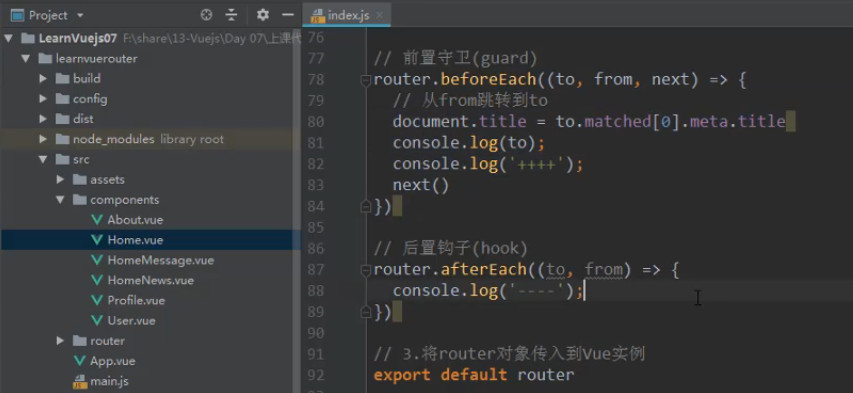

beforeEach() 和 afterEach()是给全部路由用的,所以叫全局守卫

# 组件内的守卫
beforeRouteEnterbeforeRouteUpdatebeforeRouteLeave
const UserDetails = {
  template: `...`,
  beforeRouteEnter(to, from) {
    // 在渲染该组件的对应路由被验证前调用
    // 不能获取组件实例 `this` !
    // 因为当守卫执行时,组件实例还没被创建!
  },
  beforeRouteUpdate(to, from) {
    // 在当前路由改变,但是该组件被复用时调用
    // 举例来说,对于一个带有动态参数的路径 `/users/:id`,在 `/users/1` 和 `/users/2` 之间跳转的时候,
    // 由于会渲染同样的 `UserDetails` 组件,因此组件实例会被复用。而这个钩子就会在这个情况下被调用。
    // 因为在这种情况发生的时候,组件已经挂载好了,导航守卫可以访问组件实例 `this`
  },
  beforeRouteLeave(to, from) {
    // 在导航离开渲染该组件的对应路由时调用
    // 与 `beforeRouteUpdate` 一样,它可以访问组件实例 `this`
  },
}
2
3
4
5
6
7
8
9
10
11
12
13
14
15
16
17
18
beforeRouteEnter 守卫 不能 访问 this,因为守卫在导航确认前被调用,因此即将登场的新组件还没被创建。
不过,你可以通过传一个回调给 next 来访问组件实例。在导航被确认的时候执行回调,并且把组件实例作为回调方法的参数:
beforeRouteEnter (to, from, next) {
  next(vm => {
    // 通过 `vm` 访问组件实例
  })
}
2
3
4
5
注意 beforeRouteEnter 是支持给 next 传递回调的唯一守卫。
对于 beforeRouteUpdate 和 beforeRouteLeave 来说,this 已经可用了,所以不支持 传递回调,因为没有必要了:
beforeRouteUpdate (to, from) {
  // just use `this`
  this.name = to.params.name
}
2
3
4
这个 离开守卫 通常用来预防用户在还未保存修改前突然离开。该导航可以通过返回 false 来取消。
beforeRouteLeave (to, from) {
  const answer = window.confirm('Do you really want to leave? you have unsaved changes!')
  if (!answer) return false
}
2
3
4
# vue-router 钩子函数
全局的:beforeEach、beforeResolve、afterEach
路由的:beforeEnter
可以直接在路由配置上定义 beforeEnter 守卫:
const routes = [
  {
    path: '/users/:id',
    component: UserDetails,
    beforeEnter: (to, from) => {
      // reject the navigation
      return false
    },
  },
]
2
3
4
5
6
7
8
9
10
beforeEnter 守卫 只在进入路由时触发,不会在 params、query 或 hash 改变时触发。
例如,从 /users/2 进入到 /users/3 或者从 /users/2#info 进入到 /users/2#projects。它们只有在 从一个不同的 路由导航时,才会被触发。
也可以将一个函数数组传递给 beforeEnter,这在为不同的路由重用守卫时很有用:
function removeQueryParams(to) {
  if (Object.keys(to.query).length)
    return { path: to.path, query: {}, hash: to.hash }
}

function removeHash(to) {
  if (to.hash) return { path: to.path, query: to.query, hash: '' }
}

const routes = [
  {
    path: '/users/:id',
    component: UserDetails,
    beforeEnter: [removeQueryParams, removeHash],
  },
  {
    path: '/about',
    component: UserDetails,
    beforeEnter: [removeQueryParams],
  },
]
2
3
4
5
6
7
8
9
10
11
12
13
14
15
16
17
18
19
20
21
组件的:beforeRouteEnter、beforeRouteUpdate、beforeRouteLeave
参数:to、from、next;对不同的钩子函数,参数有所差异。
# 记录首页导航状态
每次切换路由时,会重新创建新的组件的,状态不会保留下来,也就是说跳转到新页面后再回到首页,新闻看不了了。
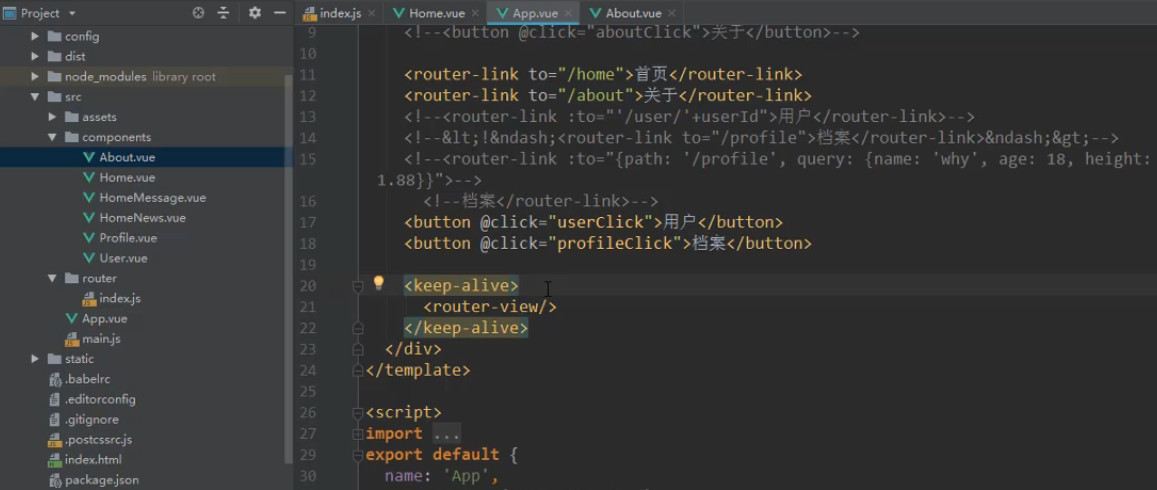
keep-alive 包裹 <router-view> 会使组件缓存起来,在生命周期中只被创建(created)一次,以后不会再被频繁地创建和销毁
# 记录上一次离开时的状态
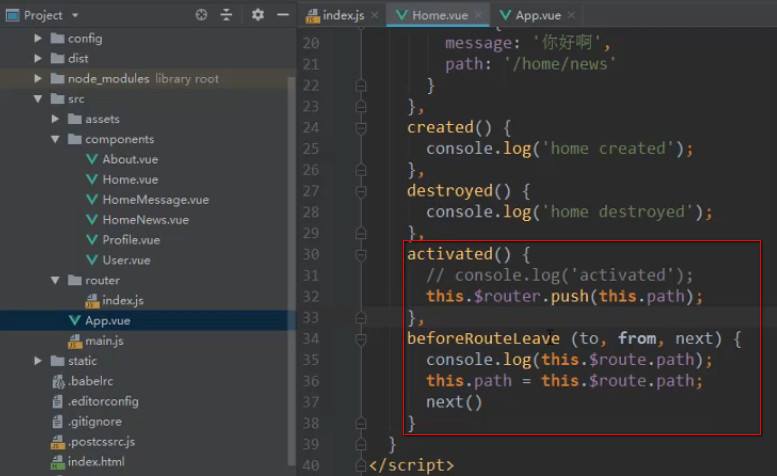
使用生命周期函数 和 组件内导航守卫(activated 函数只有使用 keep-alive 时才生效)
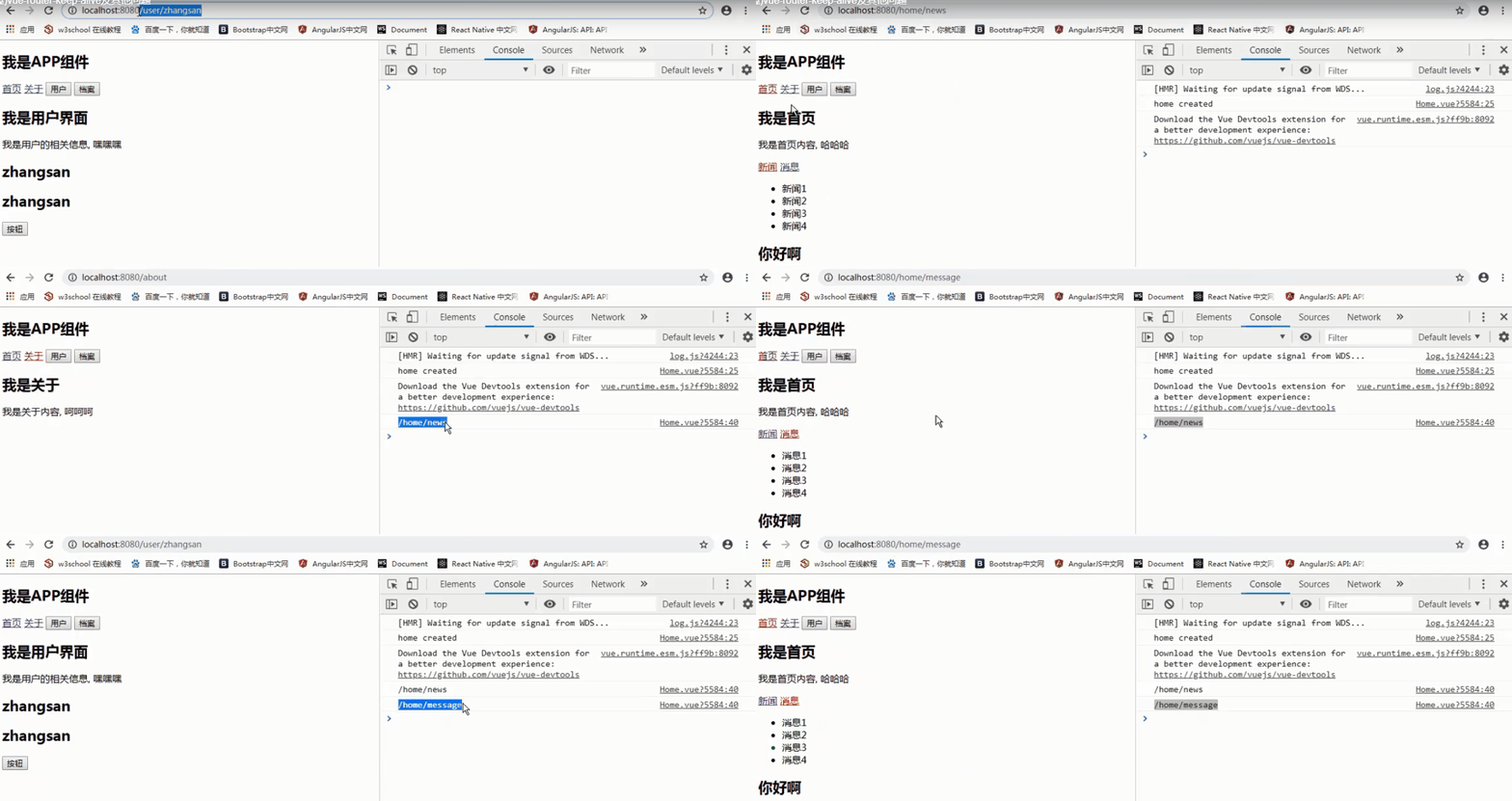
一旦进入首页就处于活跃,执行 activated(),this.$router.push(this.path) 展示当前活跃路由
离开首页时执行 beforeRouteLeave() 记录离开时的路径给 data 的 path,然后从首页跳转到新页面后执行 activated()
# keep-alive 属性介绍
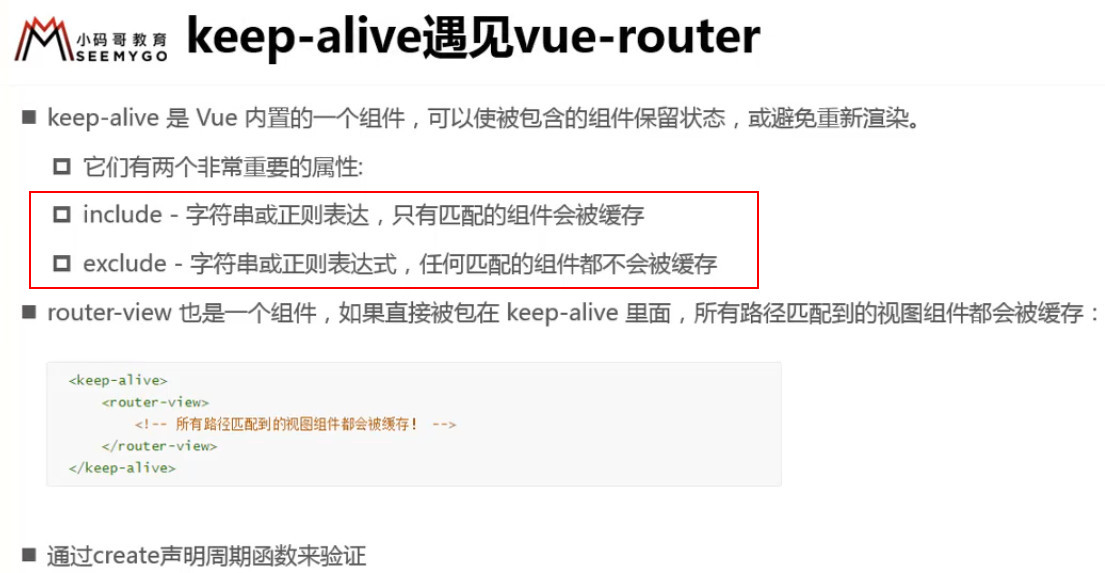
Profile.vue 组件 和 User.vue 组件 不会被缓存
注意不可以加空格
![3 [63].jpg](https://cdn.nlark.com/yuque/0/2022/jpeg/1614731/1653713918017-6bf32c26-2ac1-45ff-a46c-04cc40600ead.jpeg)
# TabBar
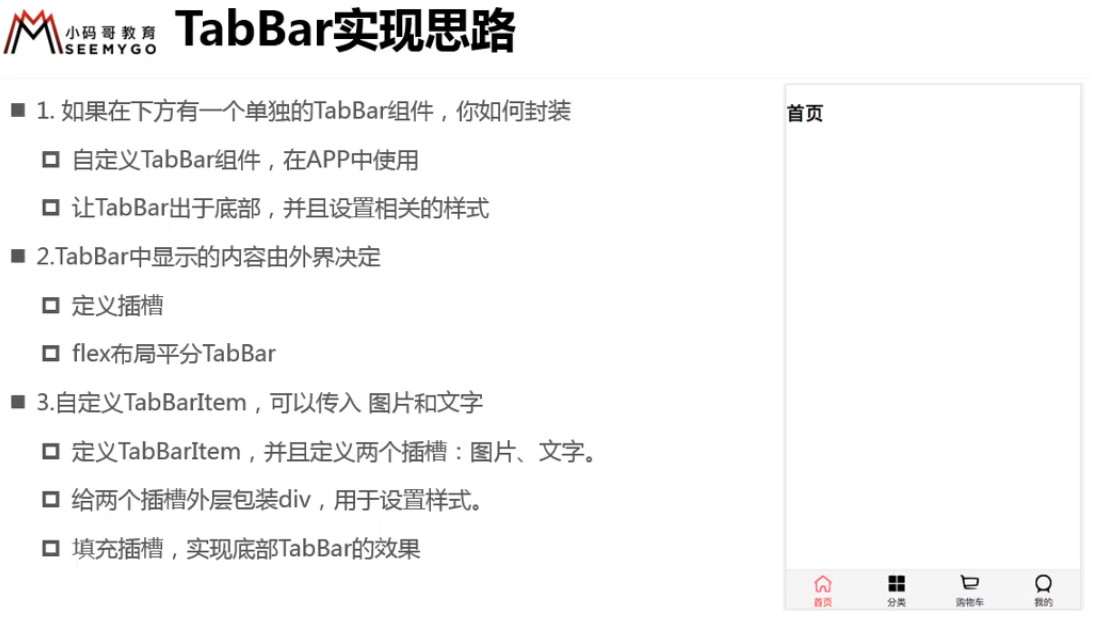
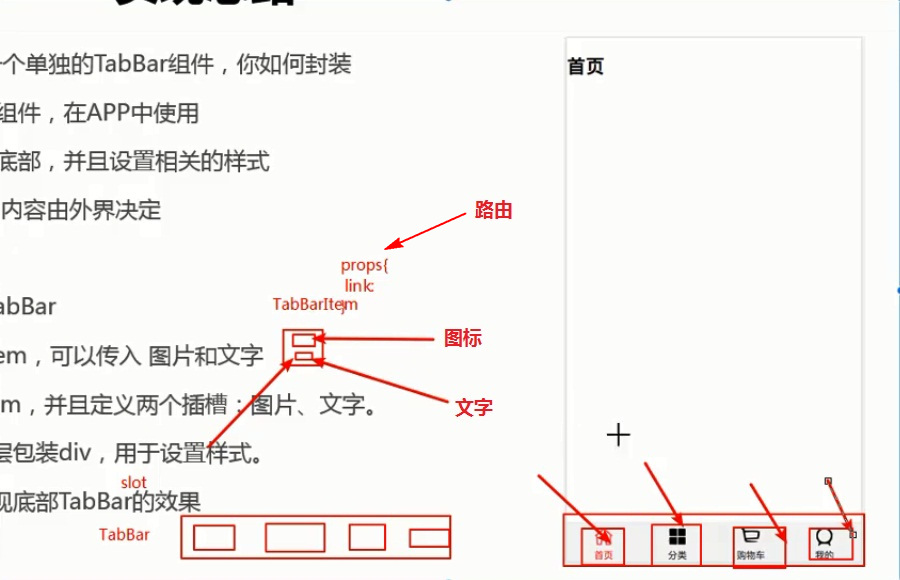
APP.vue => APP局部组件 TabBar.vue
TabBar 设置插槽 => APP局部组件 TabBarItem.vue
TabBarItem 具名插槽 => img(活跃的、不活跃的) + text
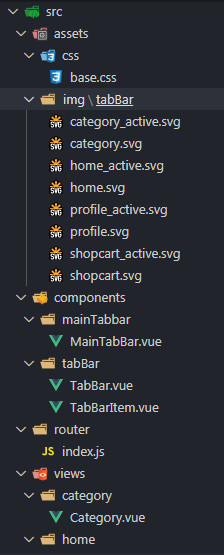
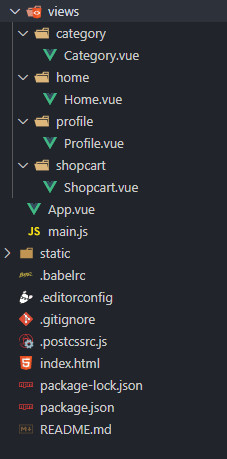
过程:
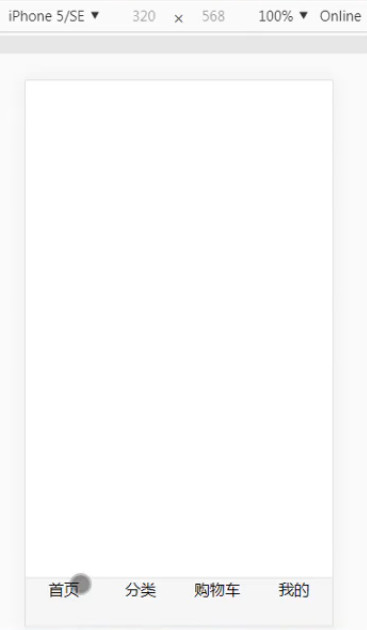
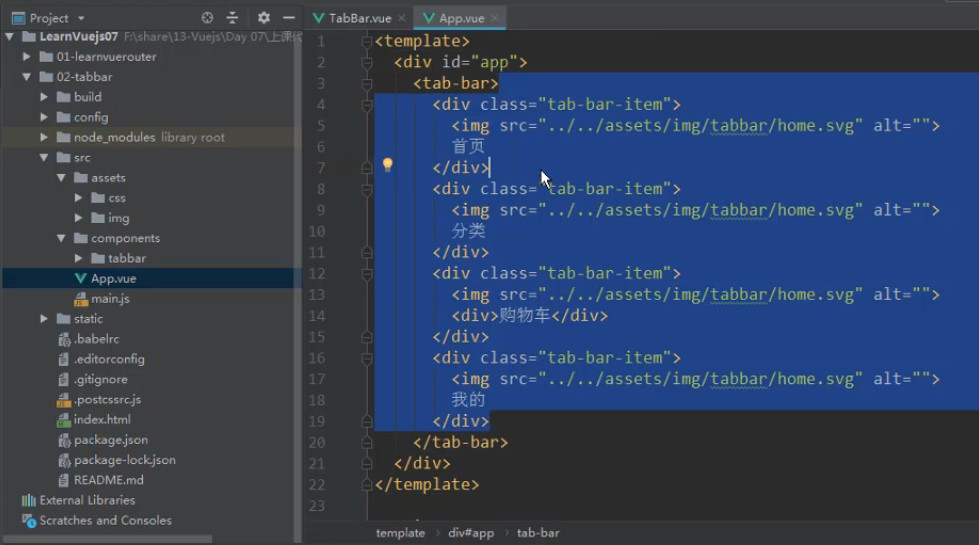
# 1、在 APP.vue 里搭好 tabBar 的基本结构(HTML + CSS)
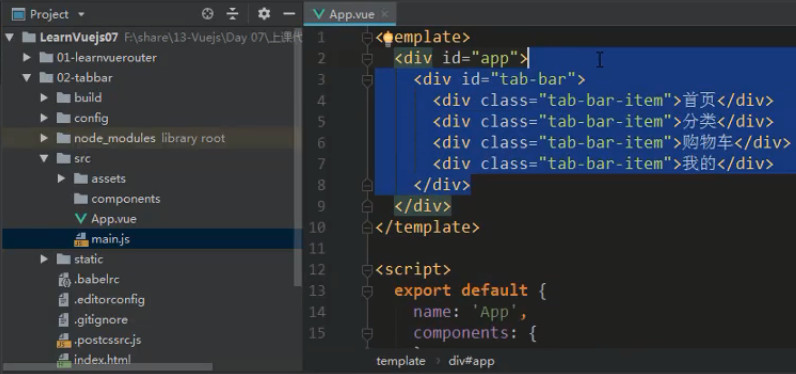
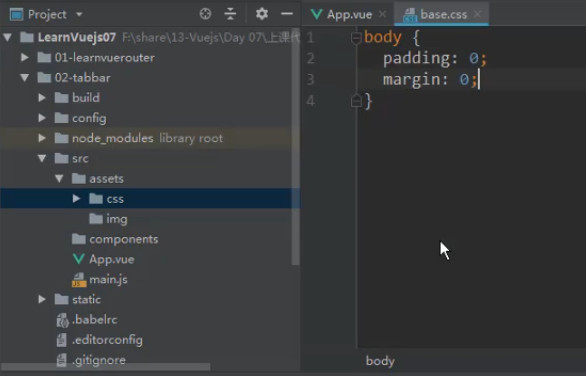
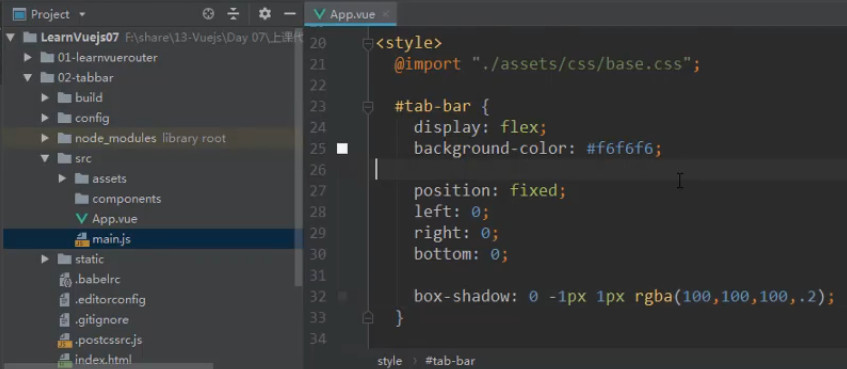
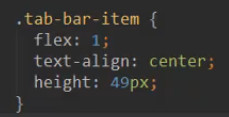
@import 引入 base.css 并添加样式
# 2、 TabBar 和 TabBarItem 组件的封装
如果下一个项目需要用到 TabBar 的话就要把 HTML + CSS 所有东西全部拷贝过去,所以为了复用性,就要把它们封装成独立的组件
在 components 下新建 tabBar 文件夹放置 TabBar 组件
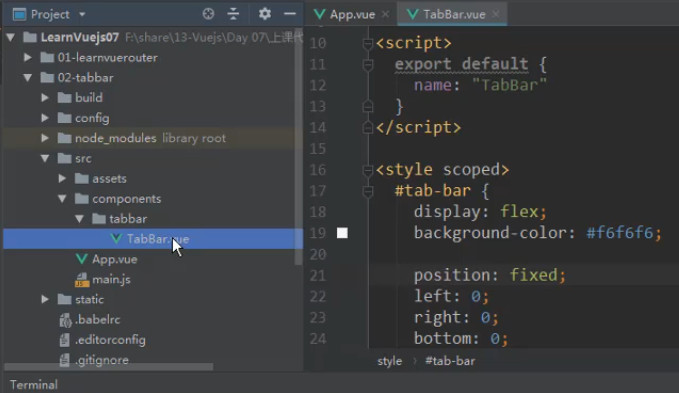
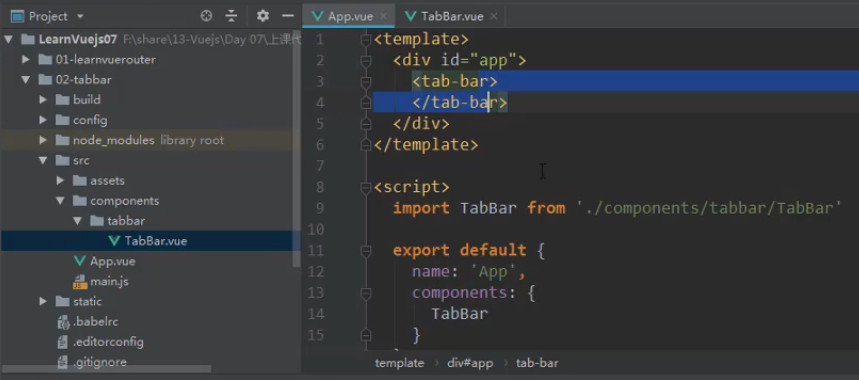
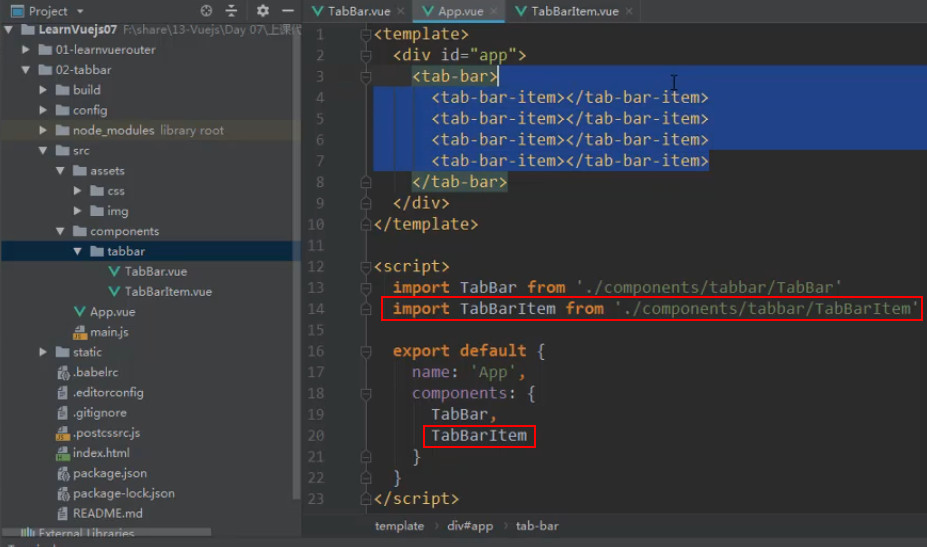
在APP.vue 引入并注册
引入图片(放到 assets 的 img 的 tabBar 文件夹里,目录结构划分很重要,也是编程思想的体现)
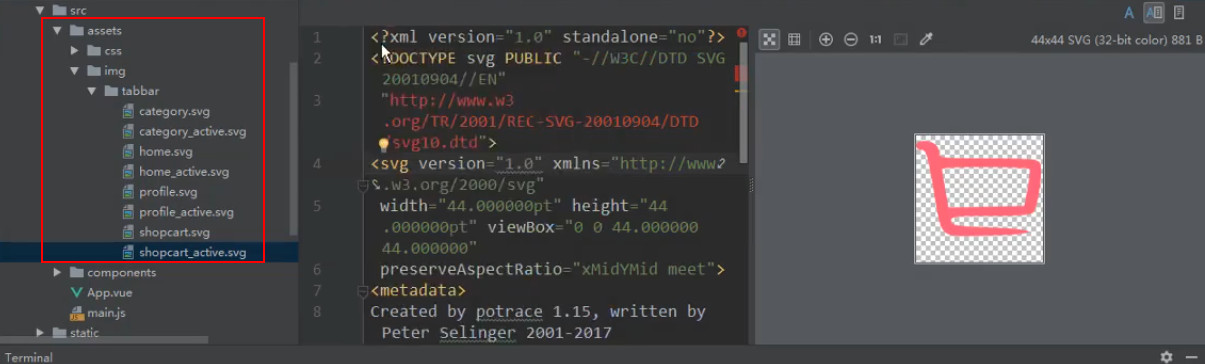
引入路径太长,可以起别名来避免(后面再解决)
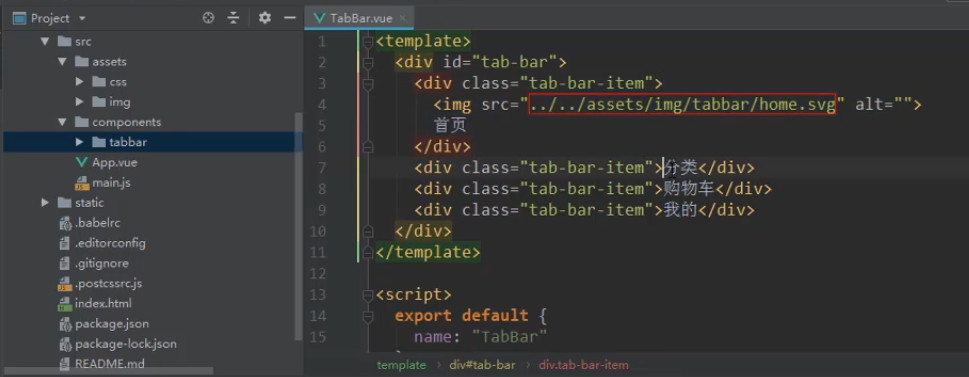
但是还是过于臃肿,TabBar.vue 不仅有 tab-bar-item 的 HTML +CSS,还有 img 的 HTML +CSS
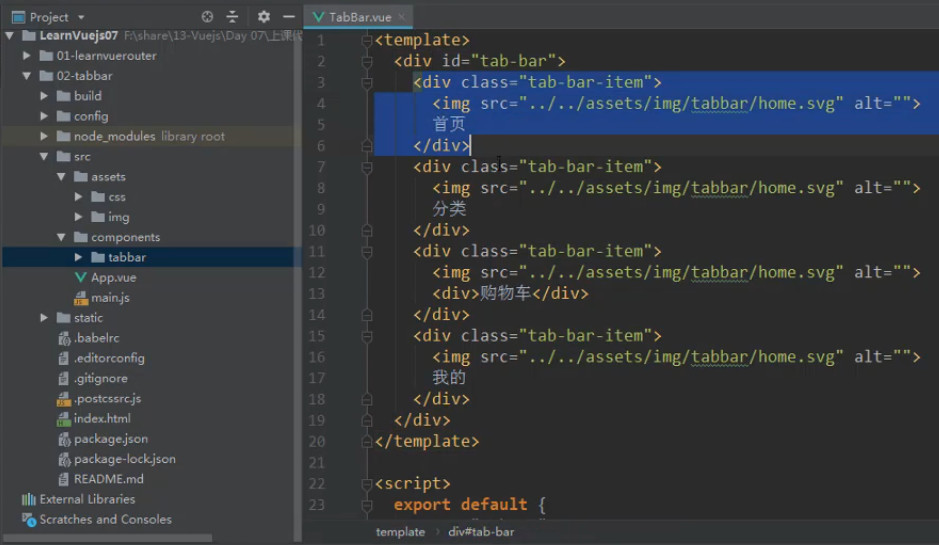
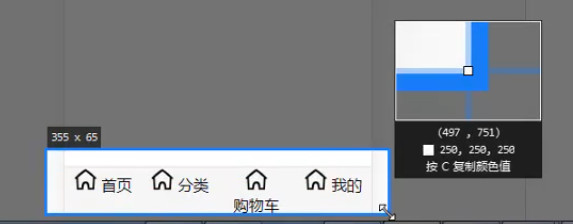
TabBar.vue 应该只关心 最大的组件的逻辑(只负责管自己的 HTML+ CSS 等),
img 和 item 所有嵌套的小东西都不应该关心,否则乱七八糟
所以 TabBar 需要一个插槽
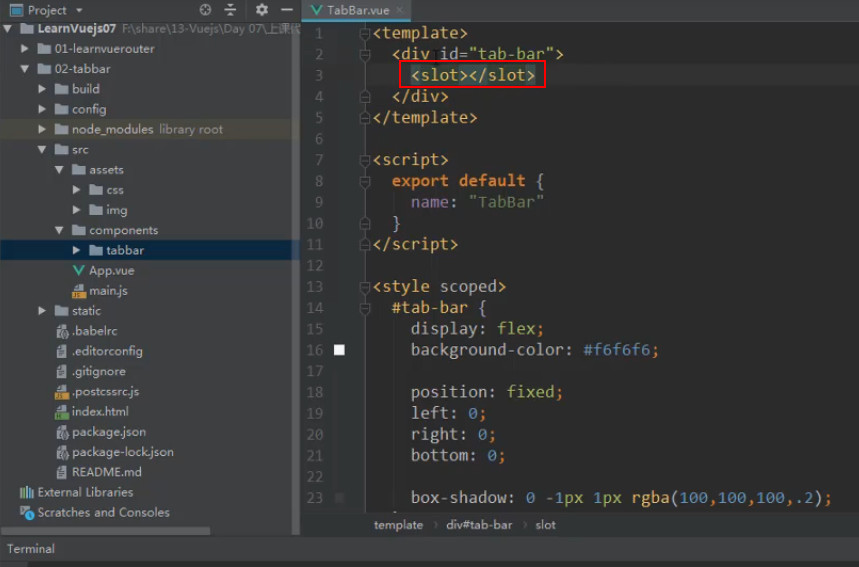
通过插槽让内容插入进去(这里放在APP.vue后还需要继续抽离成一个组件)
插槽内容是 TabBarItem 组件(四个)
编写 TabBarItem 组件
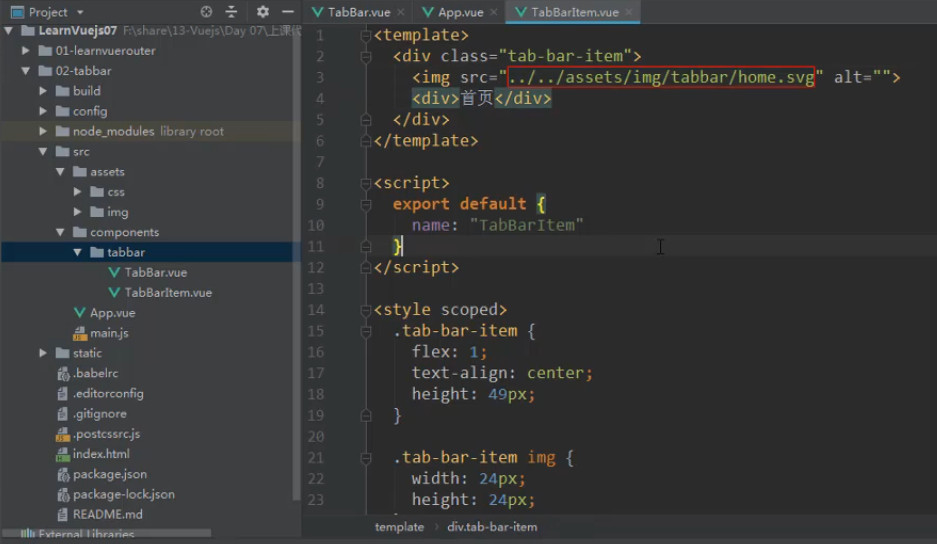
大致思路基本完成
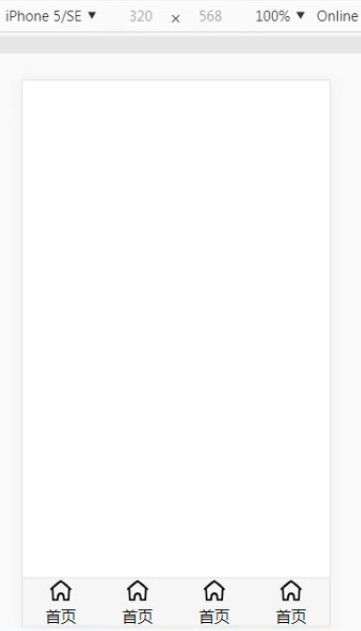
但是图片和文字一定是不同的,所以 img 和 div 的文字 不能写死
如果想动态地决定图片和文字怎么展示的话,所以需要 插槽 (这里是具名插槽,一个是关于 icon 的,一个是关于 text 的)
![3 [85].jpg](https://cdn.nlark.com/yuque/0/2022/jpeg/1614731/1653713923888-48a62efa-7144-4e86-9fd9-27de91760820.jpeg)
然后就可以在 <tab-bar-item> 里 指定具名插槽后 插入要替换的内容
![3 [86].jpg](https://cdn.nlark.com/yuque/0/2022/jpeg/1614731/1653713924438-a11cf536-d7fd-4650-b258-956bb9114b62.jpeg)
效果基本实现
![3 [87].jpg](https://cdn.nlark.com/yuque/0/2022/jpeg/1614731/1653713924414-8b52f365-9472-4df2-8308-6b3fac484c26.jpeg)
如果还添加 <tab-bar-item>,仍然可以均分
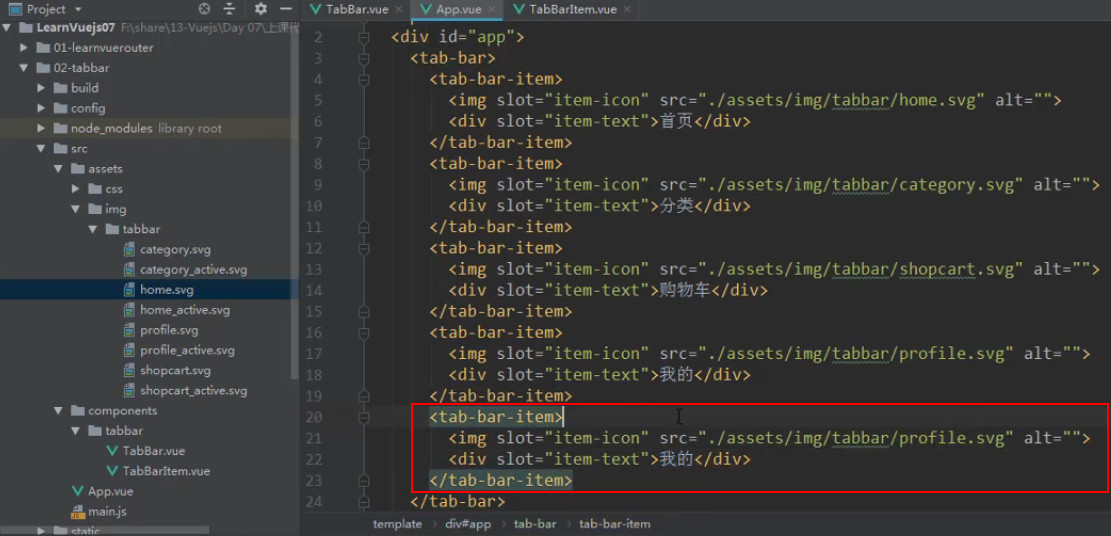
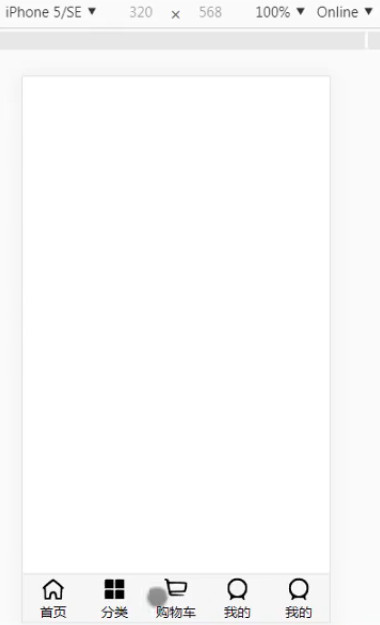
# 3、给 TabBarItem 传入 active 图片
现在的图片只有普通图片,处于活跃状态时需要显示另一张图片,
所以给 <tab-bar-item> 传图片时需要传好两张图片,让 <tab-bar-item> 决定用哪一张
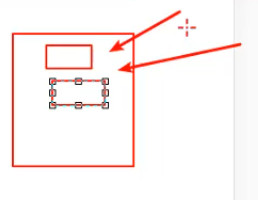
这就意味着还要做一个插槽,插入另一张图片(因为一个插槽只能插入一个图片,否则会被覆盖掉)
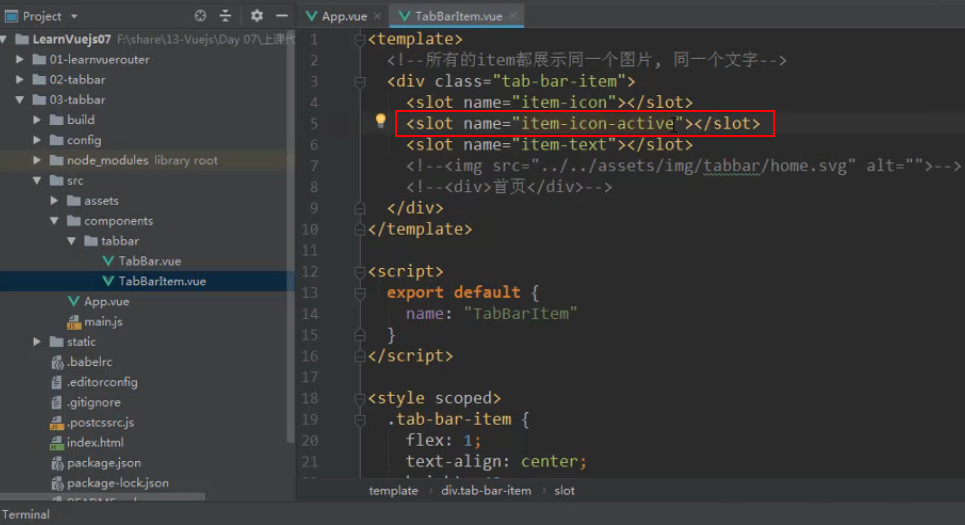
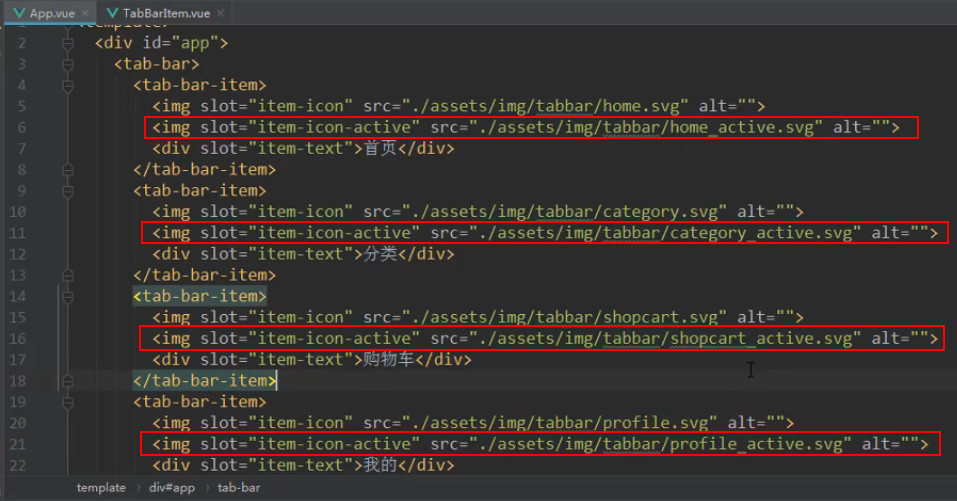
但是这样会出现问题:
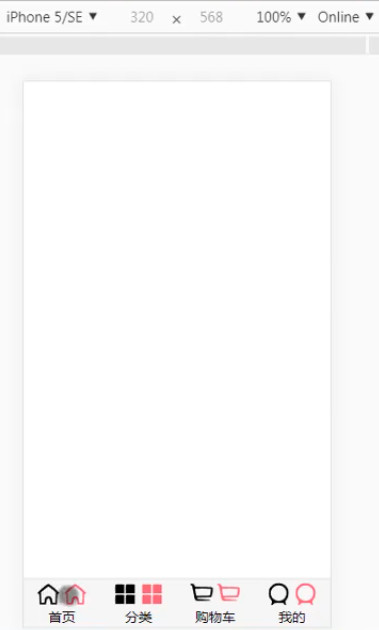
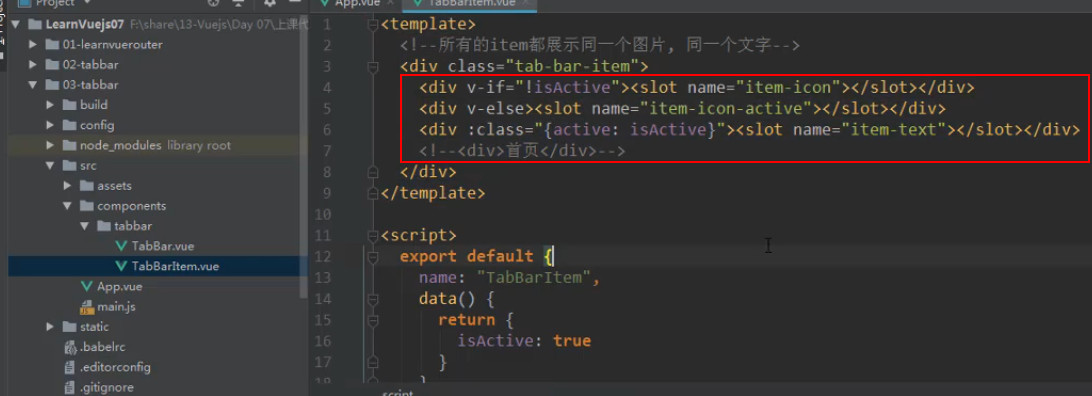
所以需要判断哪种情况出现哪个图标
不活跃时出现普通图标,活跃时出现活跃图标
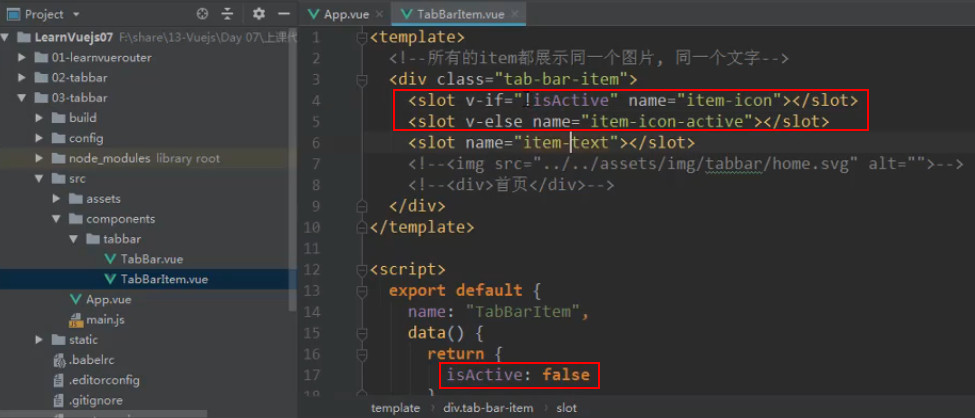
因为担心替换操作会替换掉<slot v-if="!isActive">,
所以要在 <slot>外面包裹一层 <div v-if="!isActive">,保证不会替换掉原来在 div 的属性了,而是替换掉里面的 <slot>
# 4、TabBarItem 和 路由 结合效果
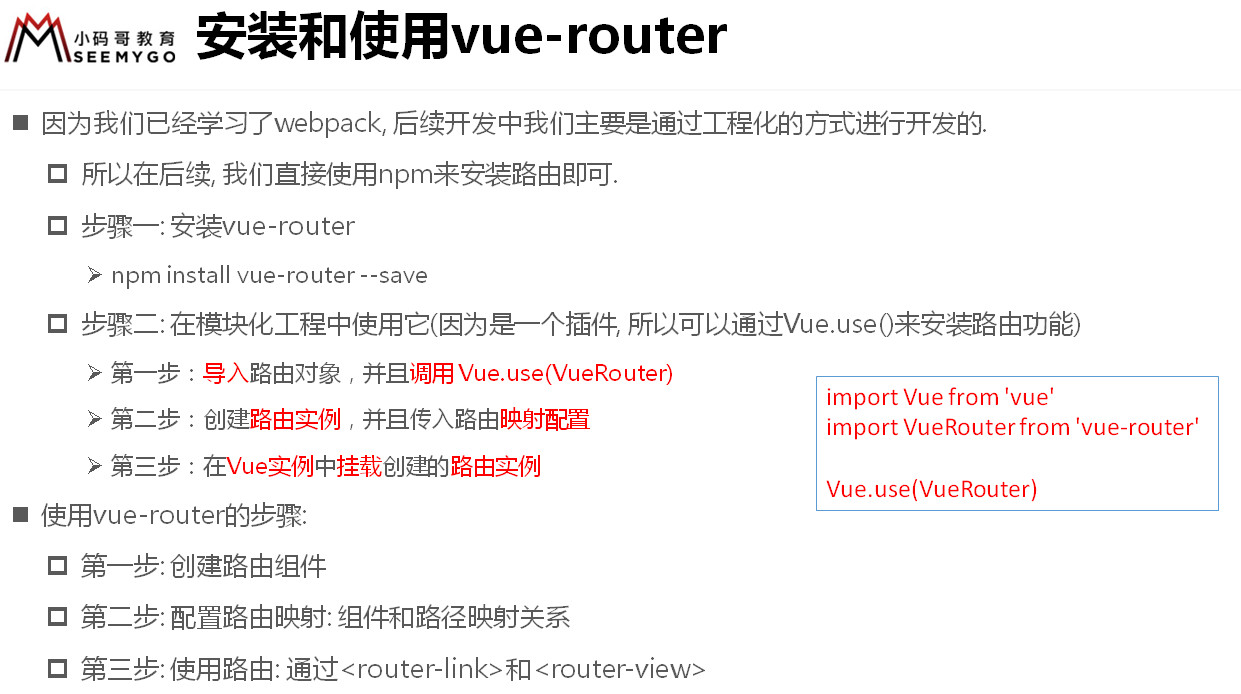
npm install vue-router --save
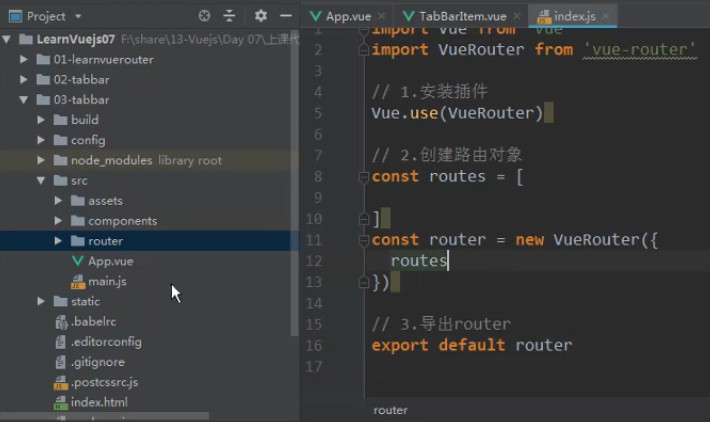
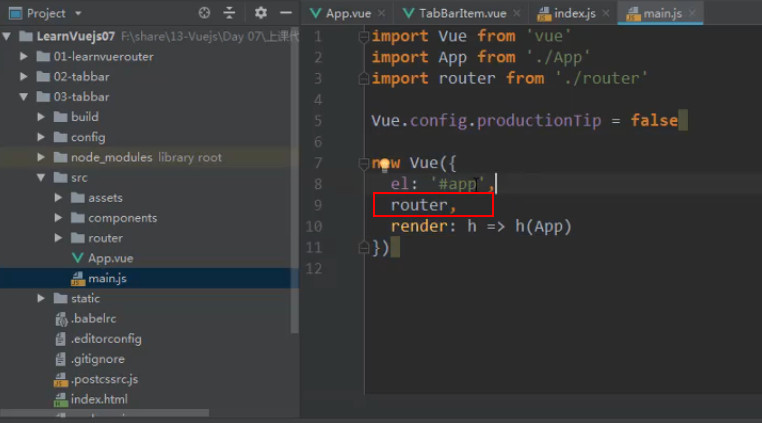
针对大的页面一般不在 components 下 创建,而是在 views 下创建页面视图(所有父子组件),components 只负责放公共组件
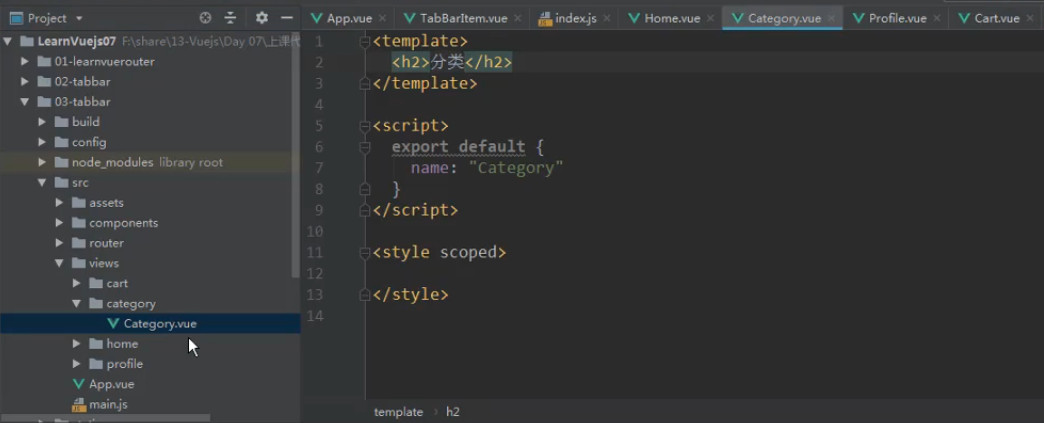
这就是越往上层越抽象,越往下层越具体
# 解决路径问题(vue-cli2)
build/webpack.base.conf.js
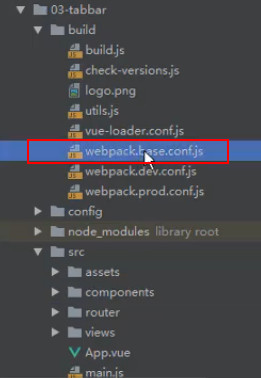
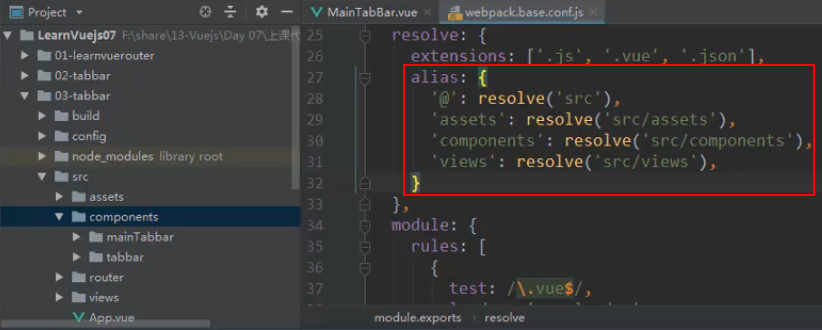
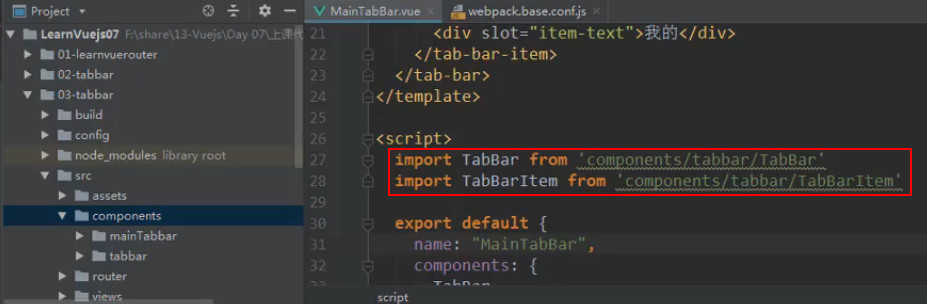
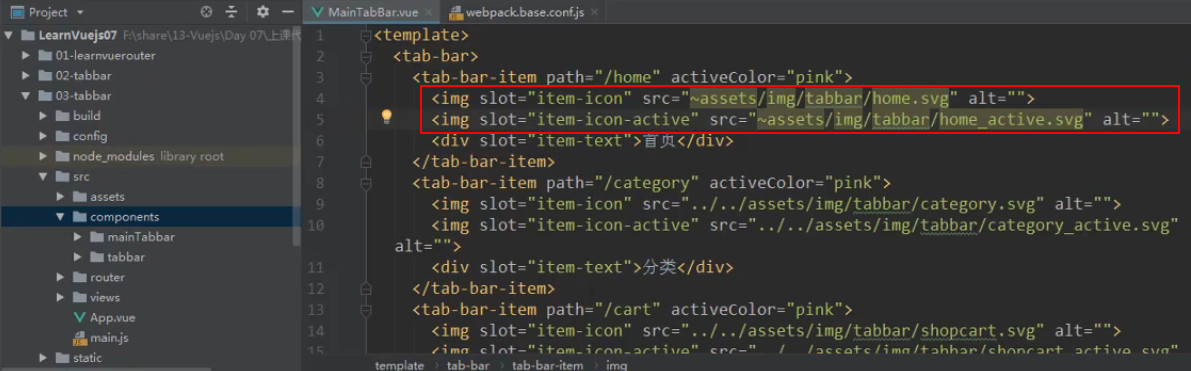
注意:在 Vue 中 HTML 的 DOM中使用别名,前面要加~
# 实现路由效果
router 的 index.js
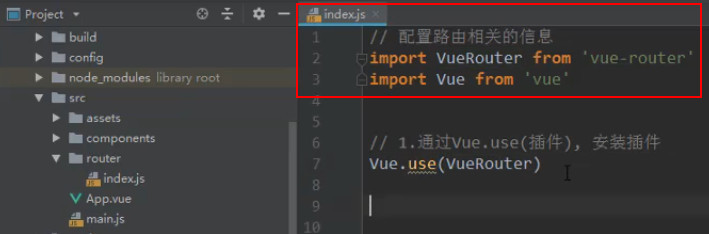
import Vue from 'vue'
import VueRouter from 'vue-router'

// 1.安装插件
Vue.use(VueRouter)

// 路由组件懒加载
const Home = () => import('../views/home/Home')
const Category = () => import('../views/category/Category')
const Shopcart = () => import('../views/shopcart/Shopcart')
const Profile = () => import('../views/profile/Profile')

// 2.创建路由对象
const routes = [
  {
    path: '',
    redirect: '/home'
  },
  {
    path: '/home',
    component: Home
  },
  {
    path: '/category',
    component: Category
  },
  {
    path: '/shopcart',
    component: Shopcart
  },
  {
    path: '/profile',
    component: Profile
  }
]

// 3. 创建 router 实例
const router = new VueRouter({
  mode: 'history',
  routes
})

// 4. 导出 router
export default router
2
3
4
5
6
7
8
9
10
11
12
13
14
15
16
17
18
19
20
21
22
23
24
25
26
27
28
29
30
31
32
33
34
35
36
37
38
39
40
41
42
43
44
TabBarItem.vue
<template>
  <div class="tab-bar-item">
    <div @click="itemClick"> <!-- 如果要发生切换必须在每个 item 上监听点击事件,所以要在 item 组件内部监听 -->
      <div v-if="!isActive"><slot name="item-icon"></slot></div> <!-- 如果活跃显示活跃图标 -->
      <div v-else><slot name="item-icon-active"></slot></div>    <!-- 否则显示普通图标 -->
      <div :style="activeStyle"><slot name="item-text"></slot></div> <!-- 如果活跃则文字显示颜色 -->
    </div>
  </div>
</template>

<script>
export default {
  name: 'TabBarItem',
  data() {
    return {
      // isActive: true
    }
  },
  props: {
    path: String,        // 接收不同 item 的 path 值
    activeColor: {
      type: String,
      default: '#ff5777' // 假如没有显式地传颜色进来, 则 图标 activeColor 默认为粉红,如果传了,则用 this.activeColor 获取传的颜色值
    }
  },
  methods: {
    itemClick() {
      this.$router.replace(this.path) // 点击 tabBarItem 时路由显示对应组件,通过 replace 跳转没有前进后退按钮,不同 item 传的 path 值不一样
    }
  },
  computed: {
    isActive() {
      // home -> item1(/home) = true
      // home -> item2(/category) = false
      return this.$route.path.indexOf(this.path) !== -1
      // $route表示一个当前活跃路由,判断一个当前活跃路由的 path 包不包含当前点击的 item 传递的 path ,包含则为 true,显示活跃图标,else 显示普通图标
    },
    activeStyle() {
      return this.isActive ? {color: this.activeColor} : {}
      // item 活跃状态时文字颜色不能直接写死,如果 item 处于活跃就给 :style 传 {color: this.activeColor},文字颜色与图标颜色相同,不活跃则不设置颜色
    }
  }
}
</script>

<style scoped>
  .tab-bar-item {
    flex: 1;
    font-size: 14px;
    text-align: center;
  }
  .tab-bar-item img {
    width: 24px;
    height: 24px;
    margin-top: 3px;
    vertical-align: middle;
    margin-bottom: 2px;
  }
</style>
2
3
4
5
6
7
8
9
10
11
12
13
14
15
16
17
18
19
20
21
22
23
24
25
26
27
28
29
30
31
32
33
34
35
36
37
38
39
40
41
42
43
44
45
46
47
48
49
50
51
52
53
54
55
56
57
58
59
显式地传颜色给 <tab-bar-item>
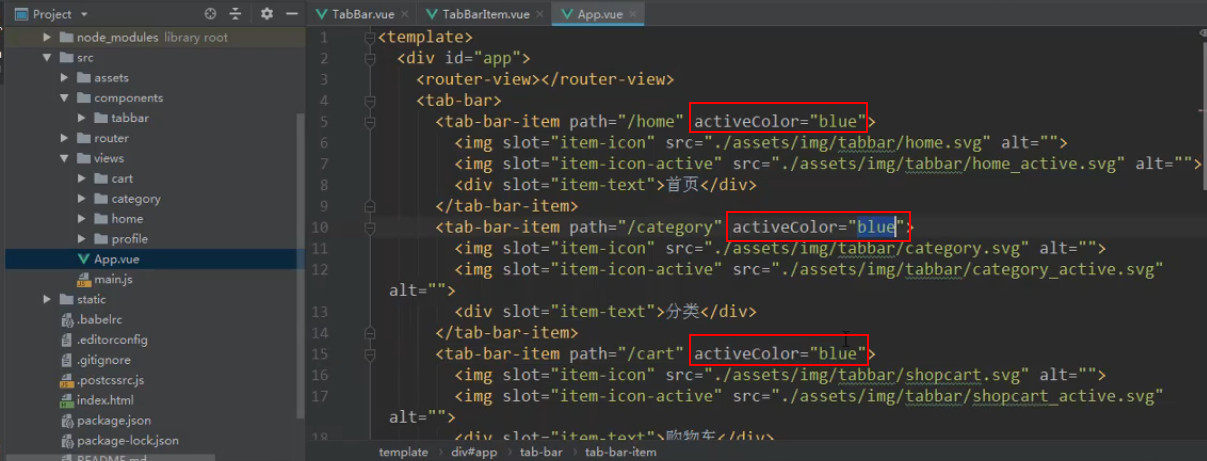
MainTabBar.vue
动态地(让开发者决定)传 path 值 给 this.$router.replace(this.path)
<template>
  <tab-bar>
    <tab-bar-item path="/home">
      <img slot="item-icon" src="~assets/img/tabbar/home.svg" alt="首页">
      <img slot="item-icon-active" src="~assets/img/tabbar/home_active.svg" alt="">
      <div slot="item-text">首页</div>
    </tab-bar-item>
    <tab-bar-item path="/category">
      <img slot="item-icon" src="~assets/img/tabbar/category.svg" alt="分类">
      <img slot="item-icon-active" src="~assets/img/tabbar/category_active.svg" alt="">
      <div slot="item-text">分类</div>
    </tab-bar-item>
    <tab-bar-item path="/shopcart">
      <img slot="item-icon" src="~assets/img/tabbar/cart.svg" alt="购物车">
      <img slot="item-icon-active" src="~assets/img/tabbar/cart_active.svg" alt="">
      <div slot="item-text">购物车</div>
    </tab-bar-item>
    <tab-bar-item path="/profile">
      <img slot="item-icon" src="~assets/img/tabbar/profile.svg" alt="我的">
      <img slot="item-icon-active" src="~assets/img/tabbar/profile_active.svg" alt="">
      <div slot="item-text">我的</div>
    </tab-bar-item>
  </tab-bar>
</template>

<script>
import TabBar from 'common/tabBar/TabBar'
import TabBarItem from 'common/tabBar/TabBarItem'
export default {
  name: 'MainTabBar',
  components: {
    TabBar,
    TabBarItem
  }
}
</script>

<style scoped>
</style>
2
3
4
5
6
7
8
9
10
11
12
13
14
15
16
17
18
19
20
21
22
23
24
25
26
27
28
29
30
31
32
33
34
35
36
37
38
39
APP.vue
<template>
  <div id="app">
    <router-view></router-view>
    <main-tab-bar></main-tab-bar>
  </div>
</template>

<script>
  import MainTabBar from 'content/mainTabbar/MainTabBar'
  export default {
    name: 'app',
    components: {
      MainTabBar
    }
  }
</script>

<style>
  @import "assets/css/base.css";
</style>
2
3
4
5
6
7
8
9
10
11
12
13
14
15
16
17
18
19
20
TabBar.vue
<template>
  <div id="tab-bar">
    <slot></slot>
  </div>
</template>

<script>
export default {
  name: 'TabBar'
}
</script>

<style scoped>
  #tab-bar {
    display: flex;
    background: #f6f6f6;
    height: 49px;
    position: fixed;
    left: 0;
    right: 0;
    bottom: 0;
    box-shadow: 0 -1px 1px rgba(100, 100, 100, .2);
  }
</style>
2
3
4
5
6
7
8
9
10
11
12
13
14
15
16
17
18
19
20
21
22
23
24
TabBarItem.vue
<template>
  <div class="tab-bar-item">
    <div @click="itemClick">
      <div v-if="!isActive"><slot name="item-icon"></slot></div>
      <div v-else><slot name="item-icon-active"></slot></div>
      <div :style="activeStyle"><slot name="item-text"></slot></div>
    </div>
  </div>
</template>

<script>
export default {
  name: 'TabBarItem',
  data() {
    return {
      // isActive: true
    }
  },
  props: {
    path: String,
    activeColor: {
      type: String,
      default: '#ff5777'
    }
  },
  methods: {
    itemClick() {
      this.$router.replace(this.path)
    }
  },
  computed: {
    isActive() {
      return this.$route.path.indexOf(this.path) !== -1
    },
    activeStyle() {
      return this.isActive ? {color: this.activeColor} : {}
    }
  }
}
</script>

<style scoped>
  .tab-bar-item {
    flex: 1;
    font-size: 14px;
    text-align: center;
  }
  .tab-bar-item img {
    width: 24px;
    height: 24px;
    margin-top: 3px;
    vertical-align: middle;
    margin-bottom: 2px;
  }
  .active {
    color: pink;
  }
</style>
2
3
4
5
6
7
8
9
10
11
12
13
14
15
16
17
18
19
20
21
22
23
24
25
26
27
28
29
30
31
32
33
34
35
36
37
38
39
40
41
42
43
44
45
46
47
48
49
50
51
52
53
54
55
56
57
58
MainTabBar.vue
<template>
  <tab-bar>
    <tab-bar-item path="/home">
      <img slot="item-icon" src="~assets/img/tabbar/home.svg" alt="首页">
      <img slot="item-icon-active" src="~assets/img/tabbar/home_active.svg" alt="">
      <div slot="item-text">首页</div>
    </tab-bar-item>
    <tab-bar-item path="/category">
      <img slot="item-icon" src="~assets/img/tabbar/category.svg" alt="分类">
      <img slot="item-icon-active" src="~assets/img/tabbar/category_active.svg" alt="">
      <div slot="item-text">分类</div>
    </tab-bar-item>
    <tab-bar-item path="/shopcart">
      <img slot="item-icon" src="~assets/img/tabbar/cart.svg" alt="购物车">
      <img slot="item-icon-active" src="~assets/img/tabbar/cart_active.svg" alt="">
      <div slot="item-text">购物车</div>
    </tab-bar-item>
    <tab-bar-item path="/profile">
      <img slot="item-icon" src="~assets/img/tabbar/profile.svg" alt="我的">
      <img slot="item-icon-active" src="~assets/img/tabbar/profile_active.svg" alt="">
      <div slot="item-text">我的</div>
    </tab-bar-item>
  </tab-bar>
</template>

<script>
import TabBar from 'common/tabBar/TabBar'
import TabBarItem from 'common/tabBar/TabBarItem'
export default {
  name: 'MainTabBar',
  components: {
    TabBar,
    TabBarItem
  }
}
</script>

<style scoped>
</style>
2
3
4
5
6
7
8
9
10
11
12
13
14
15
16
17
18
19
20
21
22
23
24
25
26
27
28
29
30
31
32
33
34
35
36
37
38
39
APP.vue
<template>
  <div id="app">
    <router-view></router-view>
    <main-tab-bar></main-tab-bar>
  </div>
</template>

<script>
  import MainTabBar from 'content/mainTabbar/MainTabBar'
  export default {
    name: 'app',
    components: {
      MainTabBar
    }
  }
</script>

<style>
  @import "assets/css/base.css";
</style>
2
3
4
5
6
7
8
9
10
11
12
13
14
15
16
17
18
19
20
router 的 index.js
VueRouter from 'vue-router'

Vue.use(VueRouter)

const Home = () => import('../views/home/Home')
const Category = () => import('../views/category/Category')
const Shopcart = () => import('../views/shopcart/Shopcart')
const Profile = () => import('../views/profile/Profile')

const routes = [
  {
    path: '',
    redirect: '/home'
  },
  {
    path: '/home',
    component: Home
  },
  {
    path: '/category',
    component: Category
  },
  {
    path: '/shopcart',
    component: Shopcart
  },
  {
    path: '/profile',
    component: Profile
  }
]

const router = new VueRouter({
  mode: 'history',
  base: process.env.BASE_URL,
  routes
})

export default router
2
3
4
5
6
7
8
9
10
11
12
13
14
15
16
17
18
19
20
21
22
23
24
25
26
27
28
29
30
31
32
33
34
35
36
37
38
39
# 命名路由
除了 path 之外,你还可以为任何路由提供 name。这有以下优点:
- 没有硬编码的 URL
params的自动编码/解码。- 防止你在 url 中出现打字错误。
- 绕过路径排序(如显示一个)
const routes = [
  {
    path: '/user/:username',
    name: 'user',
    component: User,
  },
]
2
3
4
5
6
7
要链接到一个命名的路由,可以向 router-link 组件的 to 属性传递一个对象:
<router-link :to="{ name: 'user', params: { username: 'erina' }}">
  User
</router-link>
2
3
这跟代码调用 router.push() 是一回事:
router.push({ name: 'user', params: { username: 'erina' } })
在这两种情况下,路由将导航到路径 /user/erina。
# 路由元信息
有时,你可能希望将任意信息附加到路由上,如过渡名称、谁可以访问路由等。
这些事情可以通过接收属性对象的meta属性来实现,并且它可以在路由地址和导航守卫上都被访问到。
定义路由的时候可以这样配置 meta 字段:
const routes = [
  {
    path: '/posts',
    component: PostsLayout,
    children: [
      {
        path: 'new',
        component: PostsNew,
        // 只有经过身份验证的用户才能创建帖子
        meta: { requiresAuth: true }
      },
      {
        path: ':id',
        component: PostsDetail
        // 任何人都可以阅读文章
        meta: { requiresAuth: false }
      }
    ]
  }
]
2
3
4
5
6
7
8
9
10
11
12
13
14
15
16
17
18
19
20
那么如何访问这个 meta 字段呢?
Vue Router 提供了一个 $route.meta 方法。
这意味着可以简单地写
router.beforeEach((to, from) => {
  // 而不是去检查每条路由记录
  // to.matched.some(record => record.meta.requiresAuth)
  if (to.meta.requiresAuth && !auth.isLoggedIn()) {
    // 此路由需要授权,请检查是否已登录
    // 如果没有,则重定向到登录页面
    return {
      path: '/login',
      // 保存我们所在的位置,以便以后再来
      query: { redirect: to.fullPath },
    }
  }
})
2
3
4
5
6
7
8
9
10
11
12
13
# 动态路由(添加路由、删除路由)
动态路由主要通过两个函数实现。
router.addRoute() 和 router.removeRoute() 。
它们只注册一个新的路由,也就是说,
如果新增加的路由与当前位置相匹配,就需要用 router.push() 或 router.replace() 来手动导航,才能显示该新路由。
假如只有一个路由的以下路由:
const router = new VueRouter({
  mode: 'history',
  routes: [{ path: '/:articleName', component: Article }],
})
2
3
4
进入任何页面,/about,/store,或者 /3-tricks-to-improve-your-routing-code 最终都会呈现 Article 组件。
如果我们在 /about 上添加一个新的路由:
router.addRoute({ path: '/about', component: About })
页面仍然会显示 Article 组件,
我们需要手动调用 router.replace() 来改变当前的位置,并覆盖我们原来的位置(而不是添加一个新的路由,最后在我们的历史中两次出现在同一个位置):
router.addRoute({ path: '/about', component: About })
// 我们也可以使用 this.$route 或 route = useRoute() (在 setup 中)
router.replace(router.currentRoute.value.fullPath)
2
3
添加嵌套路由
要将嵌套路由添加到现有的路由中,可以将路由的 name 作为第一个参数传递给 router.addRoute(),这将有效地添加路由,就像通过 children 添加的一样:
router.addRoute({ name: 'admin', path: '/admin', component: Admin })
router.addRoute('admin', { path: 'settings', component: AdminSettings })
2
这等效于:
router.addRoute({
  name: 'admin',
  path: '/admin',
  component: Admin,
  children: [{ path: 'settings', component: AdminSettings }],
})
2
3
4
5
6
删除路由
有几个不同的方法来删除现有的路由:
通过添加一个名称冲突的路由。如果添加与现有途径名称相同的途径,会先删除路由,再添加路由:
router.addRoute({ path: '/about', name: 'about', component: About })
// 这将会删除之前已经添加的路由,因为它们具有相同的名字且名字必须是唯一的
router.addRoute({ path: '/other', name: 'about', component: Other })
2
3
通过调用 router.addRoute() 返回的回调:
const removeRoute = router.addRoute(routeRecord)
removeRoute() // 删除路由如果存在的话
2
当路由没有名称时,这很有用。
通过使用 router.removeRoute() 按名称删除路由:
router.addRoute({ path: '/about', name: 'about', component: About })
// 删除路由
router.removeRoute('about')
2
3
需要注意的是,如果你想使用这个功能,但又想避免名字的冲突,可以在路由中使用 Symbol 作为名字。
当路由被删除时,所有的别名和子路由也会被同时删除
# Vue3 Router 的变化
https://router.vuejs.org/zh/guide/advanced/composition-api.html
https://router.vuejs.org/zh/guide/migration/
https://router.vuejs.org/zh/api/interfaces/Router.html
https://router.vuejs.org/zh/api/interfaces/RouteRecordNormalized.html
https://router.vuejs.org/zh/api/interfaces/RouteLocationNormalizedLoaded.html